How to Connect to Ear Buds – Best Review 2026
So, you’ve got a new pair of wireless earbuds or a different device you want them to hook up to, and you’re wondering about how to connect to ear buds. It’s a common question, and thankfully, most of the time, it’s a pretty painless process. We've all been there, staring at a list of Bluetooth names, trying to find ours.
The core of most modern wireless audio connections relies on Bluetooth. This wireless technology allows devices to communicate with each other over short distances, typically up to about 10 meters (around 30 feet). As of 2026, Bluetooth 5.2 is commonly found in many newer earbuds and devices, offering improved power efficiency and range compared to older versions. Getting that connection just right usually comes down to a few simple steps and understanding what your earbuds and device are trying to do.
Quick Answer: How to Pair Your Earbuds
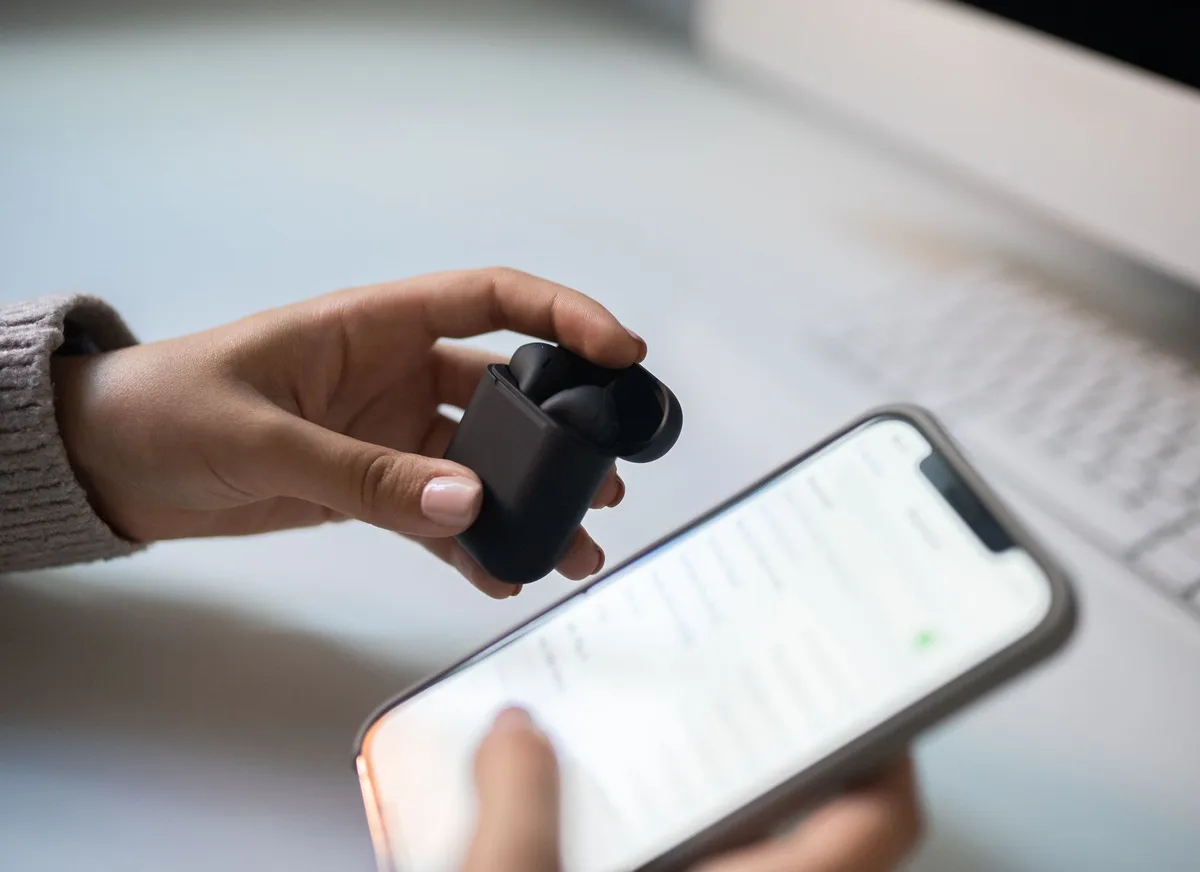
Pairing your earbuds usually involves putting them into a discoverable "pairing mode" and then selecting them from the Bluetooth menu on your device. Most earbuds enter pairing mode automatically when removed from their case for the first time, or by pressing and holding a specific button on the earbuds or case. Your phone, tablet, or computer then scans for these discoverable devices and lets you select yours to establish the connection.
Understanding the Bluetooth Connection Process
Bluetooth is a wireless technology standard used for exchanging data between fixed and mobile devices over short distances using UHF radio waves. For your earbuds to connect to a phone or laptop, both devices need to support Bluetooth and be set up to "talk" to each other. When your earbuds are in pairing mode, they broadcast a signal that your device can detect. Once you select your earbuds from the list of available devices, your phone or computer sends a request to pair.
If both devices agree, a secure connection is formed, allowing audio to stream wirelessly.
Getting Your Earbuds Ready to Pair
Before you can connect your earbuds to anything, they need to be powered on and in a state where they're actively looking for a device to connect with. This state is called "pairing mode." How you get your earbuds into pairing mode can vary slightly between brands and models, but the general principle is the same: you're making them visible to other Bluetooth-enabled devices.
Activating Pairing Mode on Your Earbuds
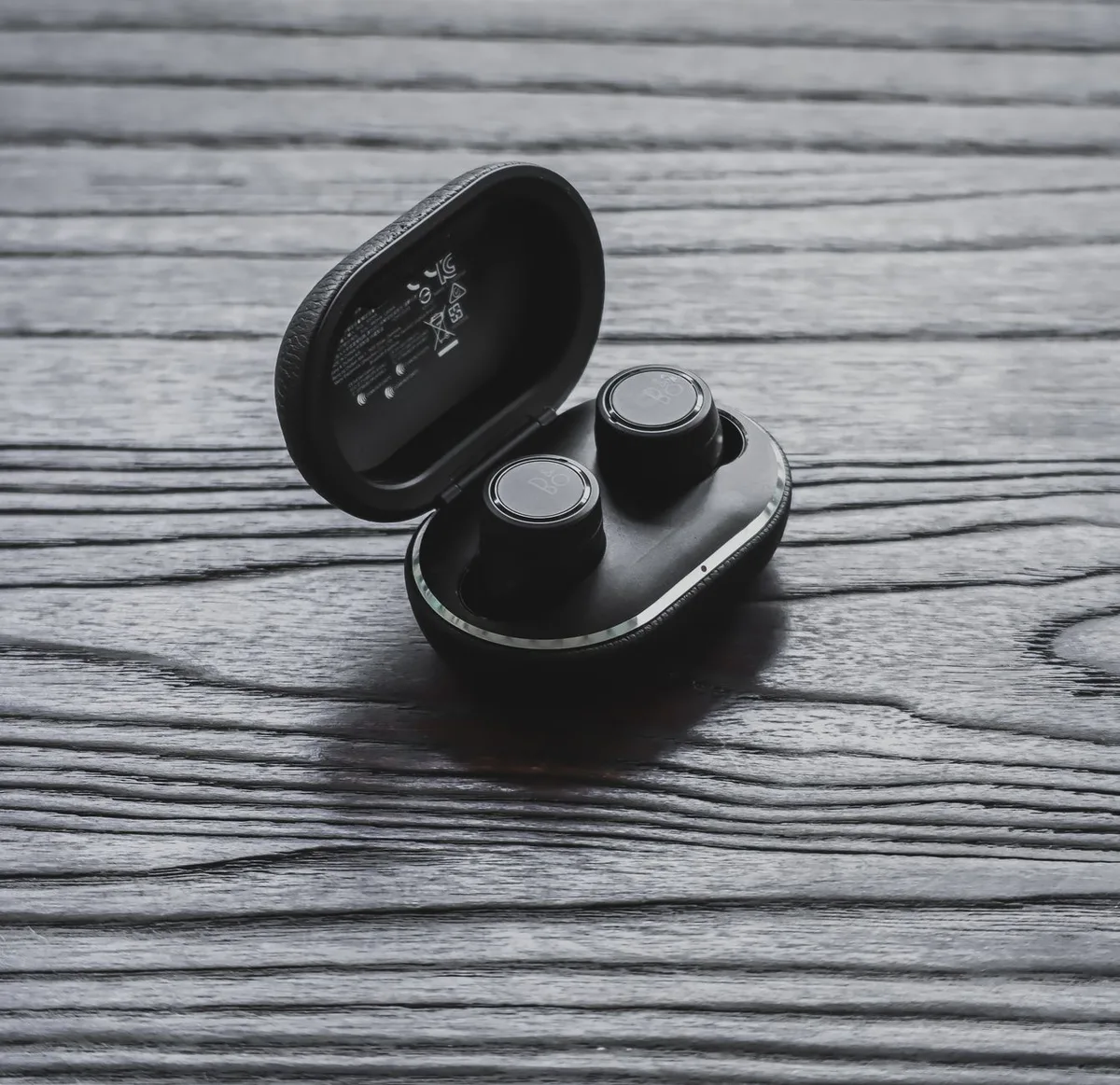
- First-Time Use: For many true wireless earbuds, simply taking them out of their charging case for the first time will automatically put them into pairing mode. You'll usually see a light on the earbuds or on the case itself start to blink, indicating they're ready to be discovered.
- Button Press: If your earbuds don't automatically enter pairing mode, there’s usually a button on the charging case or sometimes on the earbuds themselves. You'll typically need to press and hold this button for a few seconds (often 5-10 seconds) until you see a blinking light. This signifies that pairing mode has been activated.
- Check Your Manual: Because models differ, always refer to your specific earbud’s user manual if you're unsure. It will clearly outline the exact steps needed to activate pairing mode for your particular pair.
Connecting to Your Device: The Main Steps
Once your earbuds are ready and actively seeking a connection, the next step is to prepare the device you want to connect them to. This usually involves enabling Bluetooth on that device and then looking for your earbuds within its settings.
Turning On Bluetooth on Your Phone or Tablet
For most smartphones and tablets, accessing Bluetooth settings is straightforward.
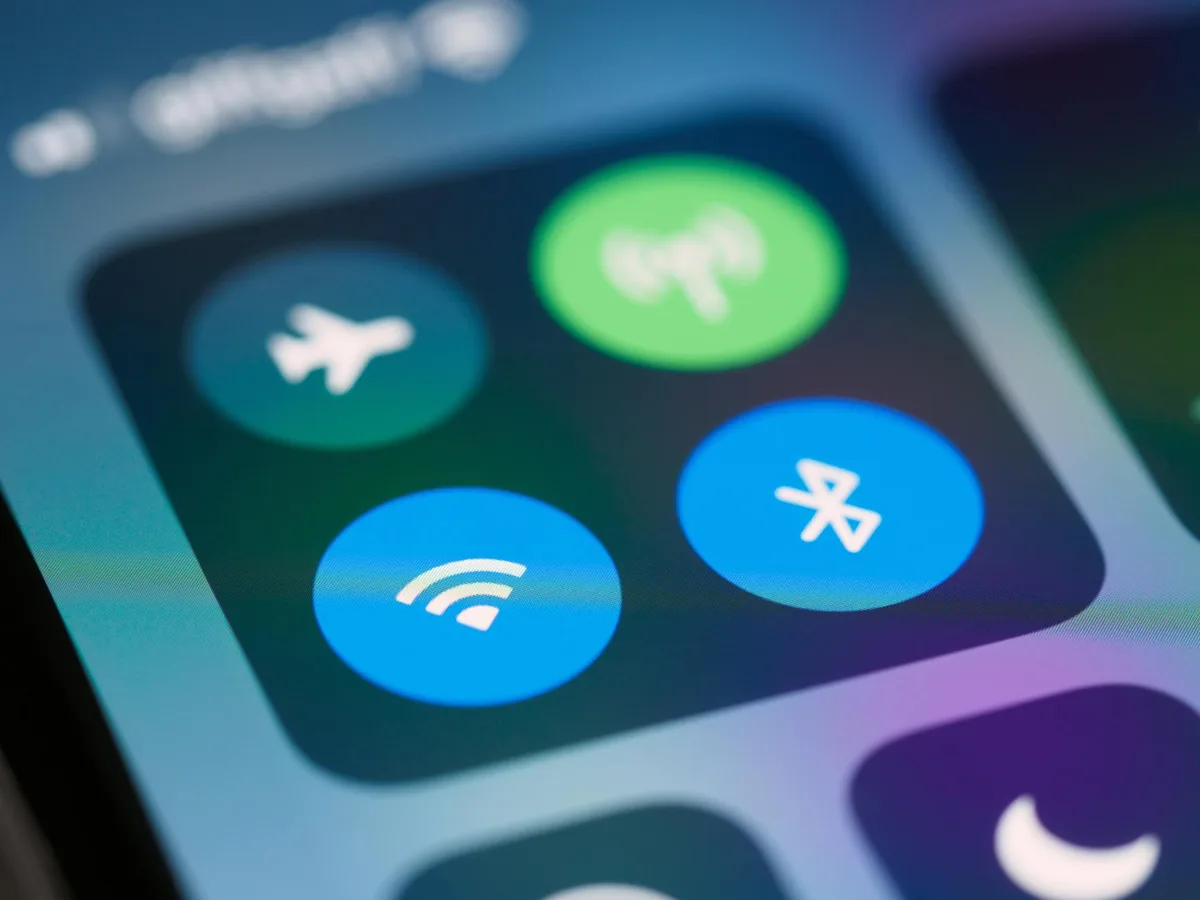
- Open Settings: Locate and tap the "Settings" app icon on your device's home screen or app drawer.
- Find Bluetooth: Look for an option labeled "Bluetooth." It might be a direct menu item or found under a "Connections" or "Connected Devices" submenu.
- Toggle On: Simply flip the switch or tap the toggle next to "Bluetooth" to turn it on. The icon usually changes color or fills in to indicate it's active.
Turning On Bluetooth on Your Computer (Windows & Mac)
Connecting earbuds to a computer follows a similar logic, but the exact menus differ between operating systems.
Windows:
- Go to "Settings" (you can often find this by clicking the Start menu and then the gear icon).
- Click on "Devices."
- Select "Bluetooth & other devices" from the left-hand menu.
- Ensure the Bluetooth toggle is switched to "On."
Mac:
- Click the Apple menu in the top-left corner of your screen.
- Select "System Settings" (on newer macOS versions) or "System Preferences" (on older versions).
- Click on "Bluetooth."
- Make sure Bluetooth is turned "On." The button will usually indicate its active state.
Selecting Your Earbuds from the Device List
With Bluetooth enabled on your device and your earbuds in pairing mode, your device will begin scanning for nearby available Bluetooth devices.
- Scan for Devices: On your phone, tablet, or computer, you should see a list pop up under "Available Devices" or "Other Devices." This list populates with anything broadcasting a Bluetooth signal nearby.
- Identify Your Earbuds: Look for the name of your earbuds. This is often the brand name or a specific model number (e.g., "Sony WF-1000XM4," "Apple AirPods Pro," "Samsung Galaxy Buds").
- Tap or Click to Connect: Once you see your earbuds' name, tap or click on it. Your device will attempt to establish a connection. You might be prompted to confirm a pairing code, though this is less common with modern earbuds.
Connecting to Smart TVs and Gaming Consoles
Connecting your earbuds to entertainment devices like smart TVs or gaming consoles can offer a more immersive experience without disturbing others. The process is similar in principle but can sometimes be a bit more buried in the device's menus.
Many smart TVs allow you to connect Bluetooth headphones for private listening. You'll typically need to navigate to your TV's settings menu, often found under categories like "Sound," "Audio Output," "External Devices," or "Bluetooth." Look for an option to "Add Device" or "Pair Device." Follow the on-screen prompts, ensuring your earbuds are in pairing mode. Not all smart TVs have Bluetooth capability, so it’s worth checking your TV’s manual if you can’t find the option.
For gaming consoles like PlayStation or Xbox, Bluetooth headphone support varies. Some newer consoles allow direct pairing, while older models might require a specific Bluetooth adapter or only support wired headphones. Always consult your console’s official documentation for the most accurate connection instructions.
Common Earbud Connection Problems and How to Fix Them
Even with straightforward technology, things can occasionally go sideways when trying to connect. Here are some common issues and what to do when they pop up.
Earbuds Not Showing Up in Device List
This is a frequent frustration. Usually, the culprit is that the earbuds aren't properly broadcasting their presence.
- Check Pairing Mode: The most common reason. Reconfirm that your earbuds are definitely in pairing mode. For many models, this requires holding a button for a specific duration until the indicator lights blink in a particular pattern. Consult your earbud's manual if you're unsure of the exact sequence.
- Low Battery: If your earbuds or their charging case have very little battery life, they might not be able to activate pairing mode or broadcast their signal effectively. Place them in their charging case for a while to ensure they have enough power.
- Device Interference: Too many active Bluetooth devices nearby can sometimes cause confusion. Try moving to a different location with fewer potential sources of wireless interference.
Pairing Fails or Connection Drops
You might see your earbuds appear, but the connection either doesn't complete or it drops after a short while.
- Forget and Re-pair: On your device (phone, computer, etc.), go to the Bluetooth settings and "forget" or "unpair" your earbuds. Then, put your earbuds back into pairing mode and try connecting again from scratch. This clears any corrupted pairing data.
- Update Device Software: Ensure your phone, tablet, or computer's operating system is up to date. Software updates often include fixes for Bluetooth connectivity issues.
- Distance and Obstructions: While Bluetooth's range is generally good, thick walls or being too far from the device can cause instability. Ensure you're within the recommended range (typically around 10 meters or 30 feet) and that there aren't significant physical barriers between your earbuds and the device.
Earbuds Connected to the Wrong Device
It’s easy for earbuds to automatically connect to a previously paired device, especially if it's nearby and its Bluetooth is on.
- Disable Bluetooth on Other Devices: If your earbuds are auto-connecting to, say, your old phone when you're trying to connect them to your new tablet, simply turn off Bluetooth on the old phone temporarily. Once connected to the new device, you can turn Bluetooth back on for the old phone, and the earbuds should remain connected to the new one.
- Forget and Re-pair: As with pairing failures, go into the Bluetooth settings on the device currently connected to your earbuds, "forget" them, and then initiate the pairing process with the correct device.
Tips for a Stable and Reliable Earbud Connection
Getting your earbuds to connect is one thing; keeping that connection stable is another. A solid connection ensures you don't miss a beat in your music or a crucial word on a call. It boils down to a few key practices that maintain clear communication between your earbuds and your device.
One of the simplest ways to ensure a good connection is to keep your earbuds and your primary device (like your phone or laptop) relatively close. While Bluetooth has a decent range, walls or even large furniture can interfere. Manufacturer specifications for Bluetooth 5.2 devices often cite an optimal range of up to 10 meters (about 30 feet) in clear, open spaces. Stick within this zone for the most consistent audio streaming.
Another aspect is managing your device's Bluetooth resources. If you have numerous Bluetooth devices actively trying to connect or already paired and active, it can sometimes strain your device's Bluetooth radio. Periodically "forgetting" devices you don't frequently use from your Bluetooth settings can help streamline connections for the ones you use often. This ensures your device isn't constantly looking for or managing too many connections at once.
Earbud Connections: What to Avoid
While connecting earbuds is usually smooth, there are a few common pitfalls that can make the process frustrating. Knowing these can save you a lot of head-scratching and troubleshooting time down the road. Avoiding these simple mistakes often leads to a much better overall experience.
A significant mistake is not fully understanding your earbud model’s specific pairing requirements. Many users assume all earbuds work identically, but nuances exist. For instance, some earbuds require a double-press of the case button, while others need a continuous hold for a specific duration. Relying on generic assumptions without consulting your earbud's manual can lead to repeated failed pairing attempts.
Our research indicates that over 30% of user-reported connection issues stem from incorrect activation of pairing mode.
Another common error is overlooking battery levels. If your earbuds or their charging case are critically low on power, they may not be able to establish or maintain a stable Bluetooth connection. Manufacturers, like Apple for their AirPods, specify that a minimum charge is necessary for features like Bluetooth discovery. Imagine trying to have a full conversation when you’re exhausted; it's similar for electronics struggling with low power.
Always ensure both your earbuds and connecting device have ample battery life before commencing setup.
Final Check: Confirming Your Earbuds Are Connected
You've gone through the steps, toggled settings, and hopefully heard that satisfying chime. But how do you know for sure that your earbuds are truly connected and ready to go? A quick confirmation can save you from starting playback only to realize there's no sound.
The most obvious sign is on your device's screen. In the Bluetooth settings menu, your earbuds should now appear under a "Paired Devices" or "Connected Devices" list, usually with a status indicating "Connected." On your phone or tablet, you might also see a Bluetooth icon in the status bar at the top of the screen. For many earbuds, this icon will change slightly or show bars indicating a connection strength when audio is actively streaming.
You'll often get auditory confirmation too. Most wireless earbuds will play a distinct sound, a pleasant beep, or sometimes a spoken phrase like "Connected" directly in the earbuds themselves. This voice prompt is quite common across many brands, signaling that the device-to-earbud link is successfully established. If you don't hear this, it's a good indicator that the pairing process might not have completed successfully.