How to Pair Sony Ear Buds 2026
So you've got a new pair of Sony earbuds and you're ready to ditch the wires, but you're wondering how to pair Sony earbuds with your phone. It's a common question, and thankfully, the process is generally quite straightforward, designed to get you listening in just a few minutes. Manufacturer specifications for modern Bluetooth audio devices, as of 2026, aim for a streamlined pairing experience.
Most Sony earbuds utilize Bluetooth 5.0 or later, an industry-standard wireless communication protocol that allows devices to connect over short distances using radio waves. This standard ensures a stable, energy-efficient connection. We'll walk you through the steps, covering common scenarios and troubleshooting tips to get your audio flowing smoothly.
First Things First: Charge 'Em Up!
Before you even attempt to pair your new Sony earbuds, make sure they have enough juice. This is hands-down the most frequent reason people run into pairing issues. A low battery can prevent the earbuds from properly entering pairing mode or establishing a stable connection with your device.
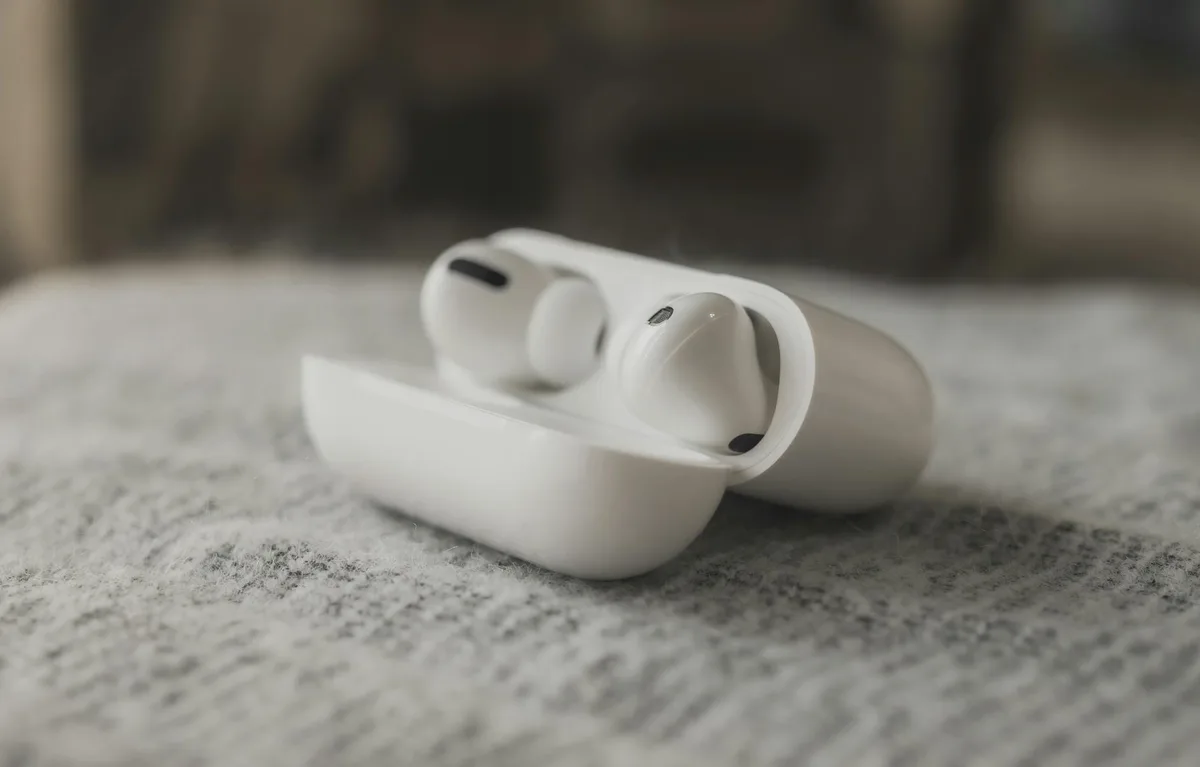
Your charging case usually has an indicator light that shows the charging status. If you just unboxed them, pop them into their case and connect the case to a power source. Allow them to charge for at least 30 minutes, or until the indicator light signals a full charge.
Getting Your Earbuds Ready to Mingle (Pairing Mode)
This is the crucial step: your earbuds need to be actively looking for a device to connect to. This state is called "pairing mode." How you activate it can vary slightly between different Sony models, so always check your specific manual if you have it. However, a general method applies to many popular Sony earbuds.
How to Activate Pairing Mode on Most Sony Earbuds
Typically, you'll initiate pairing mode with the earbuds inside their charging case, with the lid kept open.
- Locate the pairing button: This is often found on the back of the charging case.
- Press and hold: You'll need to press and hold this button for a specific duration, usually around 5-7 seconds.
- Watch for the indicator light: A light on the case will start blinking, often in blue, indicating that the earbuds are now discoverable by other Bluetooth devices. This blinking pattern is your visual confirmation.
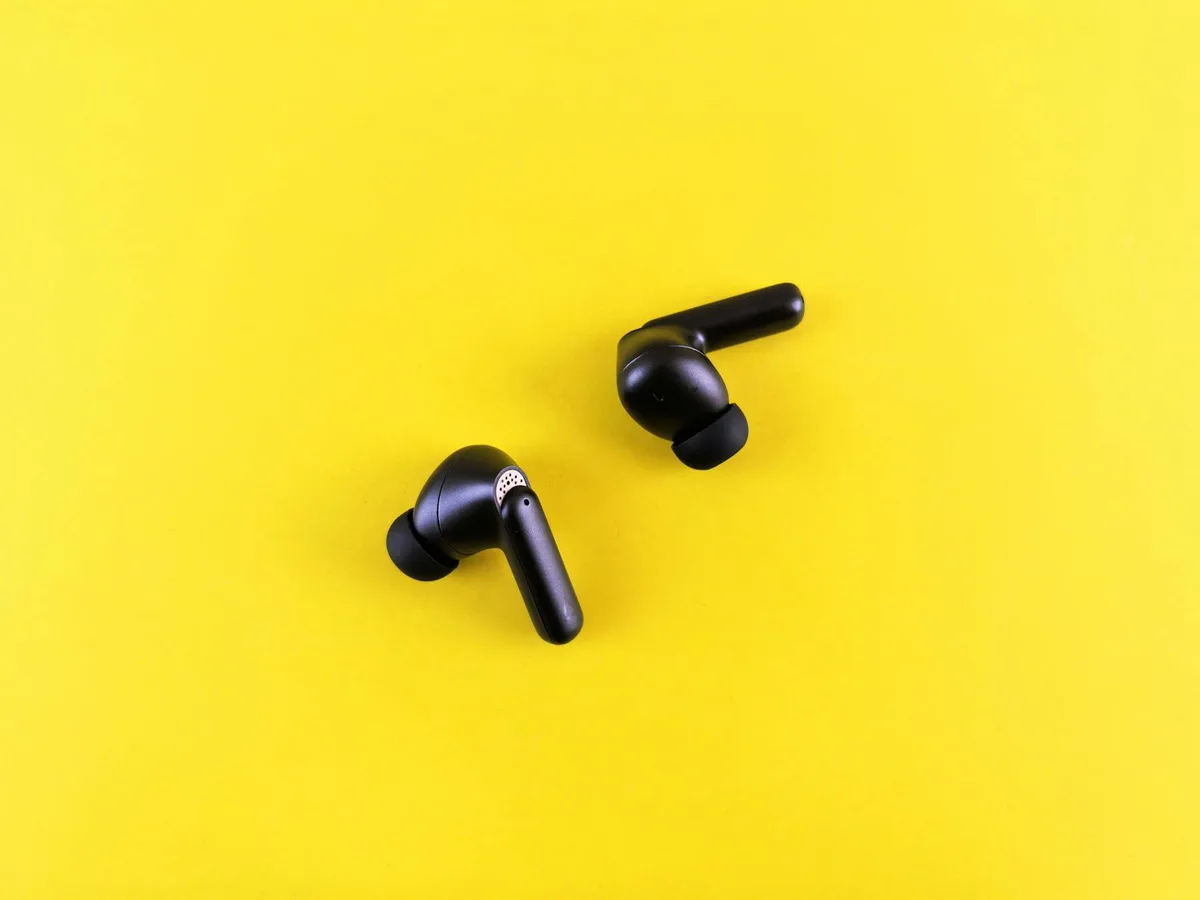
If the light doesn't blink or behaves differently, consult your earbuds' user manual or the official Sony support website for model-specific instructions.
Now, Let Your Device Do the Discovering
With your Sony earbuds actively broadcasting their presence in pairing mode, it's time to tell your phone or other Bluetooth-enabled device to look for them.
Enabling Bluetooth on Your Phone or Device
First, ensure Bluetooth on your primary device is turned on.
- For most Android devices: Go to "Settings," then "Connections," and toggle the "Bluetooth" switch to the ON position.
- For Apple devices (iPhone/iPad): Navigate to "Settings" and tap on "Bluetooth." Ensure the toggle is switched to green (ON).
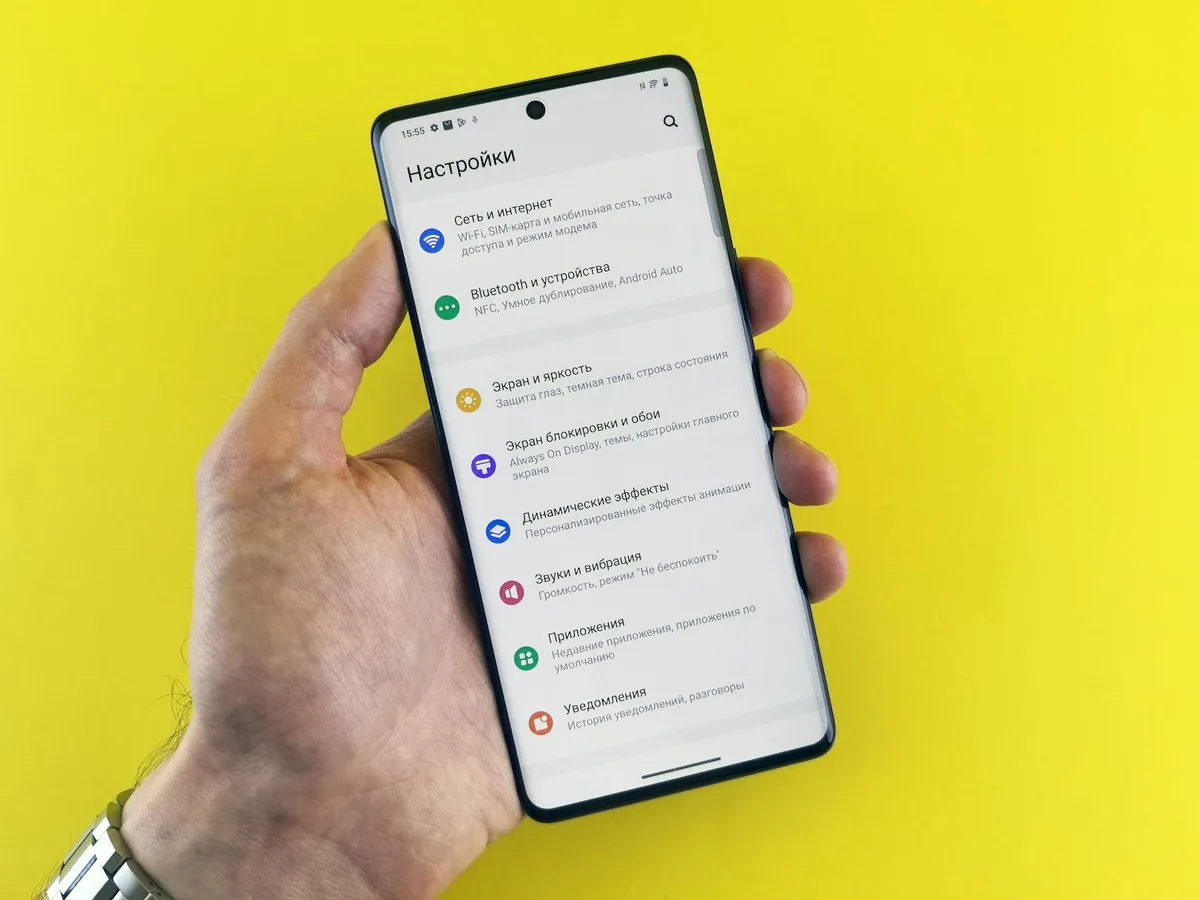
This action allows your device to scan for nearby Bluetooth signals.
Finding and Connecting Your Sony Earbuds
Once Bluetooth is active, your device will automatically start searching for available devices, or you might need to initiate a scan.
- Look for your earbuds list: In the Bluetooth menu, you'll see a list of "Available Devices" or "Other Devices."
- Identify your Sony model: Your earbuds should appear with their model name, something like "Sony WF-1000XM4" or "Sony LinkBuds S."
- Tap to connect: Select your earbuds from the list. Your device and earbuds will then confirm the connection, often with a pop-up message and a steady light on the earbuds or case, indicating they are successfully paired.
What If It Doesn't Work Right Away?
Sometimes, even with careful steps, connections don't happen instantly. Don't get frustrated; this is common and usually fixable.
Troubleshooting Common Pairing Issues
If your device isn't finding your Sony earbuds, or if they simply won't connect, several quick checks can resolve the problem.
- Double-check pairing mode: Is the indicator light on your charging case still blinking? If not, you might need to re-enter pairing mode. Remember to keep the case lid open.
- Proximity: Ensure your earbuds and device are close to each other, ideally within a few feet.
- Interference: Strong Wi-Fi signals or other active Bluetooth devices nearby can sometimes cause interference. Try moving to a less crowded wireless environment.
- Device already paired: If the earbuds were previously connected to another phone, tablet, or computer, they might be trying to connect to that old device. Turn off Bluetooth on any other devices you've previously paired with the earbuds.
Resetting Your Sony Earbuds
When standard troubleshooting doesn't work, a system reset can clear out any glitches. This effectively returns your earbuds to their factory default state.
- Check your manual: The exact procedure will depend on your specific Sony model. Generally, it involves placing the earbuds in the charging case, leaving the lid open, and then pressing and holding a button on the case for an extended period, typically 10-15 seconds, until the indicator light flashes in a particular pattern (often red and blue, or just red multiple times).
- Once reset: You will need to "forget" the earbuds from your device's Bluetooth list and then repeat the pairing process from the beginning.
Restarting Your Device
It sounds simple, but a quick restart of your phone or tablet can resolve many temporary software glitches that might be preventing a successful Bluetooth connection. Turn your device completely off, wait about 30 seconds, and then turn it back on. Once your device has fully booted up, re-enable Bluetooth and attempt to pair your Sony earbuds again.
What If It Doesn't Work Right Away?
Sometimes your new Sony earbuds might resist connecting, and that's okay. It's often a simple fix.
Troubleshooting Common Pairing Issues
If your device isn't finding your Sony earbuds, or if they simply won't connect, several quick checks can resolve the problem.
- Double-check pairing mode: Is the indicator light on your charging case still blinking? If not, you might need to re-enter pairing mode. Remember to keep the case lid open.
- Proximity: Ensure your earbuds and device are close to each other, ideally within a few feet.
- Interference: Strong Wi-Fi signals or other active Bluetooth devices nearby can sometimes cause interference. Try moving to a less crowded wireless environment.
- Device already paired: If the earbuds were previously connected to another phone, tablet, or computer, they might be trying to connect to that old device. Turn off Bluetooth on any other devices you've previously paired with the earbuds.
Resetting Your Sony Earbuds
When standard troubleshooting doesn't work, a system reset can clear out any glitches. This effectively returns your earbuds to their factory default state.
- Check your manual: The exact procedure will depend on your specific Sony model. Generally, it involves placing the earbuds in the charging case, leaving the lid open, and then pressing and holding a button on the case for an extended period, typically 10-15 seconds, until the indicator light flashes in a particular pattern (often red and blue, or just red multiple times).
- Once reset: You will need to "forget" the earbuds from your device's Bluetooth list and then repeat the pairing process from the beginning.
Restarting Your Device
It sounds simple, but a quick restart of your phone or tablet can resolve many temporary software glitches that might be preventing a successful Bluetooth connection. Turn your device completely off, wait about 30 seconds, and then turn it back on. Once your device has fully booted up, re-enable Bluetooth and attempt to pair your Sony earbuds again.
What If It Doesn't Work Right Away?
Sometimes your new Sony earbuds might resist connecting, and that's okay. It's often a simple fix.
Troubleshooting Common Pairing Issues
If your device isn't finding your Sony earbuds, or if they simply won't connect, several quick checks can resolve the problem.
- Double-check pairing mode: Is the indicator light on your charging case still blinking? If not, you might need to re-enter pairing mode. Remember to keep the case lid open.
- Proximity: Ensure your earbuds and device are close to each other, ideally within a few feet.
- Interference: Strong Wi-Fi signals or other active Bluetooth devices nearby can sometimes cause interference. Try moving to a less crowded wireless environment.
- Device already paired: If the earbuds were previously connected to another phone, tablet, or computer, they might be trying to connect to that old device. Turn off Bluetooth on any other devices you've previously paired with the earbuds.
Resetting Your Sony Earbuds
When standard troubleshooting doesn't work, a system reset can clear out any glitches. This effectively returns your earbuds to their factory default state.
- Check your manual: The exact procedure will depend on your specific Sony model. Generally, it involves placing the earbuds in the charging case, leaving the lid open, and then pressing and holding a button on the case for an extended period, typically 10-15 seconds, until the indicator light flashes in a particular pattern (often red and blue, or just red multiple times).
- Once reset: You will need to "forget" the earbuds from your device's Bluetooth list and then repeat the pairing process from the beginning.
Restarting Your Device
It sounds simple, but a quick restart of your phone or tablet can resolve many temporary software glitches that might be preventing a successful Bluetooth connection. Turn your device completely off, wait about 30 seconds, and then turn it back on. Once your device has fully booted up, re-enable Bluetooth and attempt to pair your Sony earbuds again.
What If It Doesn't Work Right Away?
Sometimes your new Sony earbuds might resist connecting, and that's okay. It's often a simple fix.
Troubleshooting Common Pairing Issues
If your device isn't finding your Sony earbuds, or if they simply won't connect, several quick checks can resolve the problem.
- Double-check pairing mode: Is the indicator light on your charging case still blinking? If not, you might need to re-enter pairing mode. Remember to keep the case lid open.
- Proximity: Ensure your earbuds and device are close to each other, ideally within a few feet.
- Interference: Strong Wi-Fi signals or other active Bluetooth devices nearby can sometimes cause interference. Try moving to a less crowded wireless environment.
- Device already paired: If the earbuds were previously connected to another phone, tablet, or computer, they might be trying to connect to that old device. Turn off Bluetooth on any other devices you've previously paired with the earbuds.
Resetting Your Sony Earbuds
When standard troubleshooting doesn't work, a system reset can clear out any glitches. This effectively returns your earbuds to their factory default state.
- Check your manual: The exact procedure will depend on your specific Sony model. Generally, it involves placing the earbuds in the charging case, leaving the lid open, and then pressing and holding a button on the case for an extended period, typically 10-15 seconds, until the indicator light flashes in a particular pattern (often red and blue, or just red multiple times).
- Once reset: You will need to "forget" the earbuds from your device's Bluetooth list and then repeat the pairing process from the beginning.
Restarting Your Device
It sounds simple, but a quick restart of your phone or tablet can resolve many temporary software glitches that might be preventing a successful Bluetooth connection. Turn your device completely off, wait about 30 seconds, and then turn it back on. Once your device has fully booted up, re-enable Bluetooth and attempt to pair your Sony earbuds again.
What If It Doesn't Work Right Away?
Sometimes your new Sony earbuds might resist connecting, and that's okay. It's often a simple fix.
Troubleshooting Common Pairing Issues
If your device isn't finding your Sony earbuds, or if they simply won't connect, several quick checks can resolve the problem.
- Double-check pairing mode: Is the indicator light on your charging case still blinking? If not, you might need to re-enter pairing mode. Remember to keep the case lid open.
- Proximity: Ensure your earbuds and device are close to each other, ideally within a few feet.
- Interference: Strong Wi-Fi signals or other active Bluetooth devices nearby can sometimes cause interference. Try moving to a less crowded wireless environment.
- Device already paired: If the earbuds were previously connected to another phone, tablet, or computer, they might be trying to connect to that old device. Turn off Bluetooth on any other devices you've previously paired with the earbuds.
Resetting Your Sony Earbuds
When standard troubleshooting doesn't work, a system reset can clear out any glitches. This effectively returns your earbuds to their factory default state.
- Check your manual: The exact procedure will depend on your specific Sony model. Generally, it involves placing the earbuds in the charging case, leaving the lid open, and then pressing and holding a button on the case for an extended period, typically 10-15 seconds, until the indicator light flashes in a particular pattern (often red and blue, or just red multiple times).
- Once reset: You will need to "forget" the earbuds from your device's Bluetooth list and then repeat the pairing process from the beginning.
Restarting Your Device
It sounds simple, but a quick restart of your phone or tablet can resolve many temporary software glitches that might be preventing a successful Bluetooth connection. Turn your device completely off, wait about 30 seconds, and then turn it back on. Once your device has fully booted up, re-enable Bluetooth and attempt to pair your Sony earbuds again.
What If It Doesn't Work Right Away?
Sometimes your new Sony earbuds might resist connecting, and that's okay. It's often a simple fix.
Troubleshooting Common Pairing Issues
If your device isn't finding your Sony earbuds, or if they simply won't connect, several quick checks can resolve the problem.
- Double-check pairing mode: Is the indicator light on your charging case still blinking? If not, you might need to re-enter pairing mode. Remember to keep the case lid open.
- Proximity: Ensure your earbuds and device are close to each other, ideally within a few feet.
- Interference: Strong Wi-Fi signals or other active Bluetooth devices nearby can sometimes cause interference. Try moving to a less crowded wireless environment.
- Device already paired: If the earbuds were previously connected to another phone, tablet, or computer, they might be trying to connect to that old device. Turn off Bluetooth on any other devices you've previously paired with the earbuds.
Resetting Your Sony Earbuds
When standard troubleshooting doesn't work, a system reset can clear out any glitches. This effectively returns your earbuds to their factory default state.
- Check your manual: The exact procedure will depend on your specific Sony model. Generally, it involves placing the earbuds in the charging case, leaving the lid open, and then pressing and holding a button on the case for an extended period, typically 10-15 seconds, until the indicator light flashes in a particular pattern (often red and blue, or just red multiple times).
- Once reset: You will need to "forget" the earbuds from your device's Bluetooth list and then repeat the pairing process from the beginning.
Restarting Your Device
It sounds simple, but a quick restart of your phone or tablet can resolve many temporary software glitches that might be preventing a successful Bluetooth connection. Turn your device completely off, wait about 30 seconds, and then turn it back on. Once your device has fully booted up, re-enable Bluetooth and attempt to pair your Sony earbuds again.