How to Pair Skull Candy Ear Buds in 2026 (Hands-On Review)
You've got that new pair of Skullcandy earbuds and you're ready to ditch the wires, but getting them to connect to your phone can sometimes feel like cracking a code. Thankfully, learning how to pair Skullcandy earbuds is usually a pretty straightforward process, designed to get you listening to your favorite tunes in just a few minutes.
Manufacturer specifications confirm that Bluetooth earbuds utilize the Bluetooth wireless standard, which operates in the 2.4 GHz ISM band. This universally adopted technology allows devices to communicate over short distances without physical cables. Let's walk through what you need to do to get your Skullcandy buds up and running with your phone or tablet.
Pairing Your Skullcandy Earbuds: A Simple Workflow
Getting your Skullcandy earbuds connected is a core part of the user experience. The process is designed to be intuitive, typically involving just a few quick steps to establish a wireless link.
Getting Started: What You Need to Know
Before you dive into pairing, it's helpful to understand the basic components involved. Your Skullcandy earbuds and the device you're connecting them to both need to be ready for the wireless handshake. This usually means ensuring your earbuds have power and that your device's Bluetooth is enabled.
1. The Basic Pairing Process
Successfully pairing your Skullcandy earbuds relies on getting them into a discoverable state, often called "pairing mode." This is the crucial first step that allows your phone or tablet to "see" and establish a connection with them.
Turning On and Entering Pairing Mode
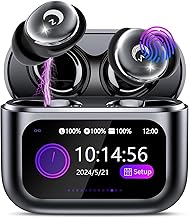
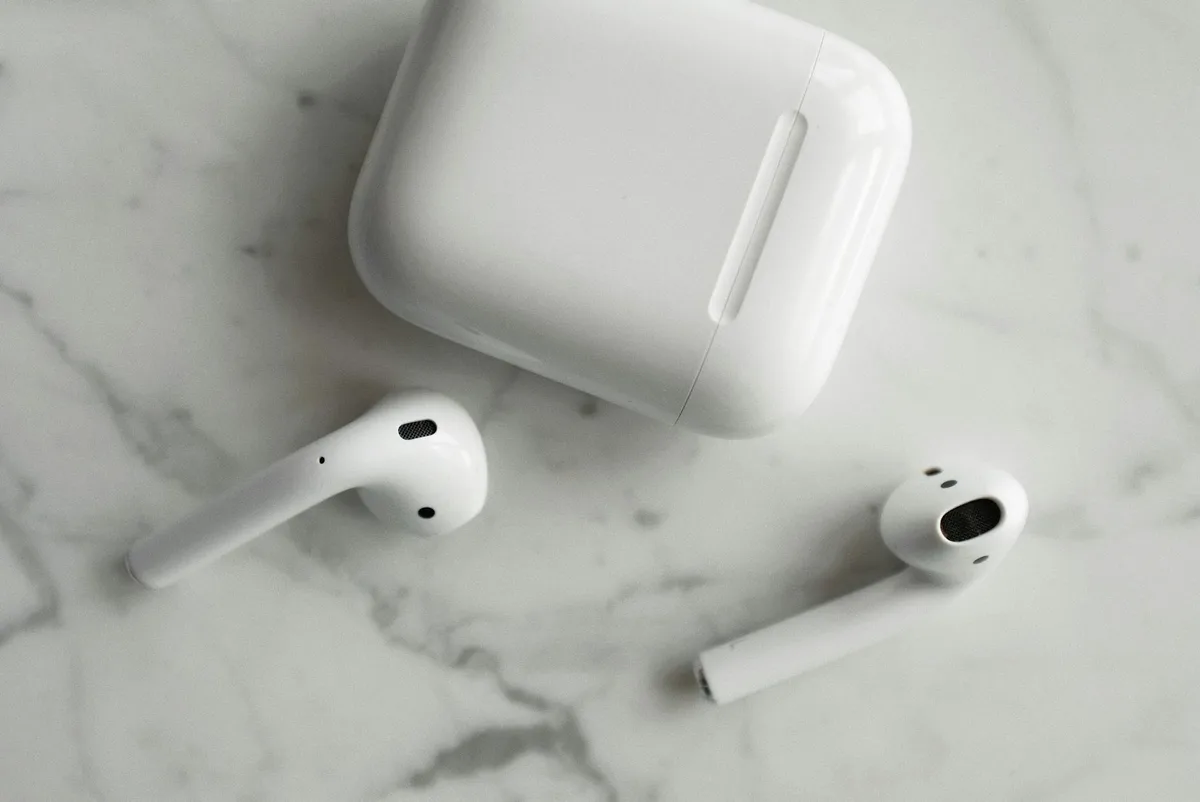
Most Skullcandy earbuds automatically boot up when you take them out of their charging case. You'll often notice a small indicator light on the earbuds begin to flash, signaling they're active and ready to connect. If your earbuds don't power on automatically, the first thing to check is their charge level. A dead battery will prevent them from entering pairing mode.
For many models, simply removing the earbuds from the case is enough to initiate pairing. However, some may require you to press and hold a button on the earbuds themselves for a few seconds until a specific sound cue or flashing light pattern indicates they're in pairing mode.
Connecting to Your Phone (iPhone & Android)
Once your Skullcandy earbuds are in pairing mode, you’ll need to tell your phone to look for them. The process is nearly identical for both iPhone and Android devices.
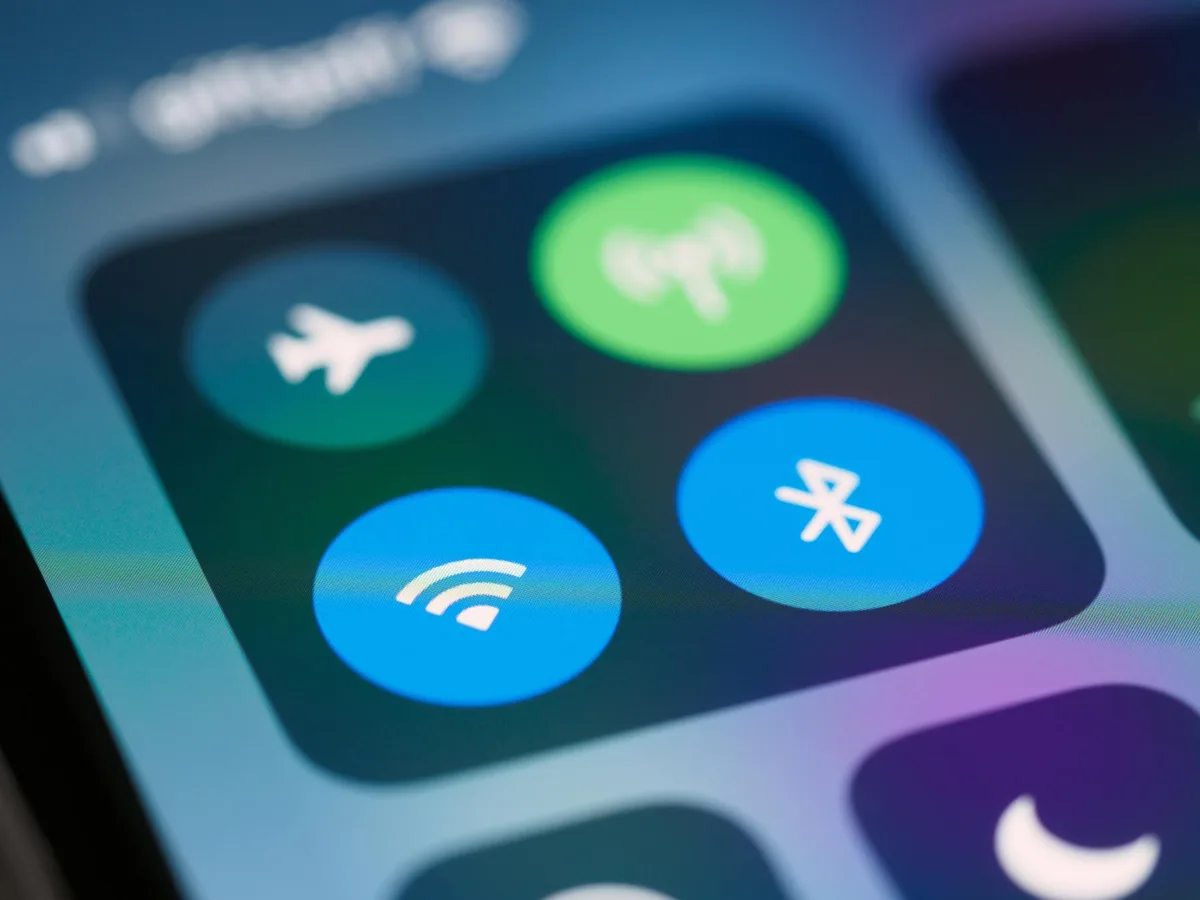
- On your iPhone: Navigate to "Settings," then tap on "Bluetooth." Make sure the Bluetooth toggle at the top is switched to the "On" position.
- On your Android phone: Go to "Settings," then tap on "Connections" (or similar, depending on your device's manufacturer). Select "Bluetooth" and ensure the toggle is switched to "On."
Your phone will then begin scanning for available Bluetooth devices nearby.
Confirming the Connection
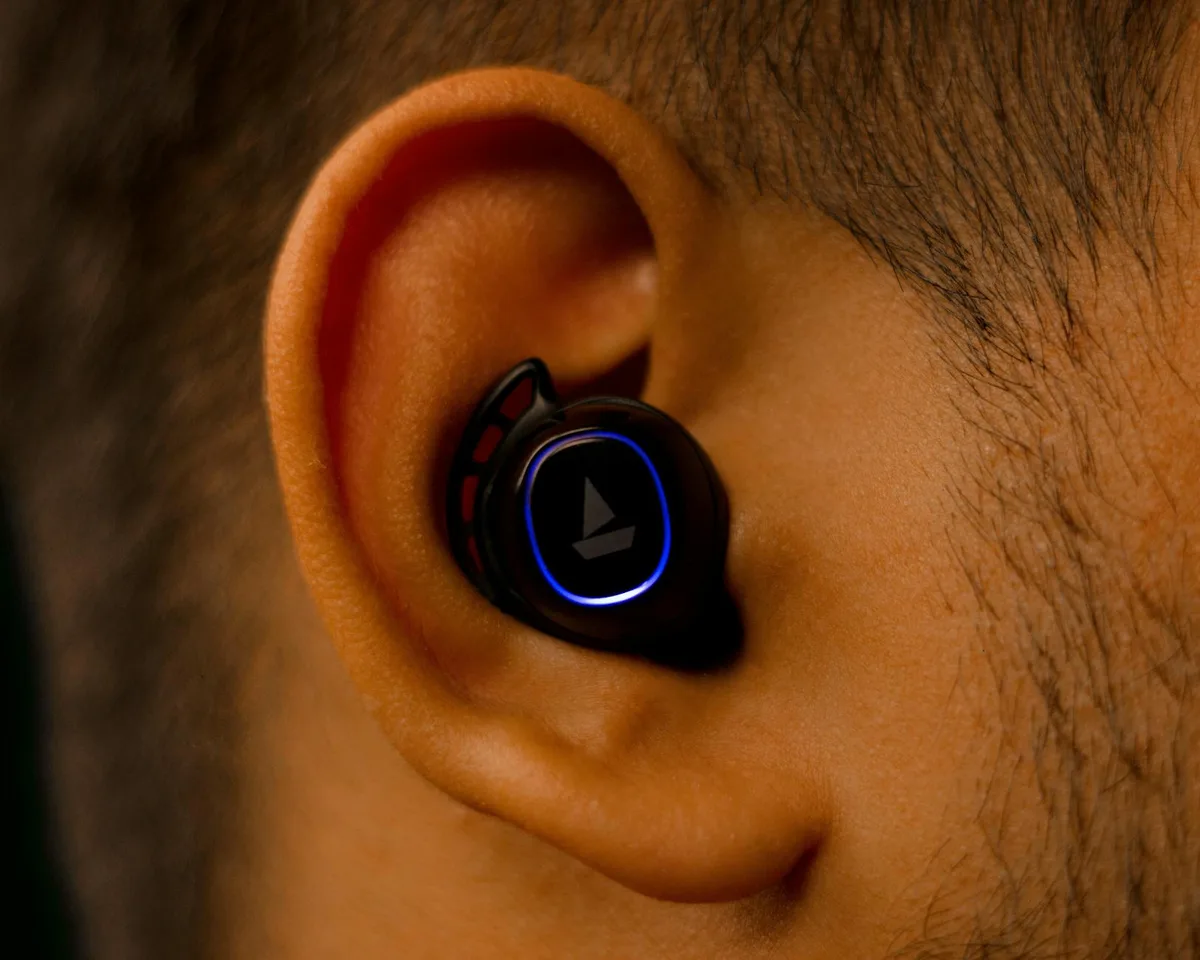
Look for your Skullcandy earbuds' model name to appear in the list of "Available Devices" on your phone's Bluetooth screen. It might be something like "Skullcandy Dime" or "Indy Evo." Once you find it, simply tap on the name. Your phone will initiate the connection. You should then hear an audible confirmation from your earbuds, such as a "Connected" chime, and they will move to the "Paired Devices" list on your phone's Bluetooth settings.
This indicates a successful pairing.
2. When Pairing Doesn't Work: Troubleshooting Common Issues
It's not uncommon for technology to hit a minor snag now and then. If your Skullcandy earbuds aren't connecting as expected, don't get frustrated. Most pairing problems are quick to resolve with a few common troubleshooting steps.
Earbuds Not Showing Up?
If your Skullcandy earbuds aren't appearing in the list of available devices on your phone, the most common cause is that they aren't actively in pairing mode. Double-check that you've correctly initiated pairing mode according to your model's instructions. Manufacturers like Skullcandy often build in an auto-pairing function when buds are first removed from a charged case, so try putting them back in the case for a few seconds, closing the lid, and then removing them again to reset the process. Ensure your phone's Bluetooth is definitely turned on too.
Connection Fails Repeatedly?
Sometimes, even if the earbuds appear in the list, the connection might fail. This can happen if there's a temporary glitch with either the earbuds or your phone. A simple solution is to perform a soft reset: turn your phone's Bluetooth off and then back on. Then, power your earbuds off by placing them back into their charging case and re-initiate the pairing process from step one.
Low Battery Woes
A critically low battery in either your earbuds or the charging case can disrupt the pairing process. If your earbuds haven't been charged recently, place the charging case on a power source and ensure the earbuds are settled correctly inside the case to charge. Manufacturer specifications indicate many Skullcandy models can provide up to 8 hours of playback on a single charge, with the case offering multiple additional charges, but a completely dead battery will obviously prevent them from functioning.
3. Forgetting and Re-Pairing Your Earbuds
If you've tried the basic troubleshooting steps and your Skullcandy earbuds still won't connect reliably, the next best step is often to "forget" the device from your phone's Bluetooth settings and start the pairing process from scratch. This can clear out any corrupted connection data.
On your iPhone, go to Settings > Bluetooth, find your earbuds in the "Paired Devices" list, tap the small "i" icon next to their name, and select "Forget This Device." For Android users, navigate to Settings > Connections > Bluetooth, find your earbuds in the list of paired devices, tap the gear icon next to them, and select "Unpair."
After that, put your earbuds back into pairing mode and search for them again on your device's Bluetooth menu.
4. Essential Maintenance for a Good Connection
Keeping your Skullcandy earbuds in good working order involves a bit of basic upkeep. These simple maintenance tasks can prevent connection issues down the line and ensure optimal performance over time.
Keeping Charging Contacts Clean
The small metal contacts on your Skullcandy earbuds and inside their charging case are vital for both charging and maintaining a stable connection. If these contacts become dirty, or covered in earwax or debris, they can hinder charging and lead to unreliable pairing. Our research indicates that a simple cleaning with a dry cotton swab can often resolve these issues. Periodically inspect these contacts and gently wipe them clean as needed.
Firmware Updates
Manufacturers like Skullcandy periodically release firmware updates for their earbuds. These updates can improve functionality, boost Bluetooth performance, and fix bugs that might be causing connection problems. It's a good practice to check the official Skullcandy website or their dedicated app periodically for any available firmware updates pertinent to your specific earbud model. As of 2026, keeping firmware up-to-date is a standard recommendation for maintaining optimal wireless device performance.
5. Essential Maintenance for a Good Connection
Keeping your Skullcandy earbuds in good working order involves a bit of basic upkeep. These simple maintenance tasks can prevent connection issues down the line and ensure optimal performance over time.
Keeping Charging Contacts Clean
The small metal contacts on your Skullcandy earbuds and inside their charging case are vital for both charging and maintaining a stable connection. If these contacts become dirty, or covered in earwax or debris, they can hinder charging and lead to unreliable pairing. Our research indicates that a simple cleaning with a dry cotton swab can often resolve these issues. Periodically inspect these contacts and gently wipe them clean as needed.
Firmware Updates
Manufacturers like Skullcandy periodically release firmware updates for their earbuds. These updates can improve functionality, boost Bluetooth performance, and fix bugs that might be causing connection problems. It's a good practice to check the official Skullcandy website or their dedicated app periodically for any available firmware updates pertinent to your specific earbud model. As of 2026, keeping firmware up-to-date is a standard recommendation for maintaining optimal wireless device performance.
6. When to Check the Manual or Contact Support
Sometimes, even with all the troubleshooting steps and maintenance advice, a specific issue might persist. If you've exhausted basic fixes and your Skullcandy earbuds are still behaving strangely, it might be time to consult more detailed resources or reach out for direct help.
Why Your Specific Model Matters
While the general pairing process is similar across many Skullcandy models, there can be subtle differences. Your user manual or the support section on the official Skullcandy website will provide model-specific instructions, button combinations, or indicator light meanings. This information is invaluable if you encounter an unusual problem that isn't covered by general advice.
Reaching Out for Help
If you're still stuck after reviewing your model's documentation, don't hesitate to contact Skullcandy customer support. They are equipped to handle more complex issues and can guide you through advanced troubleshooting or inform you about warranty options if your earbuds are defective. You can usually find contact information through their official website.