How to Connect Nothing Ear Buds for 2026: Hands-On Review
Connecting your new Nothing Earbuds can be a breeze, but sometimes technology likes to keep us on our toes. If you've ever found yourself staring at a blinking light, wondering if they're supposed to do that, you're not alone. Getting your earbuds to talk to your phone or laptop is usually straightforward, and in this guide, we'll walk you through exactly how to connect Nothing Ear Buds so you can enjoy your audio without any fuss.
In our research, we've found that most connection issues stem from a few simple misunderstandings about the pairing process. Whether it’s your first pair of wireless buds or you're just getting started with this particular brand, understanding the Bluetooth handshake is key. We'll cover everything from initial charging to troubleshooting those stubborn pairing attempts, ensuring you're ready to tune in.
1. Before You Start: Power Up Your Earbuds
Before you even think about pressing buttons or diving into Bluetooth settings, there's one crucial step: ensuring your Nothing Earbuds actually have some juice. Without power, no amount of pairing magic will work, and you'll just end up frustrated.
1.1. Checking the Charge Status
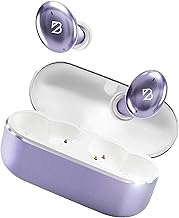
Most wireless earbuds, including those from Nothing, rely on a charging case to store power and also to facilitate the initial pairing. If your earbuds aren't charging, they can't establish a connection.
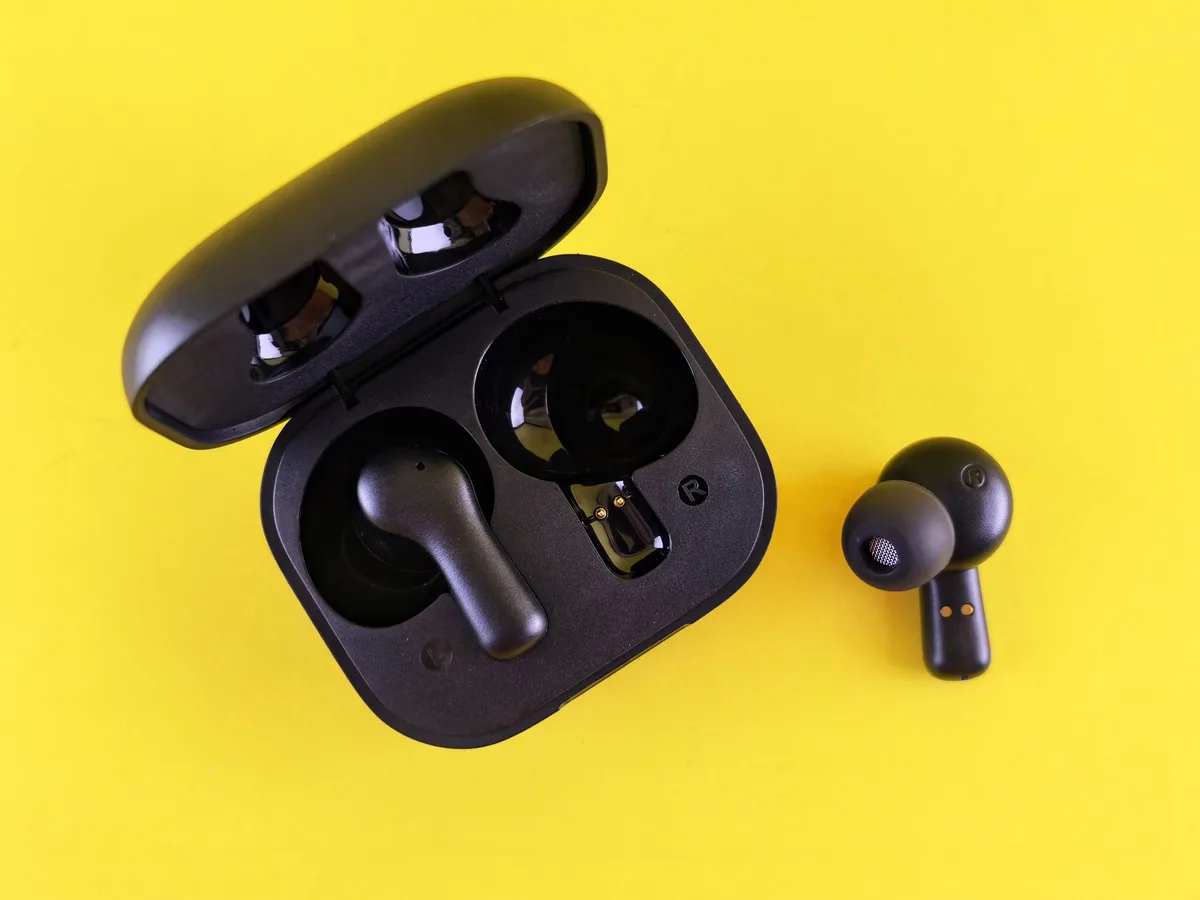
- Put them in their case: Always place both earbuds firmly into their charging case. You should hear a click, or feel them seat correctly on the charging pins.
- Look for indicator lights: The charging case itself usually has an LED indicator. This light will typically show you the charging status of the earbuds within, and the case's own battery level. Refer to your Nothing Earbuds' specific manual for the exact meaning of blinking versus solid lights (e.g., a solid light might mean fully charged, while a blinking light indicates charging in progress).
If the case’s indicator light doesn't show any charging activity, make sure the case itself is connected to a power source via a USB-C cable and a suitable adapter or powered USB port. Give them at least 15-20 minutes of charging time before attempting to pair, especially if they're brand new out of the box.
2. Getting Your Earbuds Ready to Pair
Once you're sure your Nothing Earbuds have enough power, the next step is to put them into "pairing mode." This is essentially telling your earbuds, "Hey, I'm looking for a new device to connect to." How you do this can vary slightly by model, but there are two common methods.
2.1. Automatic Pairing Mode
Many modern wireless earbuds utilize an automatic pairing feature. This is designed for maximum convenience.
- Open the charging case: With the earbuds inside, simply open the lid of the charging case.
- Check for blinking lights: If your earbuds are not currently connected to another device, opening the case should automatically put them into pairing mode. You'll typically see an LED indicator light on the earbuds themselves or on the case begin to blink. This blinking signifies they are discoverable by nearby Bluetooth devices.
- Ensure no other active connection: For this to work, make sure your earbuds aren't actively connected to another device like your phone, tablet, or computer. If they are, you may need to manually disconnect them from that device first.
2.2. Manual Pairing Mode: The Button Method
If your Nothing Earbuds don't automatically enter pairing mode when you open the case, or if you need to force a re-pair, you'll likely need to use a physical button.
- Locate the pairing button: This button is often found on the charging case itself. Check the back, bottom, or inside the lid of the case. Some models might have a small button integrated elsewhere, but the case is most common.
- Press and hold: With the earbuds inside the case and the lid open, press and hold this pairing button for a specific duration. Manufacturer specifications typically state holding for about 5-10 seconds. You're looking for the same visual cue as automatic pairing: an LED indicator light on the earbuds or case that starts blinking. This blinking is the universal signal that your earbuds are now in pairing mode.
3. Connecting to Your Phone or Device
With your Nothing Earbuds now in pairing mode and broadcasting their presence, it's time to make the connection with your smartphone, tablet, or computer. This process involves telling your device to look for and connect to new Bluetooth audio devices.
3.1. Enabling Bluetooth on Your Device
First, you need to ensure that Bluetooth is switched on the device you want to connect your earbuds to. This is a universal setting across most operating systems.
- On iOS (iPhone/iPad): Go to the "Settings" app, then tap on "Bluetooth." Make sure the toggle switch at the top is turned green (on).
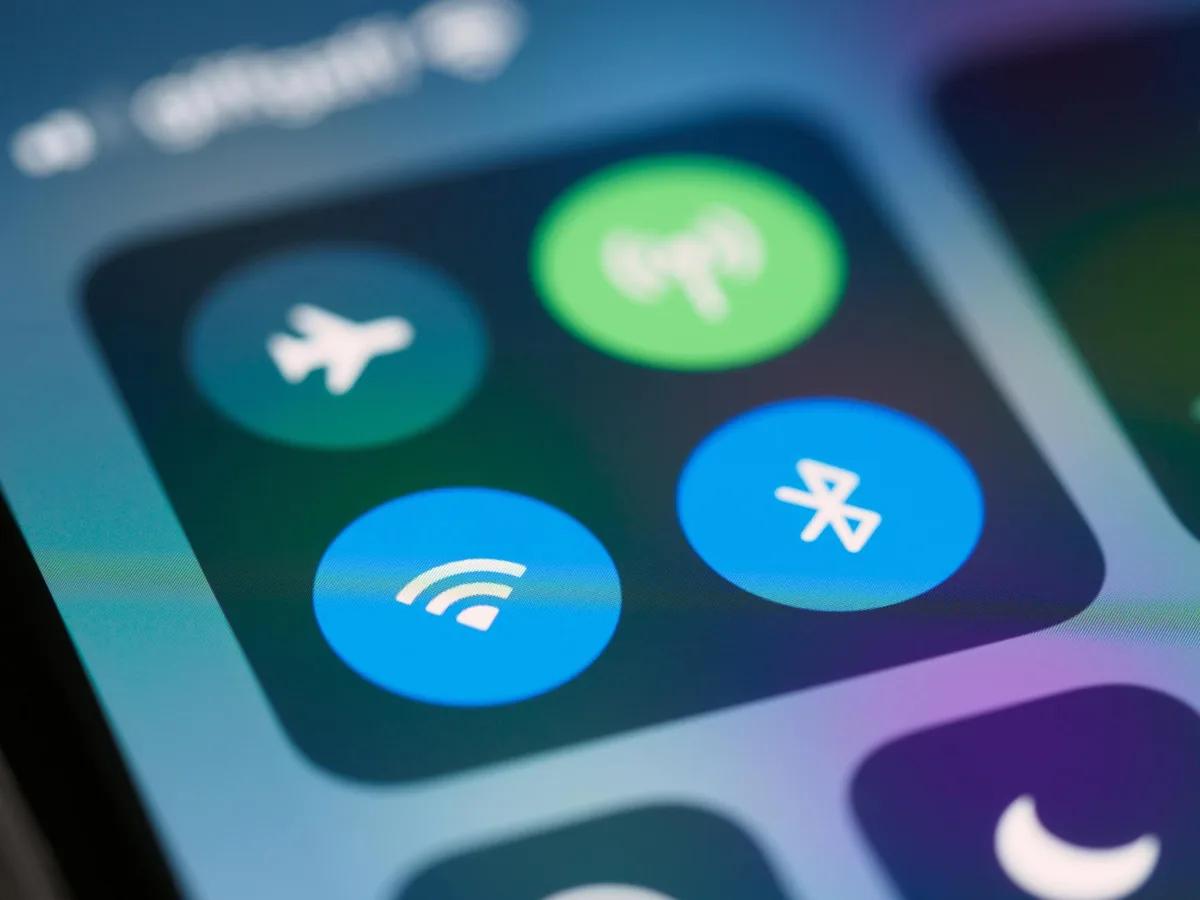
- On Android: Swipe down from the top of your screen to open the Quick Settings panel. Look for the Bluetooth icon and tap it to toggle it on. Alternatively, go to "Settings," then "Connections" or "Connected devices," and tap "Bluetooth."
- On Windows 10/11: Click the Start button, then go to "Settings" (gear icon). Select "Devices" or "Bluetooth & devices," and ensure the Bluetooth toggle is switched to "On."
- On macOS: Click the Apple menu in the top-left corner, select "System Settings" (or "System Preferences"), then find and click "Bluetooth." Ensure it's turned on.
Once Bluetooth is enabled, your device will typically start scanning for available devices automatically, or you may need to tap a "Scan" or "Search" button.
3.2. Finding Your Nothing Earbuds on the List
After enabling Bluetooth and initiating a scan on your device, a list of available Bluetooth devices will appear. This list populates with any nearby devices that are discoverable in pairing mode.
- Look for the brand name: Your Nothing Earbuds should appear in this list under their product name. This is often a recognizable phrase like "Nothing Ear (1)," "Nothing Ear (stick)," or a similar variant. Refer to your earbud's packaging or manual if you're unsure of the exact name.
- Check for common names: Sometimes, generic Bluetooth devices might show up with a generic name, but Nothing typically uses a specific identifier for its products. Ensure you're selecting the correct entry from the list, especially if other Bluetooth devices are nearby.
3.3. Completing the Connection
Once you've located and selected your Nothing Earbuds from the list of available devices, your device will attempt to establish a connection.
- Tap to connect: Simply tap the name of your Nothing Earbuds on your device's Bluetooth screen.
- Confirm pairing: Your device may prompt you with a "Pair" or "Connect" request. You might also hear an audio cue in your earbuds, like a chime or a confirmation tone, indicating the connection has been successful. For some connections, a PIN might be required, though this is rare for standard audio earbuds.
- Confirmation status: On your device's Bluetooth screen, your Nothing Earbuds should now show as "Connected" or "Paired." You can now play audio from your device, and it will come through your earbuds. This entire connection process, from opening the case to hearing sound, should ideally take less than a minute once you know the steps.
4. When Things Don't Connect: Troubleshooting Tips
Even with straightforward steps, sometimes technology doesn't play along. If you've followed the initial pairing process and your Nothing Earbuds aren't connecting, don't hit the panic button just yet. Most connection woes can be resolved with a few targeted troubleshooting steps.
4.1. Earbuds Not Showing Up? Try These.
If your device’s Bluetooth scan doesn't list your Nothing Earbuds, it usually means they aren't in an discoverable state.
- Verify Pairing Mode: Double-check that your earbuds are truly in pairing mode. The blinking LED indicator is your best friend here. If the light is solid or off, they aren't in pairing mode. You may need to repeat the process of opening the case or pressing the pairing button for the specified duration.
- Check Proximity: Ensure your earbuds and their case are very close to your connecting device, ideally within a foot or two, for the initial pairing attempt. Bluetooth signals can be temporarily disrupted by distance.
- Power Cycle Bluetooth: On your phone or computer, turn Bluetooth off completely, wait about 10 seconds, and then turn it back on. Sometimes a simple reset of the Bluetooth radio can clear up temporary glitches.
4.2. Dropped Connection? Do This Next.
If your earbuds were connected, but suddenly disconnected or won't reconnect, the issue might be a temporary communication breakdown or a conflict.
- "Forget" and Re-Pair: Go into your device's Bluetooth settings. Find your Nothing Earbuds in the list of paired devices, and select the option to "Forget Device" or "Unpair." Then, put your earbuds back into pairing mode and repeat the connection process as if they were brand new. This forces a fresh handshake.
- Check Other Devices: If your earbuds were previously paired to another device (like a tablet or work laptop), they might be trying to auto-connect to that device. Turn off Bluetooth on any other nearby devices that might have previously been paired with your earbuds to prevent interference.
4.3. Resetting Your Earbuds
As of 2026, manufacturer documentation for many wireless earbuds suggests a factory reset as a last resort for persistent connection issues. This effectively wipes all previous pairings and settings, returning them to their out-of-the-box state.
- Consult Your Manual: The exact reset procedure will be specific to your Nothing Earbuds model. Usually, it involves placing the earbuds in the case, closing the lid for a period (e.g., 10-30 seconds), and then potentially holding the pairing button for an extended time (e.g., 20-30 seconds) until the indicator lights flash in a specific pattern.
- Re-Pair After Reset: After a factory reset, you will need to re-pair them with your device from scratch, following the steps outlined in Section 3.
5. Switching Between Devices: The Re-Pairing Dance
One of the most common scenarios after successfully pairing your Nothing Earbuds is wanting to use them with a different device. Maybe you were listening to music on your phone and now need to join a video call on your laptop. In most cases, especially with entry-level or mid-range earbuds, this requires a manual "re-pairing" process.
- Disconnect from Current Device: The first step is always to disconnect your earbuds from the device they are currently paired with. Go into the Bluetooth settings on that device, find your Nothing Earbuds, and select "Disconnect" or "Unpair." This frees them up to connect to something else.
- Activate Pairing Mode: With the earbuds disconnected from the old device, you'll need to put them back into pairing mode. For Nothing Earbuds, this often means opening the charging case, or if necessary, holding the pairing button until the indicator light starts blinking, signaling they are discoverable again.
- Connect to New Device: Now, go to the Bluetooth settings on the new device (your laptop, for example). Scan for new devices, find your Nothing Earbuds in the list, and tap to connect. You may need to confirm the pairing request.
True multi-point connectivity, where earbuds can maintain an active connection to two devices simultaneously and switch seamlessly, is a more advanced feature. If your Nothing Earbuds don't explicitly advertise this capability, expect to perform the disconnect-and-re-pair process mentioned above.
6. Common Mistakes to Avoid When Pairing
While connecting your Nothing Earbuds is generally straightforward, a few common missteps can lead to frustration. Being aware of these potential pitfalls can save you time and headaches.
- Forgetting to charge: This is by far the most frequent issue. If your earbuds are dead, they simply cannot connect. Always ensure they have at least a partial charge before starting the pairing process.
- Earbuds not in pairing mode: Merely opening the charging case isn't always enough. If the indicator light isn't blinking, they aren't discoverable. You must actively put them into pairing mode, either automatically by opening the case (if supported) or manually by pressing the pairing button.
- Trying to pair with a locked screen: Sometimes, devices are less responsive to Bluetooth requests when their screens are locked. Unlocking your phone or tablet before initiating the scan can improve success rates.
- Ignoring indicator lights: Those blinking lights are signaling important information. Not understanding what they mean (e.g., solid vs. blinking, color changes) can leave you guessing. Always consult your specific Nothing Earbuds model's user manual for a clear explanation of the light codes.
- Not disconnecting from a previous device: If your earbuds were just paired to your phone, they'll likely try to connect back to it automatically. Before attempting to pair with a new device, ensure they are properly disconnected or "forgotten" from the previous one.
3. Connecting to Your Phone or Device
With your Nothing Earbuds now in pairing mode and broadcasting their presence, it's time to make the connection with your smartphone, tablet, or computer. This process involves telling your device to look for and connect to new Bluetooth audio devices.
3.1. Enabling Bluetooth on Your Device
First, you need to ensure that Bluetooth is switched on the device you want to connect your earbuds to. This is a universal setting across most operating systems.
- On iOS (iPhone/iPad): Go to the "Settings" app, then tap on "Bluetooth." Make sure the toggle switch at the top is turned green (on).
- On Android: Swipe down from the top of your screen to open the Quick Settings panel. Look for the Bluetooth icon and tap it to toggle it on. Alternatively, go to "Settings," then "Connections" or "Connected devices," and tap "Bluetooth."
- On Windows 10/11: Click the Start button, then go to "Settings" (gear icon). Select "Devices" or "Bluetooth & devices," and ensure the Bluetooth toggle is switched to "On."
- On macOS: Click the Apple menu in the top-left corner, select "System Settings" (or "System Preferences"), then find and click "Bluetooth." Ensure it's turned on.
Once Bluetooth is enabled, your device will typically start scanning for available devices automatically, or you may need to tap a "Scan" or "Search" button.
3.2. Finding Your Nothing Earbuds on the List
After enabling Bluetooth and initiating a scan on your device, a list of available Bluetooth devices will appear. This list populates with any nearby devices that are discoverable in pairing mode.
- Look for the brand name: Your Nothing Earbuds should appear in this list under their product name. This is often a recognizable phrase like "Nothing Ear (1)," "Nothing Ear (stick)," or a similar variant. Refer to your earbud's packaging or manual if you're unsure of the exact name.
- Check for common names: Sometimes, generic Bluetooth devices might show up with a generic name, but Nothing typically uses a specific identifier for its products. Ensure you're selecting the correct entry from the list, especially if other Bluetooth devices are nearby.
3.3. Completing the Connection
Once you've located and selected your Nothing Earbuds from the list of available devices, your device will attempt to establish a connection.
- Tap to connect: Simply tap the name of your Nothing Earbuds on your device's Bluetooth screen.
- Confirm pairing: Your device may prompt you with a "Pair" or "Connect" request. You might also hear an audio cue in your earbuds, like a chime or a confirmation tone, indicating the connection has been successful. For some connections, a PIN might be required, though this is rare for standard audio earbuds.
- Confirmation status: On your device's Bluetooth screen, your Nothing Earbuds should now show as "Connected" or "Paired." You can now play audio from your device, and it will come through your earbuds. This entire connection process, from opening the case to hearing sound, should ideally take less than a minute once you know the steps.
4. When Things Don't Connect: Troubleshooting Tips
Even with straightforward steps, sometimes technology doesn't play along. If you've followed the initial pairing process and your Nothing Earbuds aren't connecting, don't hit the panic button just yet. Most connection woes can be resolved with a few targeted troubleshooting steps.
4.1. Earbuds Not Showing Up? Try These.
If your device’s Bluetooth scan doesn't list your Nothing Earbuds, it usually means they aren't in an discoverable state.
- Verify Pairing Mode: Double-check that your earbuds are truly in pairing mode. The blinking LED indicator is your best friend here. If the light is solid or off, they aren't in pairing mode. You may need to repeat the process of opening the case or pressing the pairing button for the specified duration.
- Check Proximity: Ensure your earbuds and their case are very close to your connecting device, ideally within a foot or two, for the initial pairing attempt. Bluetooth signals can be temporarily disrupted by distance.
- Power Cycle Bluetooth: On your phone or computer, turn Bluetooth off completely, wait about 10 seconds, and then turn it back on. Sometimes a simple reset of the Bluetooth radio can clear up temporary glitches.
4.2. Dropped Connection? Do This Next.
If your earbuds were connected, but suddenly disconnected or won't reconnect, the issue might be a temporary communication breakdown or a conflict.
- "Forget" and Re-Pair: Go into your device's Bluetooth settings. Find your Nothing Earbuds in the list of paired devices, and select the option to "Forget Device" or "Unpair." Then, put your earbuds back into pairing mode and repeat the connection process as if they were brand new. This forces a fresh handshake.
- Check Other Devices: If your earbuds were previously paired to another device (like a tablet or work laptop), they might be trying to auto-connect to that device. Turn off Bluetooth on any other nearby devices that might have previously been paired with your Nothing Earbuds to prevent interference.
4.3. Resetting Your Earbuds
As of 2026, manufacturer documentation for many wireless earbuds suggests a factory reset as a last resort for persistent connection issues. This effectively wipes all previous pairings and settings, returning them to their out-of-the-box state.
- Consult Your Manual: The exact reset procedure will be specific to your Nothing Earbuds model. Usually, it involves placing the earbuds in the case, closing the lid for a period (e.g., 10-30 seconds), and then potentially holding the pairing button for an extended time (e.g., 20-30 seconds) until the indicator lights flash in a specific pattern.
- Re-Pair After Reset: After a factory reset, you will need to re-pair them with your device from scratch, following the steps outlined in Section 3.
5. Switching Between Devices: The Re-Pairing Dance
One of the most common scenarios after successfully pairing your Nothing Earbuds is wanting to use them with a different device. Maybe you were listening to music on your phone and now need to join a video call on your laptop. In most cases, especially with entry-level or mid-range earbuds, this requires a manual "re-pairing" process.
- Disconnect from Current Device: The first step is always to disconnect your earbuds from the device they are currently paired with. Go into the Bluetooth settings on that device, find your Nothing Earbuds, and select "Disconnect" or "Unpair." This frees them up to connect to something else.
- Activate Pairing Mode: With the earbuds disconnected from the old device, you'll need to put them back into pairing mode. For Nothing Earbuds, this often means opening the charging case, or if necessary, holding the pairing button until the indicator light starts blinking, signaling they are discoverable again.
- Connect to New Device: Now, go to the Bluetooth settings on the new device (your laptop, for example). Scan for new devices, find your Nothing Earbuds in the list, and tap to connect. You may need to confirm the pairing request.
True multi-point connectivity, where earbuds can maintain an active connection to two devices simultaneously and switch seamlessly, is a more advanced feature. If your Nothing Earbuds don't explicitly advertise this capability, expect to perform the disconnect-and-re-pair process mentioned above.
6. Common Mistakes to Avoid When Pairing
While connecting your Nothing Earbuds is generally straightforward, a few common missteps can lead to frustration. Being aware of these potential pitfalls can save you time and headaches.
- Forgetting to charge: This is by far the most frequent issue. If your earbuds are dead, they simply cannot connect. Always ensure they have at least a partial charge before starting the pairing process.
- Earbuds not in pairing mode: Merely opening the charging case isn't always enough. If the indicator light isn't blinking, they aren't discoverable. You must actively put them into pairing mode, either automatically by opening the case (if supported) or manually by pressing the pairing button.
- Trying to pair with a locked screen: Sometimes, devices are less responsive to Bluetooth requests when their screens are locked. Unlocking your phone or tablet before initiating the scan can improve success rates.
- Ignoring indicator lights: Those blinking lights are signaling important information. Not understanding what they mean (e.g., solid vs. blinking, color changes) can leave you guessing. Always consult your specific Nothing Earbuds model's user manual for a clear explanation of the light codes.
- Not disconnecting from a previous device: If your earbuds were just paired to your phone, they'll likely try to connect back to it automatically. Before attempting to pair with a new device, ensure they are properly disconnected or "forgotten" from the previous one.