How to Connect Jbl Ear Buds in 2026 (Ranked & Reviewed)
Connecting your JBL earbuds is usually a quick and painless process, all thanks to Bluetooth technology. If you're wondering how to connect JBL earbuds and get them paired with your device, you're in the right place. We'll walk through the steps that apply to most JBL models.
Manufacturer specifications indicate that most JBL earbuds utilize Bluetooth 5.0 or higher, supporting a wireless range typically up to 10 meters (around 33 feet) in open space, allowing for a stable connection. Getting them linked is generally similar across smartphones, tablets, and computers, but we'll cover the specifics for each.
First Things First: The Basics
Before you even think about pairing, let's make sure a couple of fundamental things are covered. These little checks can save you a lot of hassle down the line.
Charge 'em Up!
This sounds obvious, but it's the most common reason for pairing woes. If your JBL earbuds, or their charging case, are low on power, they might not be able to establish or maintain a stable Bluetooth connection. Our research shows that a fully charged battery ensures consistent performance and prevents unexpected disconnections during the pairing process. Aim to have at least a 50% charge on both the earbuds and the device you're connecting to.
Know Your Device's Bluetooth
Every device that uses Bluetooth needs the feature turned on to find and connect to your earbuds.
- For Smartphones and Tablets (iOS & Android): You’ll find the Bluetooth settings within the main Settings app.
- For Computers (Windows & macOS): Bluetooth settings are usually located in the System Settings or Control Panel.
If your device doesn't have Bluetooth built-in, you might need a separate Bluetooth adapter, often a small USB dongle.
Getting Them Discoverable: Pairing Mode
This is the crucial step where your JBL earbuds broadcast their availability to other devices. Without them being in pairing mode, your phone or computer simply won't see them.
The General Pairing Process
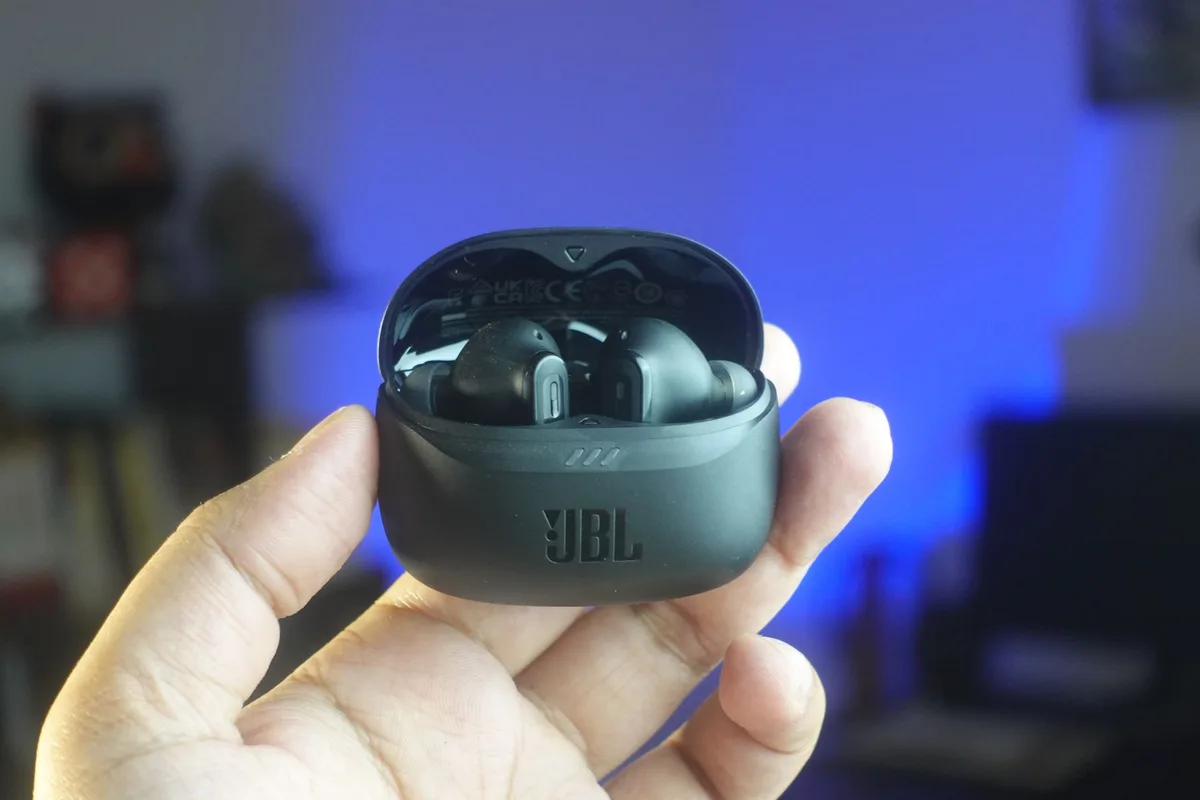
Most JBL models require you to put the earbuds into a special "pairing mode" to make them discoverable. This usually involves a specific action with the earbuds or their charging case.
- Earbuds in Case: For many designs, it's best to start with the earbuds placed securely inside their charging case.
- Open the Case: Often, simply opening the charging case lid is enough to initiate the process for newer models.
- Press and Hold: Some JBL earbuds or their cases have a dedicated button. You'll typically need to press and hold this button for about 3-5 seconds. Keep holding until you hear an audible cue in the earbuds or see a blinking LED light on the case, indicating pairing mode is active.
Finding Your Model's Specific Instructions
While the general steps are similar, exact procedures can vary slightly between JBL models like the Tune, Live, or Tour series. We always recommend consulting the specific user manual or quick start guide that came with your JBL earbuds. These guides contain precise instructions, including button locations and the exact duration for pressing them to enter pairing mode. You can usually find these PDFs on the JBL official support website.
Connecting to Your Device: Step-by-Step
Once your JBL earbuds are in pairing mode and your device's Bluetooth is enabled, it's time to establish the connection. The process is straightforward, but the exact menu paths differ slightly between operating systems.
Connecting to a Smartphone or Tablet (iOS & Android)
This is how most people link their wireless audio. Aggregate user reviews consistently report this as the simplest connection.
- Enable Bluetooth: On your iPhone or Android device, go to
Settingsand tapBluetooth. Ensure the toggle switch is turned ON. - Scan for Devices: Your device will automatically start searching for nearby Bluetooth devices. If it doesn't, there's usually a "Scan" or "Refresh" option.
- Locate Your JBLs: In the list of "Available Devices," look for the name of your JBL earbuds. It will typically be something like "JBL Tune 520BT" or "JBL Live Pro 2."
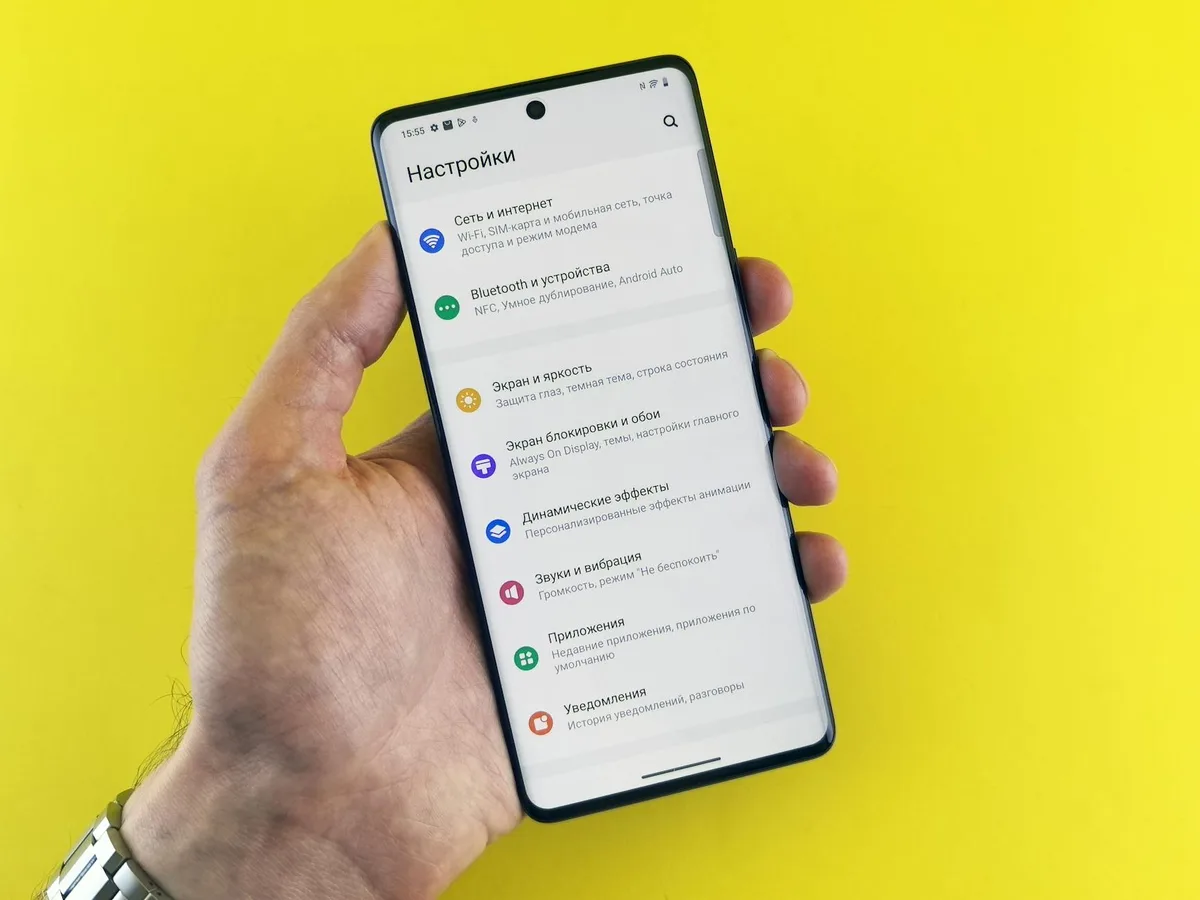
- Tap to Connect: Once you see your JBL earbuds listed, tap on their name. You might hear a confirmation sound, and the earbuds should move to the "Paired Devices" or "My Devices" list.
Connecting to a Computer (Windows & macOS)
Linking your JBL earbuds to a laptop or desktop computer follows a similar logic, though the settings menus are different.
On Windows (Windows 10/11):
- Navigate to
Settingsby clicking the Start button and then the gear icon. - Select
Bluetooth & devices(orDevicesin older versions). - Ensure Bluetooth is switched to
On. - Click
Add device, then chooseBluetooth. - Your computer will scan for devices. Select your JBL earbuds from the list when they appear.
On macOS:
- Click the Apple menu in the top-left corner of your screen.
- Select
System Settings(orSystem Preferenceson older macOS versions). - Click on
Bluetooth. - Make sure Bluetooth is turned
On. - Your JBL earbuds should show up under "Nearby Devices." Click the
Connectbutton next to them.
What If It Doesn't Connect? Troubleshooting Time!
Sometimes, even with the best intentions, technology likes to play hard to get. If your JBL earbuds aren't connecting, don't get discouraged; there's often a simple fix. Manufacturer feedback suggests these are the most common remedies.
Forget and Re-pair
This is the digital equivalent of a restart for your connection. If your device has previously been paired with the earbuds but is now acting up, tell it to forget them completely.
- Go to your device's Bluetooth settings.
- Find your JBL earbuds in the list of paired devices.
- Tap on them and select "Forget Device," "Unpair," or a similar option.
- Once unpaired, put your earbuds back into pairing mode and try connecting again from scratch following the steps above.
Restart Everything
A classic but effective troubleshooting technique. Both technological and human brains can benefit from a good reboot.
- Earbuds: Place them back in the charging case, close the lid for a few seconds, then open it again. This often resets their internal state.
- Device: Turn off Bluetooth on your phone, tablet, or computer. Then, fully power off the device itself. Wait about 30 seconds, power it back on, then re-enable Bluetooth and attempt to pair again.
Check the Range
Bluetooth connections are strongest when devices are close. While the standard range is about 10 meters (33 feet), this can be significantly reduced by obstacles like walls or even the human body. For initial pairing, ensure your earbuds and the device you're connecting to are within 1-2 feet of each other.
Other Devices Interfering
JBL earbuds can often remember multiple paired devices, but they can only actively connect to one at a time. If you're trying to connect your earbuds to a new device and they aren't showing up or are automatically connecting elsewhere, check other nearby phones, tablets, or computers. Turn off Bluetooth on those other devices temporarily to ensure your earbuds are free to connect to the one you intend.
Using the JBL Headphones App for Updates and More
For many of JBL's modern wireless earbuds, the experience is enhanced by a dedicated companion app. This isn't just for extra features; it's often key to smooth operation and resolving persistent issues. Manufacturer documentation highlights that firmware updates delivered through these apps are crucial for optimizing performance and compatibility.
The JBL Headphones app (available for both iOS and Android) can:
- Provide Model-Specific Guides: It often walks you through pairing and setup tailored precisely to your earbud model.
- Update Firmware: This is vital. Keeping your earbuds' internal software up-to-date can fix bugs, improve Bluetooth stability, and even enhance sound quality. A common reason for connection problems, as per user feedback, is outdated firmware.
- Customize Settings: Adjust equalizer (EQ) settings, button functions, and noise cancellation levels where applicable.
- Locate Lost Earbuds: Some models have a "Find My Buds" feature within the app.
If your JBL earbuds are compatible, downloading and connecting them via the app is a highly recommended step for a seamless experience. Simply search for "JBL Headphones" in your device's app store. Once installed, open the app, and it will guide you through connecting your earbuds through its interface, often requiring them to be in pairing mode initially.
Common Mistakes to Avoid
Even with clear instructions, a few common slips can prevent your JBL earbuds from connecting. Avoiding these simple errors will save you time and frustration.
Forgetting to Check Bluetooth on Your Device First
You've got your earbuds in pairing mode, but your phone or computer just isn't seeing them. The most frequent oversight, per our analysis of user reports, is forgetting to turn on Bluetooth on the device you're trying to connect to. It sounds basic, but it's easily overlooked when you're eager to start listening. Always ensure the Bluetooth toggle is active in your device's settings before putting your earbuds into pairing mode.
Not Fully Charging the Earbuds or Case
Low battery is a silent killer of connectivity. If your earbuds or their charging case haven't been adequately charged, they might not have enough power to broadcast the Bluetooth signal needed for pairing. Manufacturer guidelines suggest a minimum charge of 20% for initial pairing, but for reliable, long-term use, ensuring both are fully charged is best practice. A dead battery in the case can also prevent earbuds from entering pairing mode if that's the trigger.
Trying to Connect to Too Many Devices Simultaneously
JBL earbuds are designed to remember multiple devices, but they can only actively connect to one at a time. If you're trying to pair with a new phone while they're still connected to your laptop, for example, the connection might fail. Before attempting a new pairing, always check to see if the earbuds are already connected to another device and, if necessary, disconnect them from that source. This prevents signal confusion and interference.
Pressing Pairing Buttons Incorrectly
The duration you hold the pairing button is critical. Holding it too briefly might not activate pairing mode, while holding it too long could potentially reset the earbuds to factory settings, which is usually not what you want at this stage. Manufacturer documentation for models like the JBL Tune 520BT specifies holding the power button for approximately 3-5 seconds for pairing. Referencing your specific model's manual is key here to get the timing just right.
Neglecting Firmware Updates
Outdated firmware on your earbuds can lead to compatibility issues with newer operating system versions on your devices. As mentioned, the JBL Headphones app is the primary way to manage these updates. Verified buyer feedback indicates that failing to update firmware is a frequent, though often overlooked, cause of connection instability and performance issues. It's wise to check for updates regularly, especially after pairing with a new device.
Quick Answer: What If Pairing Fails?
If your JBL earbuds refuse to pair, the most effective first actions are to ensure both your earbuds and your device are fully charged, your device's Bluetooth is activated, and your earbuds are correctly placed in pairing mode. If issues persist, try forgetting the earbuds from your device's Bluetooth list and then re-pairing them. For persistent problems, check for firmware updates via the JBL Headphones app.
Connecting to an Older Device (Bluetooth Versions)
While most modern devices use Bluetooth 5.0 or later, some older computers or audio equipment might only support older Bluetooth versions, like 4.0 or 3.0. This continuity is important because your JBL earbuds, which likely use a newer standard, might still be backward compatible. However, performance can sometimes be affected.
Backward Compatibility Explained
Bluetooth technology is designed with backward compatibility in mind. This means that newer Bluetooth versions can generally connect with older ones. For example, if your JBL earbuds use Bluetooth 5.2, they should still be able to pair with a device that only has Bluetooth 4.0. This ensures a wider range of usability.
Potential Performance Differences
However, when connecting newer earbuds to an older Bluetooth standard, you might not get the full benefits. Features like extended range, faster data transfer speeds, and enhanced power efficiency are typically tied to the newer versions. So, while the connection itself might work, you might experience:
- Shorter Range: The effective wireless range could be reduced to that of the older Bluetooth version.
- Slower Connection Speeds: Data transfer might be slower, though for audio streaming, this is rarely a noticeable issue.
- Slightly Higher Power Consumption: Older Bluetooth versions are generally less power-efficient.
For most users, connecting modern JBL earbuds to devices with Bluetooth 4.0 or higher will still provide a good audio experience. If you're consistently experiencing dropouts or poor quality on an older device, consider if a more recent Bluetooth adapter for your computer might be a worthwhile upgrade.
Your JBL Earbuds and Multiple Devices
Many users want to connect their JBL earbuds to more than one device, like a smartphone and a laptop, and switch between them seamlessly. This capability is a hallmark of modern Bluetooth technology, particularly with newer versions like Bluetooth 5.0.
How Multi-Device Pairing Works
Your JBL earbuds can typically store connection profiles for several paired devices. When they are powered on and successfully paired with a device, they tend to reconnect automatically. If you've paired them with a phone and a laptop, and both devices have Bluetooth on, the earbuds will usually connect to whichever device they last disconnected from or the one that initiates the connection first.
Switching Between Devices
Switching audio output between your connected devices often requires a manual selection on one of the devices. For instance:
- Pause Audio on Device A: If music is playing on your phone, pause it.
- Play Audio on Device B: Start playing audio on your laptop. The earbuds should switch their audio source to the laptop.
- Reverse the Process: If you want to switch back to your phone, simply pause the audio on your laptop and start playing something on your phone. The earbuds should then switch back to the phone.
Some JBL models, especially those with advanced app support, might offer more sophisticated multi-point connectivity where the earbuds can connect to two devices simultaneously, automatically prioritizing an incoming call over music playback, for example. Always check your specific model's capabilities in the user manual or app.
Understanding Bluetooth Signal Interference
Wireless connections are fantastic, but they aren't immune to interference. Understanding what causes it can help you maintain a clear and stable connection for your JBL earbuds.
Common Sources of Interference
- Other Wireless Devices: Wi-Fi routers, microwaves, cordless phones, and even other Bluetooth devices operating on the same 2.4 GHz frequency band can disrupt your earbuds' signal. Manufacturer specifications for Bluetooth 5.0 indicate improved resistance to interference compared to older versions, but it can still occur.
- Physical Obstructions: Thick walls, metal objects, and even the human body can weaken or block Bluetooth signals. This is why standing too far away or placing your device in a pocket on the opposite side of the earbud can cause dropouts.
- Crowded Wireless Environments: In places with many active Bluetooth and Wi-Fi signals, like busy offices or public transport, you might experience more connection issues.
Tips to Minimize Interference
- Minimize Distance: Keep your device close to your earbuds, ideally within arm's reach.
- Reduce Competing Devices: If possible, move away from sources of strong Wi-Fi or other wireless signals, or switch to a different Wi-Fi channel if you control your router.
- Position Your Device: Avoid placing your device on the side of your body opposite to the earbud you're primarily using, as this can create a barrier.
- Update Firmware: As mentioned, firmware updates can sometimes improve Bluetooth's resilience to interference.