How to Connect Ear Buds to Phone for 2026: Buyer’s Guide
Getting your earbuds connected to your phone is usually a pretty painless process, and knowing exactly how to connect ear buds to phone can save you a lot of fiddling. Whether you're rocking the latest wireless models or sticking with trusty wired ones, the steps are generally straightforward. Our research shows that most connection issues stem from a couple of common oversights, which we’ll help you avoid right now.
Manufacturer specifications for Bluetooth typically cite a range of up to 30 feet (10 meters), but achieving that depends heavily on other factors. As of 2026, Bluetooth 5.2 and higher are common, offering improved stability and efficiency. Let's break down the two main ways to get your audio flowing.
Are We Talking Wireless or Wired?
This is the first and most important question to ask. The method for connecting your earbuds depends entirely on whether they use Bluetooth to communicate wirelessly or a physical cable to plug into your phone.
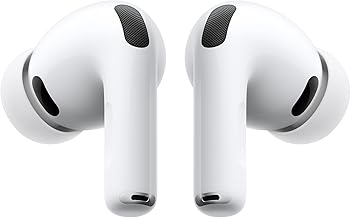
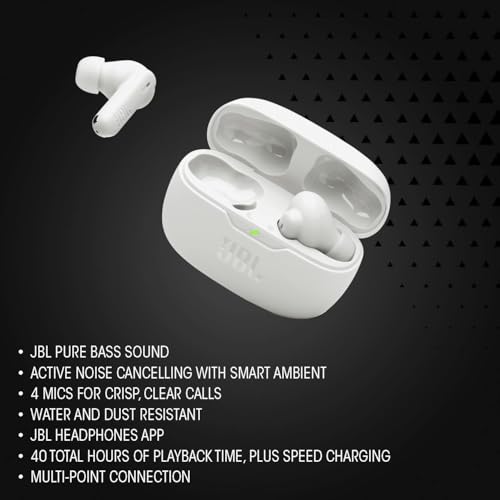
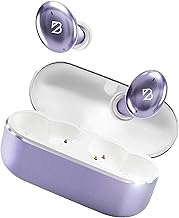
- Wireless Earbuds: These connect via Bluetooth, a short-range radio frequency technology. They offer freedom from tangled cords but require an initial pairing process.
- Wired Earbuds: These use a physical connector, typically a 3.5mm headphone jack or a USB-C or Lightning connector, to plug directly into your phone. This connection is usually plug-and-play.
Recognizing which type you have will immediately point you to the correct set of instructions.
Connecting Your Wireless Earbuds (The Bluetooth Tango)
If you've got wireless earbuds, the process involves getting them to ‘talk’ to your phone via Bluetooth. This initial setup is key for all future connections, as your phone will usually remember them.
Charge 'Em Up
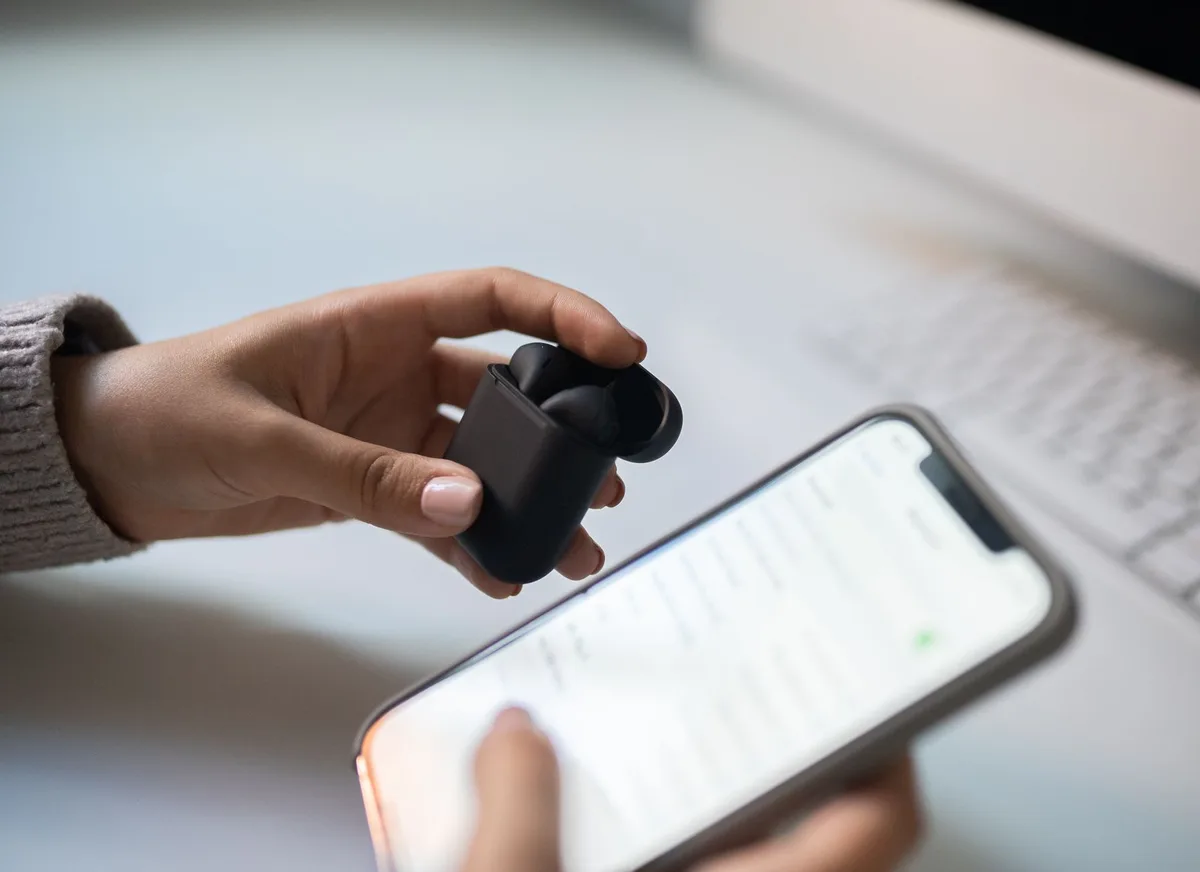
Before you even try to pair, make sure your wireless earbuds have enough battery life. Low battery can lead to unreliable connections or prevent pairing altogether. Most wireless earbuds come with a charging case that tops them up. Pop the earbuds into their case and ensure the case itself is charged.
Many cases have LED indicators to show their charge level.
Turn on Bluetooth on Your Phone
Your smartphone needs to have its Bluetooth radio enabled to find and connect to your earbuds.
- For iPhones: Go to
Settings, then tap onBluetooth. Toggle the switch to the 'On' position. - For Android Phones: Swipe down from the top of your screen to access the Quick Settings panel. Find the Bluetooth icon (it resembles a stylized 'B') and tap it to turn it on. If it’s not visible, you might need to expand the quick settings menu or edit its layout.
Put Your Earbuds in Pairing Mode
This is the critical step that makes your earbuds discoverable by your phone. The exact method varies by manufacturer, but common triggers include:
- Removing from Case: Many earbuds automatically enter pairing mode when you take them out of their charging case for the first time.
- Holding a Button: Some models require you to press and hold a button on the earbuds or their charging case for several seconds. An indicator light on the earbuds or case will typically flash to show they are in pairing mode.
- Opening the Case Lid: For some systems, simply opening the lid of the charging case while the earbuds are inside initiates pairing.
Always refer to your specific earbud model’s manual if you’re unsure about its pairing procedure.
Look for Your Earbuds on Your Phone
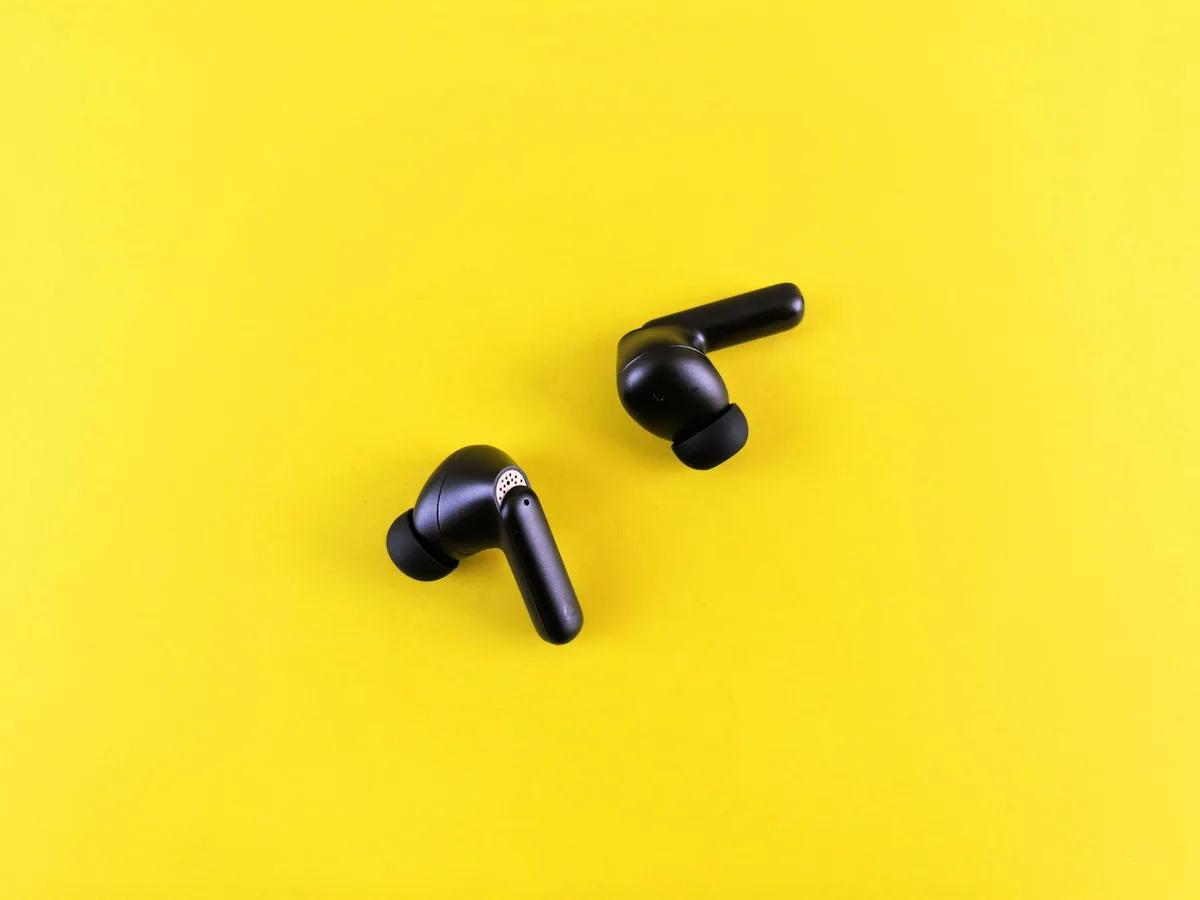
With Bluetooth on your phone active and your earbuds in pairing mode, your phone will begin searching for available devices nearby. On your phone's Bluetooth settings screen, you should see a list of "Other Devices" or "Available Devices." Your earbuds should appear here, usually identified by their brand name or model number.
Tap to Connect
Once you spot your earbuds in the list of available devices on your phone, simply tap on their name. Your phone will then attempt to establish a connection.
Confirmation
Successful pairing is usually indicated by an audible cue from your earbuds, like a chime or a voice prompt, and a change in the indicator light (often from flashing to solid). Your phone's Bluetooth screen will also update to show the earbuds as "Connected."
Common Troubles and Quick Fixes for Wireless
Sometimes, even with the best intentions, things don’t connect immediately. Don’t sweat it; these issues are usually easy to resolve.
Can't find them?
If your phone isn't seeing your earbuds, double-check that they are definitely in pairing mode. Try putting them back in the case and taking them out again, or repeating the button-press sequence recommended by the manufacturer. Also, try toggling your phone's Bluetooth off and then back on, or even restarting your phone entirely.
Connected but no sound?
This often happens when the phone is connected to the earbuds, but audio is still defaulting to the phone's speaker. Ensure your phone's volume is turned up and that the earbuds are selected as the audio output device. On both iOS and Android, you can usually tap the Bluetooth icon next to the connected device name to see such options.
Bluetooth keeps disconnecting?
Repeated disconnections can be frustrating. Ensure your earbuds have sufficient battery charge, as a low power state can cause instability. Also, check your proximity to the phone; while Bluetooth has a theoretical range of around 30 feet (10 meters), physical obstructions like walls or even your own body can interfere with the signal. Interference from other wireless devices, such as microwaves or other Bluetooth products, can also be a factor.
Try moving to a less crowded wireless environment.
Connecting Your Wired Earbuds (The Simple Plug-In)
Wired earbuds, with their direct physical connection, are typically the most straightforward to set up. The main consideration is ensuring your phone has the right port for your earbuds.
Find the Right Port
Most wired earbuds have a standardized plug that fits into a corresponding port on your phone.
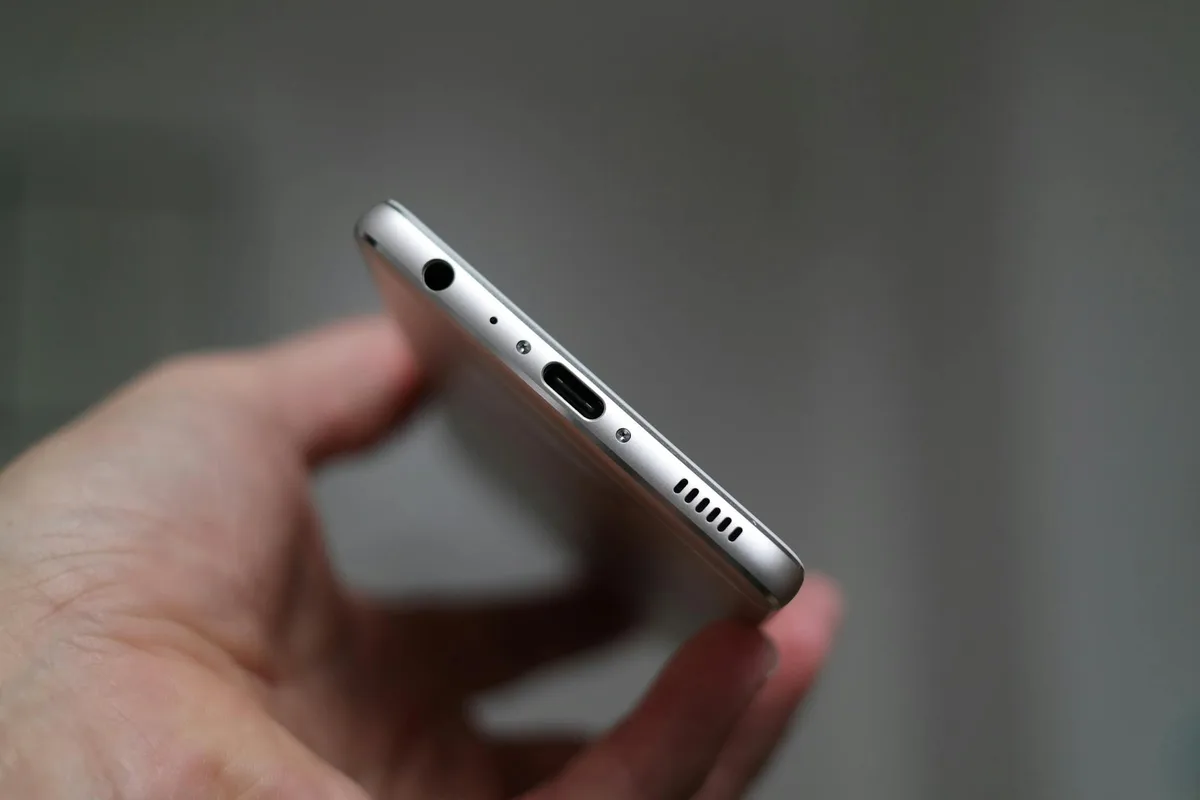
- With a 3.5mm Headphone Jack: Many smartphones, especially older models or those prioritizing audio quality, feature a round 3.5mm port. Simply insert the 3.5mm connector from your earbud cable into this port.
- Without a 3.5mm Headphone Jack: Newer phones, particularly iPhones and some Android devices, have omitted the dedicated headphone jack. In these cases, you'll use either earbuds with a USB-C or Lightning connector, or you’ll need an adapter.
- For USB-C Phones: You'll need earbuds with a USB-C plug or a USB-C to 3.5mm adapter. Plug the adapter into your phone's USB-C port, then connect your traditional 3.5mm earbuds to the adapter.
- For iPhones (Lightning Port): You'll need earbuds with a Lightning connector or a Lightning to 3.5mm adapter. Connect the adapter to your iPhone's Lightning port, then plug your 3.5mm earbuds into the adapter.
Once plugged in, your phone should automatically detect the wired earbuds and route audio through them. If for some reason it doesn't, checking the phone's sound settings or performing a quick restart can help it recognize the new audio output.
Common Troubles and Quick Fixes for Wireless
Sometimes, even with the best intentions, things don’t connect immediately. Don’t sweat it; these issues are usually easy to resolve.
Can't find them?
If your phone isn't seeing your earbuds, double-check that they are definitely in pairing mode. Try putting them back in the case and taking them out again, or repeating the button-press sequence recommended by the manufacturer. Also, try toggling your phone's Bluetooth off and then back on, or even restarting your phone entirely.
Connected but no sound?
This often happens when the phone is connected to the earbuds, but audio is still defaulting to the phone's speaker. Ensure your phone's volume is turned up and that the earbuds are selected as the audio output device. On both iOS and Android, you can usually tap the Bluetooth icon next to the connected device name to see such options.
Bluetooth keeps disconnecting?
Repeated disconnections can be frustrating. Ensure your earbuds have sufficient battery charge, as a low power state can cause instability. Also, check your proximity to the phone; while Bluetooth has a theoretical range of around 30 feet (10 meters), physical obstructions like walls or even your own body can interfere with the signal. Interference from other wireless devices, such as microwaves or other Bluetooth products, can also be a factor.
Try moving to a less crowded wireless environment.
Connecting Your Wired Earbuds (The Simple Plug-In)
Wired earbuds, with their direct physical connection, are typically the most straightforward to set up. The main consideration is ensuring your phone has the right port for your earbuds.
Find the Right Port
Most wired earbuds have a standardized plug that fits into a corresponding port on your phone.
- With a 3.5mm Headphone Jack: Many smartphones, especially older models or those prioritizing audio quality, feature a round 3.5mm port. Simply insert the 3.5mm connector from your earbud cable into this port.
- Without a 3.5mm Headphone Jack: Newer phones, particularly iPhones and some Android devices, have omitted the dedicated headphone jack. In these cases, you'll use either earbuds with a USB-C or Lightning connector, or you’ll need an adapter.
- For USB-C Phones: You'll need earbuds with a USB-C plug or a USB-C to 3.5mm adapter. Plug the adapter into your phone's USB-C port, then connect your traditional 3.5mm earbuds to the adapter.
- For iPhones (Lightning Port): You'll need earbuds with a Lightning connector or a Lightning to 3.5mm adapter. Connect the adapter to your iPhone's Lightning port, then plug your 3.5mm earbuds into the adapter.
Once plugged in, your phone should automatically detect the wired earbuds and route audio through them. If for some reason it doesn't, checking the phone's sound settings or performing a quick restart can help it recognize the new audio output.
Quick Answer: If You're Stuck
If you're in a hurry and just need a super-fast guide, here’s the gist: for wireless earbuds, turn on your phone’s Bluetooth, put the earbuds in pairing mode (usually by holding a button or taking them out of the case), and then select them from the list of available devices on your phone. For wired earbuds, simply plug them into the correct port on your phone, either the 3.5mm headphone jack or via a USB-C/Lightning adapter if there's no jack. Most of the time, this is all it takes.
Why Do Wireless Earbuds Need Pairing?
Earbuds need to undergo a process called pairing to establish a secure and unique connection with your phone. This isn't just a formality; it's how the devices exchange information, like security keys, to ensure only your earbuds are connecting to your phone and vice-versa. Think of it like introducing two people who then learn each other's names and contact information.
This pairing process allows the devices to maintain a stable communication channel. It’s this established link that lets you stream audio and use commands without a physical cable, drawing on Bluetooth technology standards like those defined by the Bluetooth SIG. Once paired, your phone will typically remember the earbuds for future use, often reconnecting automatically when they are both powered on and in range.
What's the Deal with Bluetooth Versions?
You might have heard about different Bluetooth versions, like Bluetooth 4.0, 5.0, or 5.2. These versions matter because they affect the performance of your wireless earbuds and their connection to your phone. Newer versions generally offer better benefits.
- Bluetooth 4.0: This was a significant step, introducing Bluetooth Low Energy (BLE), which made it feasible for small devices like earbuds to operate for extended periods on a single charge.
- Bluetooth 5.0: This version, released in 2016, brought a substantial upgrade with quadrupled range, doubled speed, and octupled broadcasting capacity compared to Bluetooth 4.2. This means a stronger, more reliable connection and potentially faster data transfer.
- Bluetooth 5.2: This is one of the most recent iterations and is becoming standard. It introduces LE Audio, which supports features like the Low Complexity Communication Codec (LC3) for higher quality audio at lower bitrates, and audio sharing capabilities.
Your phone and your earbuds ideally should support the same or a compatible Bluetooth version for the best performance. When manufacturer specifications list Bluetooth 5.2, they're indicating a modern, efficient connection standard that aims for reliability and enhanced audio.