How to Pair Jbl Ear Buds 2026
Connecting your JBL earbuds to your phone or other devices is usually a straightforward process, but sometimes it just doesn't click. If you're staring at your earbuds and your device's Bluetooth settings, feeling a little lost, you're in the right place. We'll get these two talking to each other so you can enjoy your audio without the fuss.
Manufacturer specifications confirm that most JBL wireless earbuds utilize Bluetooth technology, often adhering to standards like Bluetooth 5.0 or higher, which allows for stable connections. This guide breaks down the typical pairing procedure and offers solutions if you hit a snag, ensuring you're back to listening in no time.
The Basic Pairing Steps: Let's Get Them Talking!
If your JBL earbuds aren't automatically connecting when you open the case, there's a simple manual process to get them paired. This method is pretty universal across many JBL models and works by making the earbuds discoverable to your chosen device.
Charge Up Your Earbuds
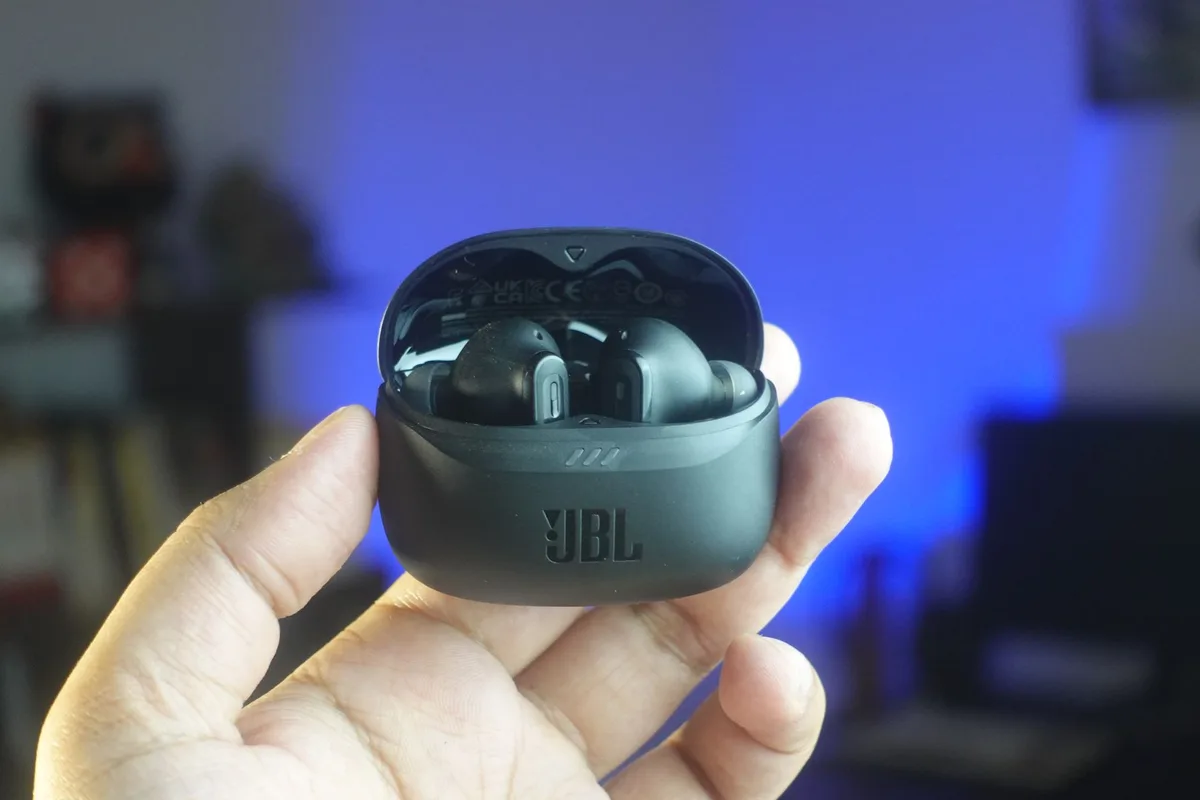
Before you even think about pairing, make sure your earbuds have enough power. A low battery can prevent them from properly entering pairing mode or completing the connection. If you're unsure, pop them into their charging case for at least 15-30 minutes. Many JBL charging cases offer a quick charge feature for this very reason.
Open the Charging Case
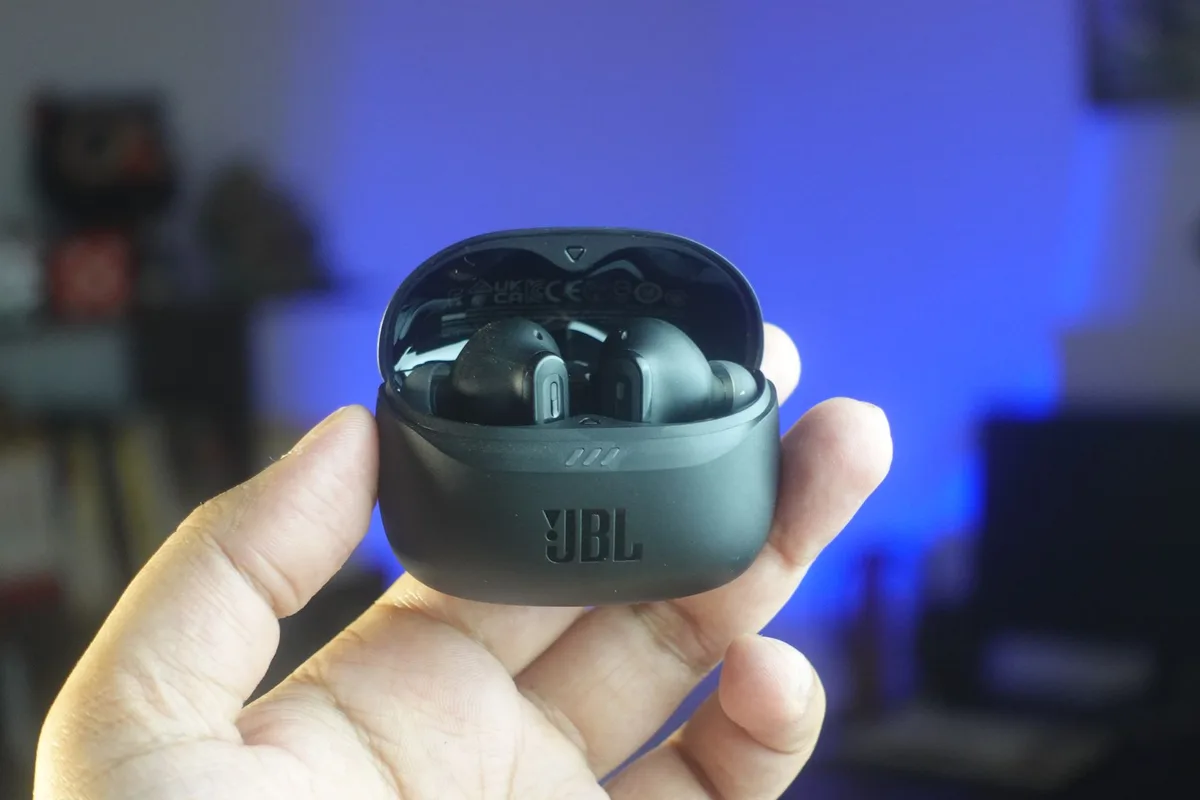
For most wireless JBL earbuds, the first step to initiating a connection is to simply open the charging case. This action typically wakes up the earbuds and signals them to look for a device to pair with. You'll often see small LED lights on the earbuds themselves start to blink, indicating they are active and ready.
Head to Your Device's Bluetooth Settings
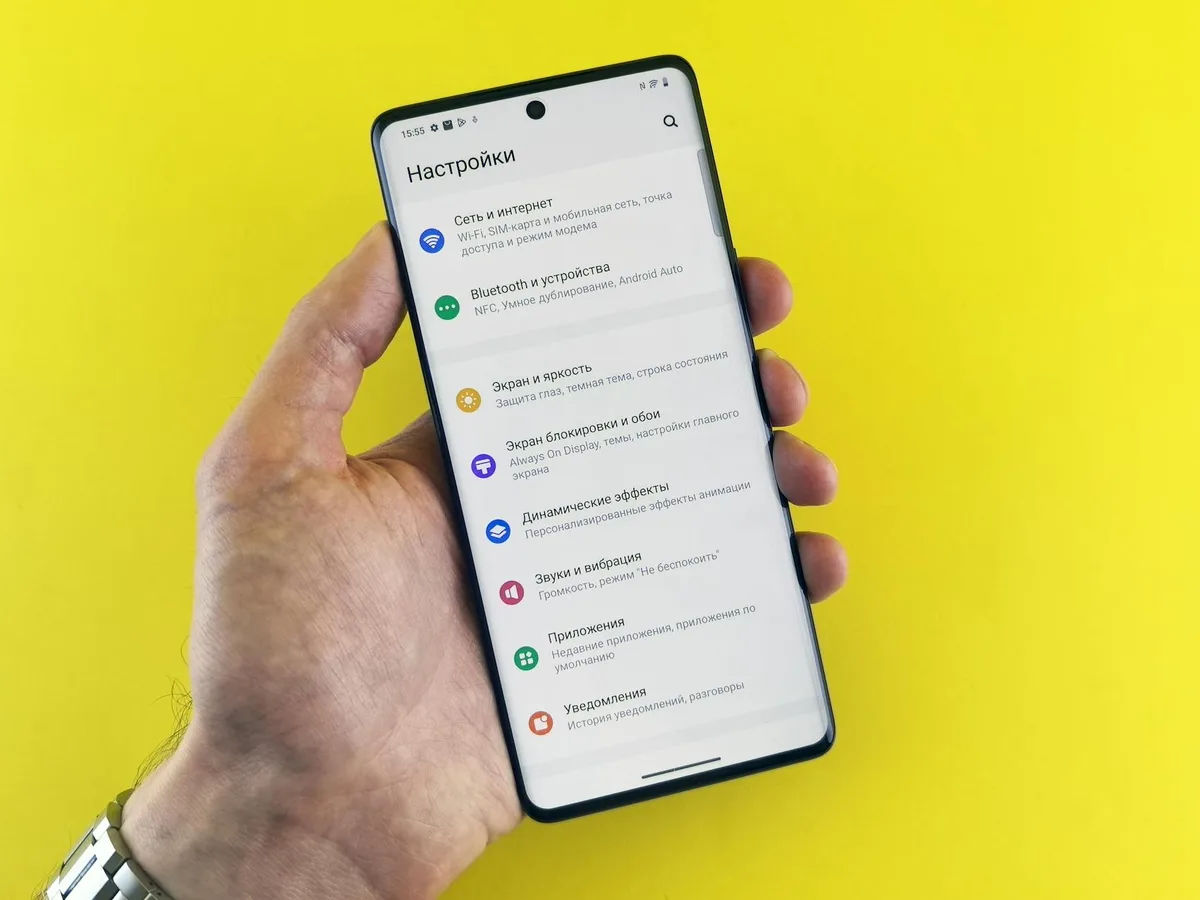
With the earbuds ready, grab the device you want to connect them to, this could be your smartphone, tablet, or even a laptop. Navigate to the main settings menu on your device. Within the settings, locate the "Bluetooth" option. Ensure that your device's Bluetooth feature is switched to the "On" position.
Look for Your JBLs
Once Bluetooth is enabled on your device, it will begin scanning for any nearby devices that are discoverable. Give it a moment to search. In the list of available devices that appears on your screen, you should see your JBL earbuds show up. They'll usually be listed with "JBL" followed by a specific model name or number.
Tap to Connect
When you spot your JBL earbuds in the list of available devices, simply tap on their name. Your device will then attempt to establish a connection with the earbuds. This is the moment they start to communicate and sync up.
Confirm Pairing (If Needed)
In some cases, especially during the initial pairing with a new device, your smartphone or tablet might prompt you to confirm the pairing request. You might see a notification asking if you want to "Pair" or "Connect." Sometimes, a security code like "0000" might be displayed, though this is less common with modern Bluetooth devices. Just follow any on-screen instructions to approve the connection.
Success!
If everything has gone smoothly, you'll receive a confirmation on your device indicating that the connection is successful. The indicator lights on your JBL earbuds might also change; they often stop blinking and might turn solid or go dark, signifying they are now connected and ready for use. You can now start playing audio!