How to Connect Ear Buds to Tv (2026) — Worth Your Money
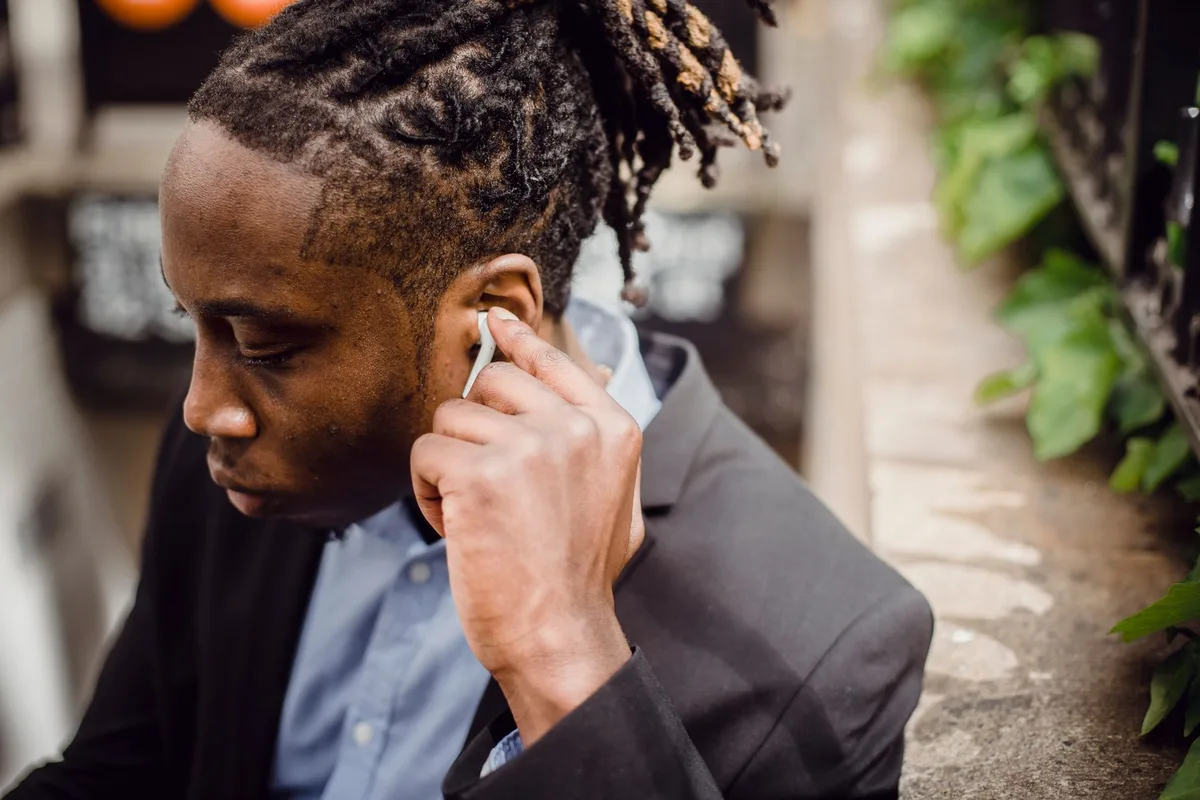
Ever find yourself wanting to crank up the volume on your favorite show or game without bothering anyone else? Or maybe you just want a more immersive audio experience. Connecting your earbuds to your TV is a fantastic way to do just that, but honestly, it can sometimes feel like a bit of a puzzle that isn't immediately intuitive. Don't worry, though; it's usually way simpler than you think, and we're going to walk through the common ways to get it done.
The biggest thing to figure out is how your TV talks to audio devices. Most modern TVs either have a built-in way to connect wirelessly, or they rely on good old physical ports. Per manufacturer specifications, Bluetooth 5.0 is common in TVs released as of 2026, offering improved range and stability over older versions.
Why Connect Your Earbuds to the TV?
Connecting your earbuds to your TV offers a direct line to your audio, creating a more personal and often higher-quality listening session. It's incredibly useful when you need to watch TV late at night without disturbing others, or if you’re in a shared living space like an apartment or dorm. The primary advantage is the ability to control your own volume without impacting anyone else.
This setup also enhances immersion; the sound is directly in your ears, cutting out ambient room noise and letting you focus on dialogue, music, and sound effects. For those with hearing difficulties, this can be a game-changer, allowing them to set the TV volume at a comfortable level for them without needing to blast the TV speakers for everyone else. It’s about creating a tailored, private audio experience.
Method 1: Wireless Freedom with Bluetooth
This is often the cleanest and most straightforward way if your TV supports it. Think of Bluetooth like a short-range invisible cable that allows devices to communicate wirelessly. It's a ubiquitous standard, with most smartphones and many modern TVs incorporating it.
Checking Your TV for Bluetooth
First, you need to confirm if your TV actually has Bluetooth capability. You can usually find this setting deep within the TV's menus. Navigate to the "Settings" or "Setup" menu on your TV's remote. Look for sub-menus labeled "Sound," "Audio," "Connections," "Network," or "Wireless Devices." Within these, search for options like "Bluetooth Audio," "Wireless Devices," or "Pair Device." If you don't see any mention of Bluetooth, your TV likely doesn't have this feature built-in.
Putting Your Earbuds in Pairing Mode
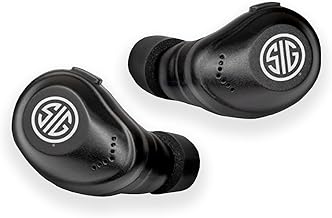
Next, prepare your earbuds so they're ready to be discovered by your TV. Make sure they are adequately charged and located in their charging case. The specific method to activate pairing mode varies by earbud manufacturer. Often, this involves opening the charging case with the earbuds inside, or pressing and holding a specific button on the earbuds or the case itself.
Refer to your earbud model's user manual if you're unsure, as this step is crucial for them to be found.
Pairing Your Earbuds to the TV
Once both your TV and earbuds are ready, it’s time to connect them. Go back to your TV's Bluetooth settings menu and select an option such as "Add Device," "Scan for Devices," or "Search for New Devices." Your TV will then begin looking for any nearby Bluetooth-enabled devices that are in pairing mode. Your earbuds should appear in the list of available devices. Select your earbuds from this list, and your TV might prompt you to confirm a pairing code or simply press "OK" or "Pair" to finalize the connection.
If Your TV Doesn't Have Bluetooth: Using a Transmitter
Don't give up if your TV lacks built-in Bluetooth. There are effective adapters designed to add this functionality to almost any television that has an audio output.
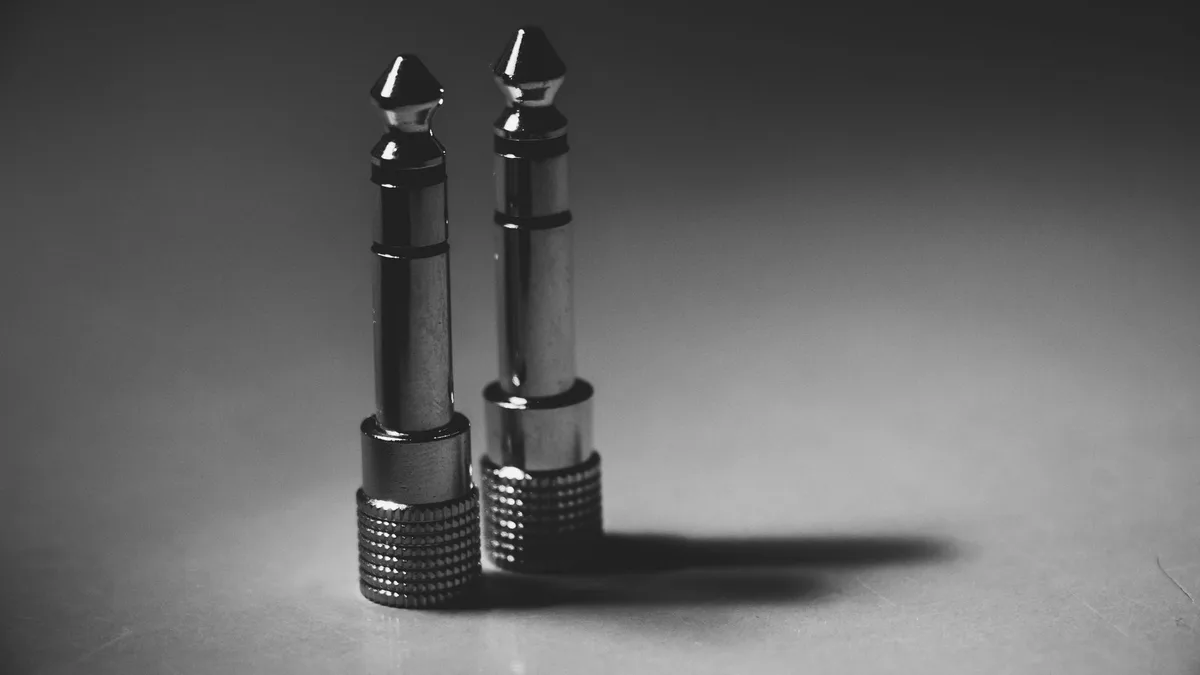
A Bluetooth transmitter is a small device that plugs into your TV's audio output port (which we'll discuss shortly). It then broadcasts a Bluetooth signal that your wireless earbuds can pick up. The setup is typically quite simple: you plug the transmitter into the TV, power it on, and then pair your earbuds to the transmitter following its own specific instructions, much like you would pair them to your phone. This offers a seamless wireless solution even for older TV models.
Method 2: The Classic Headphone Jack Connection
This is the tried-and-true method that works on pretty much any TV equipped with the right port. It's a reliable analog connection that avoids the complexities of wireless pairing and potential Bluetooth latency issues.
Finding the TV's Audio Output Port
Look on the back or side panels of your television for a small, round socket. It's typically 3.5mm in diameter, which is the standard size for most headphone jacks. You'll often find a small icon next to it that resembles headphones, further indicating its purpose. This port is designed to send audio signals directly from the TV's internal tuner or connected media sources.
Using a Wired Connection (Directly or via Extension)
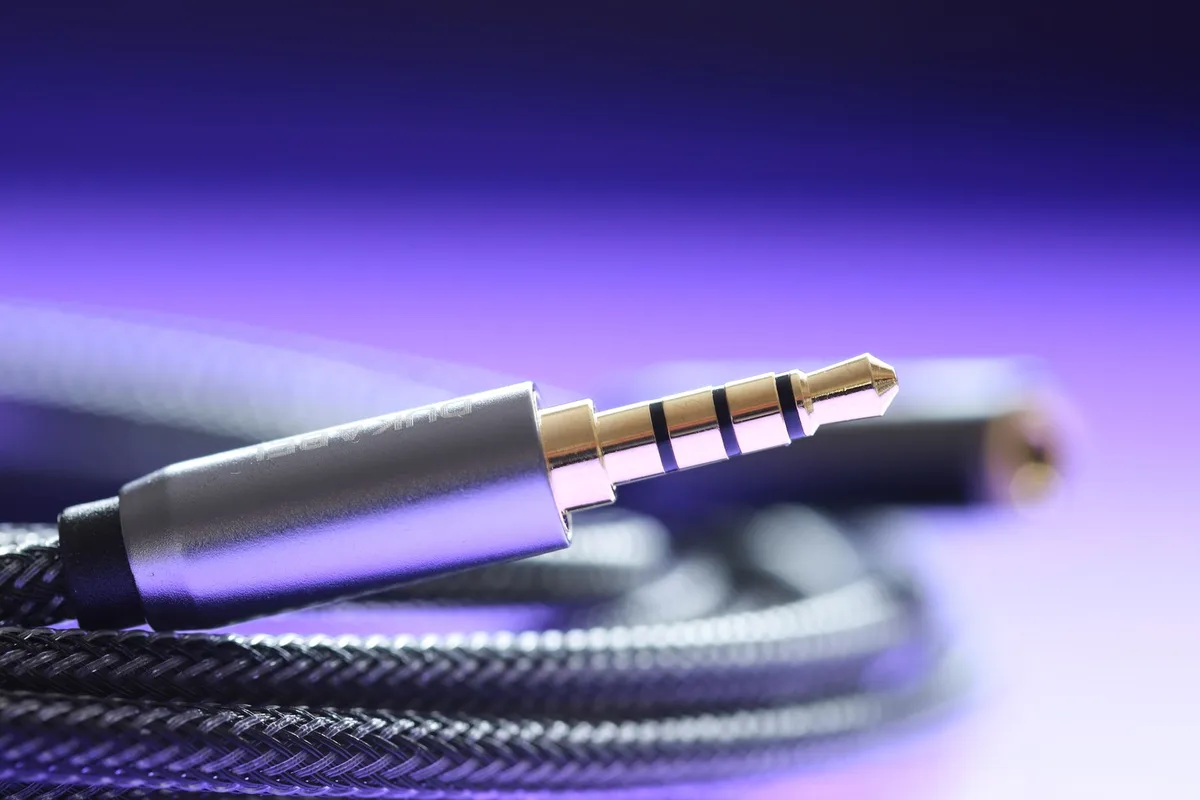
If your earbuds themselves are wired and have a sufficient cable length, you can plug them directly into the TV's headphone jack. This is the simplest physical connection. For those who need more flexibility or space between themselves and the TV, a 3.5mm audio extension cable can be used. You plug one end into the TV's headphone jack and the other end into your wired earbuds' cable, effectively lengthening the reach.
Using a Bluetooth Transmitter with the Headphone Jack
This is a popular hybrid approach, especially for televisions that lack built-in Bluetooth. You would plug the audio output cable of a Bluetooth transmitter into your TV's 3.5mm headphone jack. Then, you pair your wireless earbuds to the Bluetooth transmitter itself, rather than directly to the TV. This effectively gives your older TV Bluetooth capability, allowing you to use your favorite wireless earbuds without being tethered by a wire.
Troubleshooting Common Connection Issues
Sometimes, getting your earbuds talking to your TV isn't a perfectly smooth ride. That's where knowing a few common fixes comes in handy. Don't get discouraged if it doesn't work perfectly on the first try; most issues are quite manageable with a little patience.
"My TV Doesn't See My Earbuds"
If your TV isn't detecting your earbuds during the Bluetooth pairing process, there are a few likely culprits. Ensure your earbuds are definitely in pairing mode; this is usually indicated by a flashing light or an audible cue from the earbuds themselves. Our research shows that not all Bluetooth devices enter pairing mode the same way, so double-checking the earbud manual is key.
Also, confirm your TV is actively scanning for devices and that no other devices are already heavily connected to your TV's Bluetooth. Some TVs have a limit on active connections. If you're using a Bluetooth transmitter, make sure it's powered on and properly plugged into the TV's audio output.
Dealing with Audio Lag (Latency)
Audio lag, or latency, is the technical term for a delay between the picture on the screen and the sound you hear through your earbuds. This is most common with Bluetooth connections, though significant improvements have been made in recent years. Bluetooth 5.0, for instance, aims to reduce latency compared to older standards.
For most casual TV watching, a slight delay might be unnoticeable or easily ignored. However, for fast-paced action movies or gaming, even a small delay can be quite jarring. If you encounter this, try switching to a wired connection if possible, or look for Bluetooth transmitters that specifically advertise low-latency capabilities (often using the aptX Low Latency codec).
Volume Control Confusion
Once your earbuds are paired, you'll typically use your TV remote to adjust the volume. However, many modern earbuds also have onboard volume controls, either physical buttons or touch-sensitive surfaces. If both your TV remote and your earbuds can control volume, you might experience confusion about which one is actually adjusting the sound level.
In some cases, using the earbud's volume controls might override the TV's. In others, they might work in tandem. Our research indicates that users often find it best to select one primary control point to avoid conflicting adjustments. Many users prefer using the TV remote for overall loudness and the earbud controls for fine-tuning.
Tips for the Best TV Earbud Experience
Getting your sound just right involves a few smart practices. Beyond the basic connection, small adjustments can make a big difference in your audio enjoyment. Think of these as the finishing touches to your setup.
- Check Audio Output Settings: On your TV, ensure the audio output is set correctly. If you're using Bluetooth, ensure Bluetooth audio is enabled. If you're using a headphone jack or transmitter, verify that the TV is sending audio through that specific output. Sometimes, TVs default to internal speakers even when something's plugged in.
- Position Your Bluetooth Transmitter: If you're using a transmitter, its placement can impact signal strength. Avoid placing it directly behind large metal objects or near other strong radio frequency emitters (like microwaves) which could interfere with the Bluetooth signal.
- Update Your Devices: Manufacturer specifications often include firmware updates for both TVs and Bluetooth transmitters. These updates can sometimes improve Bluetooth performance, fix bugs, or enhance latency. Regularly checking for and installing these updates is a good practice.
- Consider Battery Life: For extended viewing sessions, particularly with wireless earbuds, battery life is a consideration. Ensure your earbuds are fully charged before you start watching. If your earbuds support it, using only one earbud can sometimes extend listening time when sharing or if one has a lower charge.
Final Thoughts on Getting Your Sound Connected
Connecting your earbuds to your TV is a practical way to enhance your viewing experience, offering privacy and improved audio clarity. Whether your TV has built-in Bluetooth or you're using an adapter, the process primarily involves identifying the correct connection method and following straightforward pairing or plugging-in steps. Most televisions released as of 2026 offer Bluetooth connectivity, making wireless setups increasingly common.
By understanding the differences between Bluetooth and wired connections, knowing how to troubleshoot common issues like pairing failures or audio lag, and applying a few simple tips, you can easily get your TV audio playing through your earbuds. This accessible technology ensures your favorite shows and movies sound exactly how you want them to.