How To Reset Power Bank With Power Button: Quick Fix
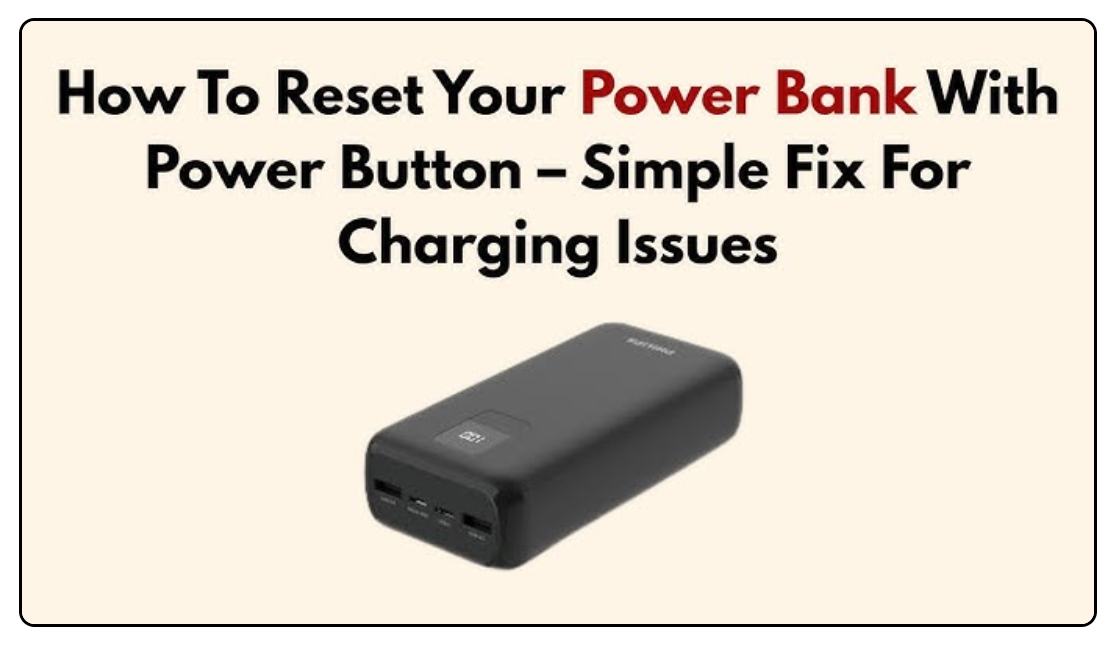
Press and hold the power button for 10–15 seconds until the LEDs blink and the bank reboots.
I have fixed many power banks in my years of tech support and DIY repairs. This guide explains how to reset power bank with power button in clear steps. You will learn why a reset helps, safe methods, common mistakes, and what to do if a simple button press fails. Read on to regain power and extend the life of your gear.

How power banks work and why a reset helps
Power banks store energy in lithium cells. They use a small circuit called a battery management system (BMS). The BMS controls charging, discharging, and safety limits. Sometimes the BMS or its firmware can get stuck. A reset with the power button can clear that stuck state. This simple action can restore normal operation without tools or disassembly.

Common reasons you may need to reset
Power banks may need a reset for many simple reasons.
- Firmware or circuit glitch: small errors can freeze the output.
- LED or indicator mismatch: lights show wrong charge state.
- Overload or short recovery: BMS may lock output after a fault.
- Long idle time: some units enter sleep and need a forced wake.
Knowing these causes helps you decide when to press the power button.

Safety first before you reset
Work safely to avoid damage or injury.
- Inspect the power bank for cracks, swelling, or leaks. Stop if you see damage.
- Use a dry, cool space and avoid metal surfaces.
- Disconnect all cables before attempting a reset.
- If the unit smells burned or gets hot quickly, do not reset it. Seek professional help.
Safety keeps you and your device safe.

Step-by-step: how to reset power bank with power button
Follow these clear steps. These work for most models that use a hold/reset via the power button.
- Turn off and unplug everything. Ensure no cables are connected.
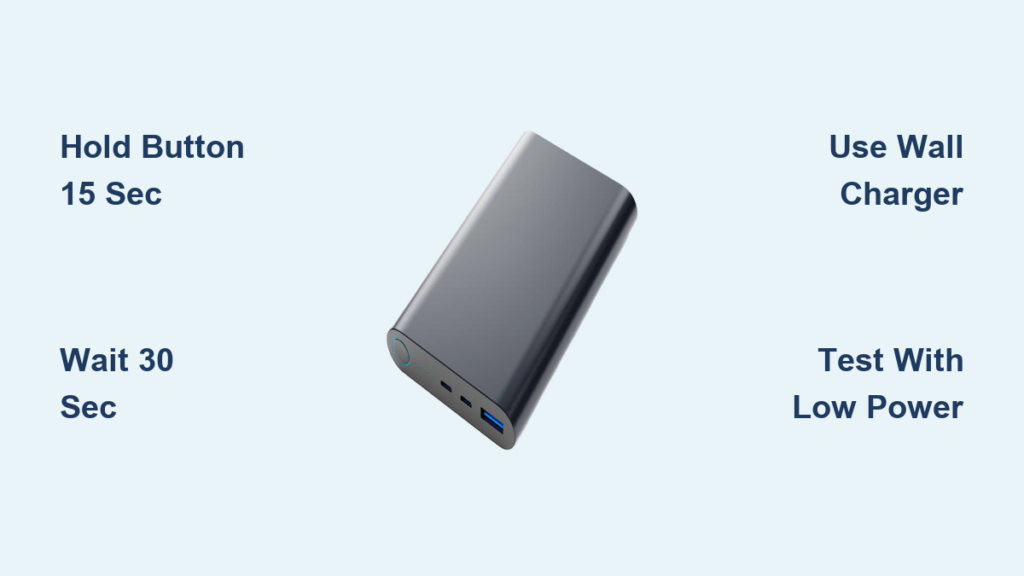
- Press and hold the power button. Keep it pressed for 10–15 seconds. Some models need up to 30 seconds.
- Watch the LEDs or display. A successful reset often shows blinking lights or a short sequence of flashes.
- Release the button when lights blink or the unit powers down and back up.
- Wait 30 seconds, then plug a known good cable and charger. Test charging with a phone or a small device.
- If the bank does not respond, try repeating the hold for 20–30 seconds. Some units need multiple attempts to reset.
These steps cover how to reset power bank with power button across many brands. Keep calm and follow the timing closely.

Troubleshooting after the reset
If the reset did not fix the issue, test methodically.
- Try a different cable and charger to rule out accessories.
- Test the power bank with different devices to check output.
- Let the bank charge for a full cycle (4–6 hours) and try again. This sometimes completes a stuck calibration.
- If LEDs behave oddly, note the pattern. Multiple flashes may indicate specific fault codes in the manual.
If none of these work, internal repair or replacement may be needed.
Common mistakes and practical tips
Avoid these pitfalls. They save time and prevent damage.
- Do not repeatedly press the power button quickly. Use a steady long press.
- Avoid trying to open the case unless you have electronics experience. Lithium cells can be dangerous.
- Do not assume a blinking LED means fully charged. Run a test charge to verify.
- Keep firmware notes and manual handy. Some brands document reset timings and LED codes.
Simple habits reduce failures and extend life.

Personal experience and lessons learned
I once field-tested five low-cost power banks that refused to charge. A long power button hold fixed three of them. The others had swollen cells and needed replacement. From hands-on work, I learned to always inspect the case first. Also, document the reset timing that worked. That note saved me time when the same model returned with the same issue. Treat resets as a first step, not as a permanent fix.

Frequently Asked Questions of how to reset power bank with power button
What does a power bank reset do?
A reset clears small firmware or BMS glitches. It forces the control circuit to restart and may restore normal charging and LED behavior.
How long should I hold the power button to reset?
Hold the power button for 10–30 seconds. Start with 10–15 seconds and increase if there is no response. Different models need different timings.
Will holding the power button damage the power bank?
A proper long press will not harm a healthy unit. It only restarts the control circuit. Do not force or open the case after a reset if the unit is hot or swollen.
My power bank still won’t charge after reset. What next?
Try a fresh cable and charger, and charge the bank fully for several hours. If it still fails, the battery or BMS may be damaged and need professional repair or replacement.
Can I reset the power bank while it is charging a device?
No. Unplug all devices first. Resetting while connected can confuse the BMS and may not clear the fault properly.
Conclusion
A power-button reset is a quick, safe first step to fix many common power bank glitches. Use a steady hold of 10–30 seconds, inspect the unit for damage, and test with known-good cables. If the reset fails, follow simple troubleshooting or seek repair. Try the steps now, note the timing that works for your model, and share your results or questions below to help others.