How to Connect Ear Buds to Ipad for 2026: Real Buyer Picks
Getting your earbuds linked up to your iPad can sometimes feel like a puzzle, but understanding how to connect earbuds to iPad is straightforward once you know the steps. We've looked at the common methods and what manufacturer specifications confirm about these connections to help you get listening quickly.
Whether you're rocking the latest wireless buds or a reliable wired pair, the process generally follows a predictable pattern that most iPads, including models as of 2026, handle with ease. Let’s break down how to make that audio connection happen without a hitch.
Quick Connect for Wireless Earbuds
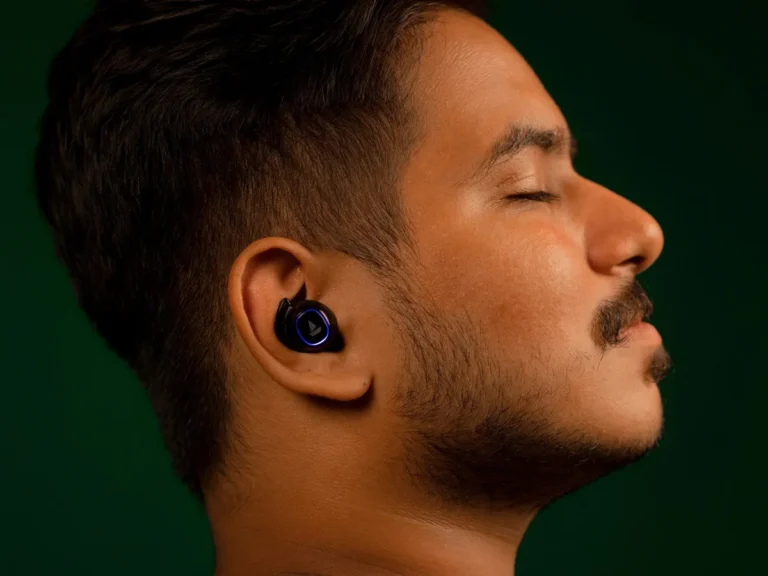
Connecting wireless earbuds, often called Bluetooth earbuds, to your iPad is the most common method. This relies on Bluetooth technology, a short-range wireless standard that allows devices to communicate with each other.
Here’s how it generally goes:
Step 1: Ready Your Earbuds for Pairing
For your iPad to find your wireless earbuds, the earbuds themselves need to be discoverable. This usually involves putting them into a specific "pairing mode."
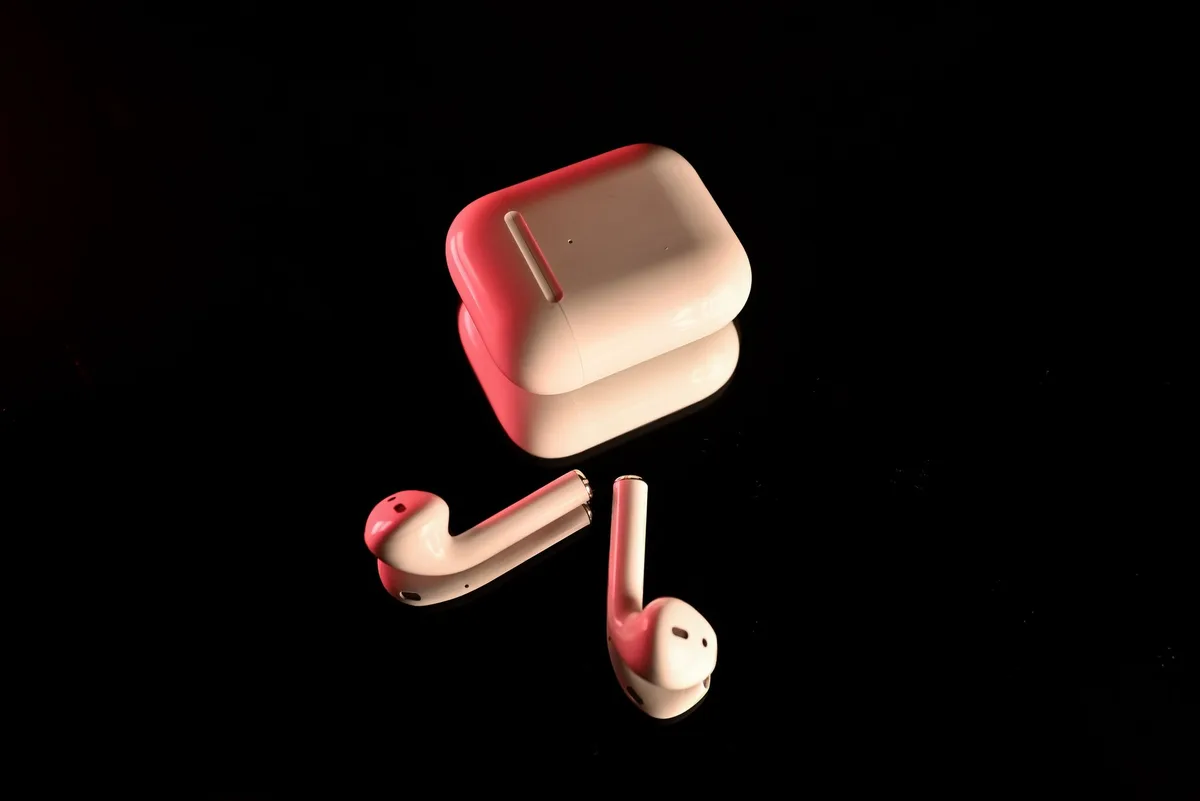
- Wake Them Up: Most true wireless earbuds are designed to enter pairing mode automatically the first time you take them out of their charging case. If this is your first time connecting them to an iPad, or if they've been connected to another device recently, you might need to initiate pairing manually.
- Manual Pairing: Refer to your earbuds' instruction manual, as the method varies by brand. Commonly, it involves opening the charging case and pressing and holding a button on the case itself, or on one of the earbuds, for several seconds.
- Visual Cue: Look for a blinking light on the earbuds or their case. This light often alternates between blue and red, or just blinks blue, indicating they are ready to be found by a nearby device. This state is crucial for the next step.
Step 2: Find Bluetooth Settings on Your iPad
Your iPad manages all its wireless connections through the Settings app.
- Open Settings: Locate the grey gear icon on your iPad's Home Screen and tap it.
- Navigate to Bluetooth: In the Settings app, you'll see a list of options on the left-hand side. Find and tap on "Bluetooth."
Step 3: Pair Your Earbuds
With Bluetooth turned on and your earbuds in pairing mode, your iPad can now discover them.
- Ensure Bluetooth is On: At the top of the Bluetooth screen, there's a toggle switch. Make sure it's switched to the "on" position; the switch will turn green.
- Scan for Devices: Your iPad automatically scans for nearby Bluetooth devices when the Bluetooth menu is open. Wait a few moments for the list under "OTHER DEVICES" to populate.
- Select Your Earbuds: You should see the name of your earbuds appear in the list. Tap on this name to initiate the pairing process.
- Approve the Connection: Your iPad will then attempt to connect. You might see a prompt asking you to "Pair" or confirm the connection. Tap "Pair."
- Confirmation: Once successfully paired, your earbuds will move up to the "MY DEVICES" list and show "Connected." You can now start using them to listen to audio.
The Simple Wired Earbud Connection
For those who prefer a direct connection or have older earbuds, wired headphones offer a straightforward route to audio on your iPad.
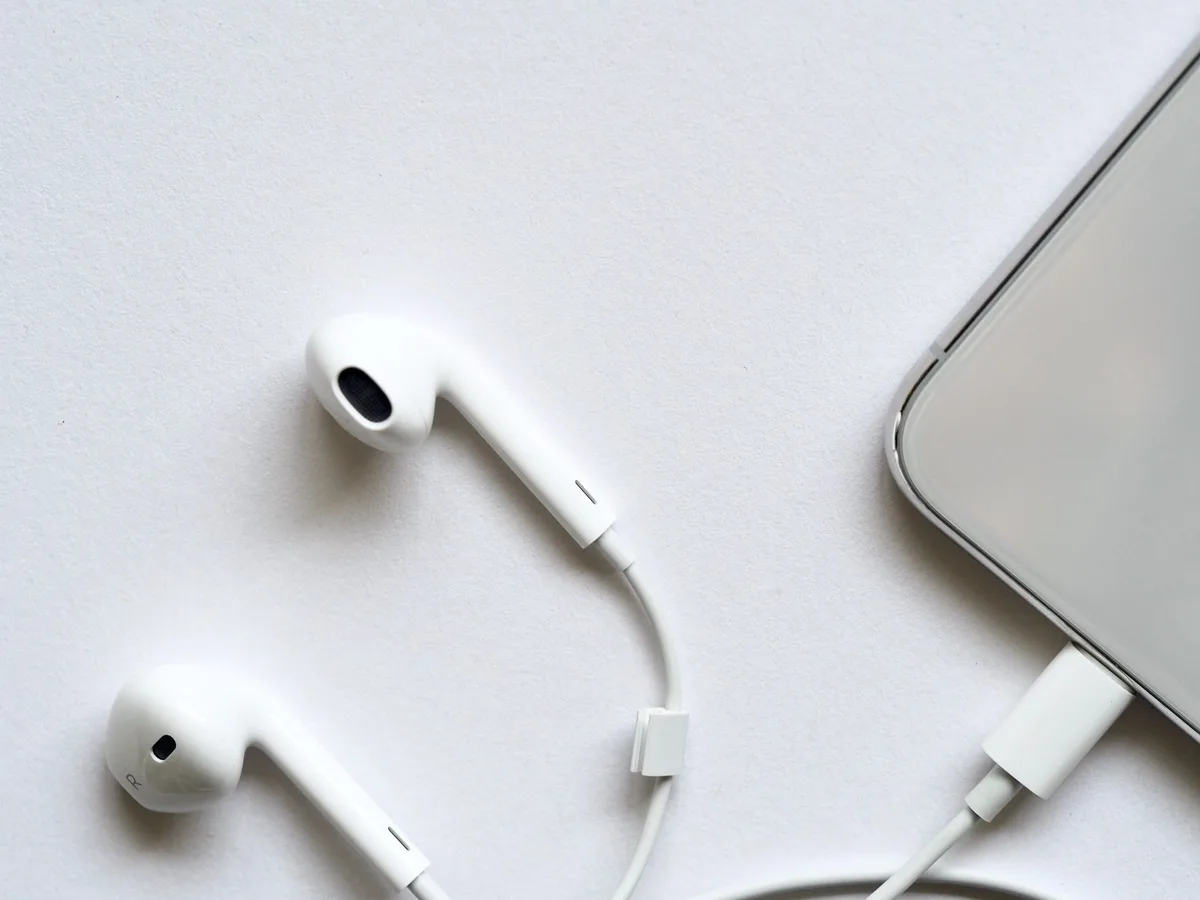
Plugging In for Instant Audio
Connecting wired earbuds is as simple as plugging them in.
- Locate the Port: If your iPad model has a standard 3.5mm headphone jack, simply take the connector from your wired earbuds and insert it firmly into the port. This port is typically found on the bottom or side edge of the iPad.
- Automatic Recognition: Your iPad is designed to recognize wired headphones immediately upon connection. You'll usually see a small headphone icon appear in the status bar at the top of your iPad's screen, confirming that the audio output has switched to the wired earbuds. No further steps are typically needed.
Troubleshooting Common Connection Hiccups
Sometimes, despite following the steps, your earbuds might not connect as expected. This is a common frustration, but often resolvable.
When Earbuds Won't Pair
If your iPad isn’t finding your earbuds, or the pairing process fails, several things could be at play.
- Conditional Logic for Pairing:
- If earbuds are charged and definitely in pairing mode: Check your iPad's Bluetooth toggle and restart the Bluetooth connection.
- If iPad Bluetooth is on and earbuds are visible but won't connect: Try 'forgetting' the device on your iPad and re-pairing (covered below).
- If earbuds are not appearing at all: Ensure they are close enough to the iPad (within about 30 feet or 10 meters) and that no other strong wireless signals are interfering.
Is Bluetooth On and Discoverable?
A misplaced setting can prevent a connection.
- iPad Bluetooth Status: Always double-check that Bluetooth is actually enabled in your iPad's Settings. The toggle should be green.
- Earbud Pairing Mode: Confirm that your earbuds are still in pairing mode. Many devices have a timeout for pairing mode to conserve battery, so you might need to re-initiate it. A blinking light usually signals this active state.
Making Sure Everything's Charged and Updated
Power and software versions play a significant role in device connectivity.
Earbud Battery Life Matters
Low battery power is a frequent culprit behind connection issues.
- Insufficient Charge: Both your wireless earbuds and their charging case need to have a sufficient charge. If the case is dead, it won't be able to power on or facilitate pairing for the buds. Manufacturer specifications often indicate a charge time of 1-2 hours for a full earbud charge, with each charge providing anywhere from 4 to 8 hours of playback, depending on the model.
- Charging Case Functionality: Ensure the charging contacts on the earbuds and inside the case are clean and making good contact.
iPad Software Updates
Keeping your iPad's operating system up-to-date can resolve underlying compatibility issues.
- Check for Updates: Go to Settings > General > Software Update. If an update is available, download and install it. Operating system updates frequently include improvements to Bluetooth stability and compatibility with newer accessories.
Essential Settings for Smoother Connections
Beyond basic pairing, a few settings can influence how your earbuds behave with your iPad.
- Automatic Reconnection: Most Bluetooth earbuds are designed to automatically reconnect to the last paired device when turned on and in range. If this doesn't happen, you might need to manually select them from the "MY DEVICES" list in your iPad's Bluetooth settings.
- Audio Balance: For wired headphones, check your iPad's Accessibility settings under Settings > Accessibility > Audio/Visual. Here, you can adjust the stereo balance if you find audio is only coming out of one earbud.
- Microphone Input: Ensure your iPad is set to use your earbuds' microphone when you want to use them for calls or voice commands. This is usually automatically selected when the earbuds are connected, but can sometimes be manually adjusted in specific app settings or within Bluetooth device options.
When Earbuds Won't Pair: A Deeper Dive
If your earbuds aren't showing up in the iPad's Bluetooth list or the pairing process keeps failing, it's time to go beyond the basics. This often indicates a specific conflict or setting that's preventing the connection.
- Interference Causes: Electronic interference from other wireless devices, microwaves, or even thick walls can disrupt Bluetooth signals. Try moving to a different location, away from potential sources of interference, and ensure your earbuds are within a few feet of the iPad.
- Device Overload: Some iPads can only actively connect to a certain number of Bluetooth devices simultaneously for audio streaming. If you have multiple active Bluetooth connections (like an Apple Watch, keyboard, or other headphones), try disconnecting them one by one to see if your earbuds then appear.
- Firmware Mismatch: Occasionally, older earbuds might have firmware that isn't fully compatible with the latest iPadOS. While less common, checking the manufacturer's website for potential earbud firmware updates (which usually involves a separate app) can sometimes resolve this.
What If My Earbuds Aren't Showing Up at All?
When your earbuds simply don't appear in the "OTHER DEVICES" list on your iPad, it usually means they aren't broadcasting their presence correctly.
- Confirm Pairing Mode Again: Ensure the earbuds are definitively in pairing mode. This often requires a specific button press or sequence, and a blinking indicator light is key. If the light isn't blinking, they aren't discoverable.
- Restart the Scan: Sometimes the iPad's Bluetooth scanner just needs a nudge. Turn off Bluetooth on your iPad, wait about 10-15 seconds, and then turn it back on. This forces it to rescan for available devices.
- Check Earbud Documentation: Different earbud manufacturers use different methods to enter pairing mode. Consulting the specific manual for your earbud model is essential if you're unsure.
Wi-Fi vs. Bluetooth: Understanding Your Connection Method
While both connect devices wirelessly, Wi-Fi and Bluetooth are different technologies with distinct purposes. Connecting earbuds to an iPad almost exclusively uses Bluetooth.
- Bluetooth Basics: Bluetooth operates on a 2.4 GHz frequency band and is designed for short-range, low-power communication between devices. It's ideal for peripherals like headphones, speakers, and keyboards, requiring minimal battery drain. The current standard, Bluetooth 5.0 and later, offers improved speed, range up to 100 feet under ideal conditions, and better power efficiency.
- Wi-Fi Role: Wi-Fi networks are designed for higher bandwidth, longer-range data transfer, connecting devices to the internet or to a local network. While Apple devices can use Wi-Fi for features like AirPlay, earbuds themselves typically do not connect directly to your Wi-Fi network for audio streaming; they rely on Bluetooth.
Why Bluetooth is Key for Earbuds
Bluetooth’s strength lies in its ubiquity and power efficiency for personal audio devices. It allows for a direct, point-to-point connection without needing an existing network, making it perfect for on-the-go listening.
The 'Forget This Device' Fix for Persistent Issues
If your earbuds have connected before but are now acting up, or if a pairing attempt failed midway, "forgetting" the device can clear out corrupted connection data.
- How to Forget: Go to your iPad's Settings, tap on Bluetooth, find your earbuds in the "MY DEVICES" list, and tap the "i" icon next to their name. You'll see an option to "Forget This Device." Tap it, and confirm when prompted.
- Why It Works: This action removes the saved pairing information from your iPad. It's like telling your iPad to completely erase any memory of those earbuds, allowing you to establish a completely new and clean connection.
- Re-Pairing After Forgetting: Once you've forgotten the device, you’ll need to put your earbuds back into pairing mode (as described in the "Quick Connect" section) and then select them again from the "OTHER DEVICES" list on your iPad to re-establish the connection from scratch.
What About Newer iPads Without a Headphone Jack?
Many contemporary iPad models, particularly the Pro and Air lines, have eliminated the traditional 3.5mm headphone jack. This doesn't prevent you from using headphones; it simply shifts the primary connection method.
- The USB-C Alternative: For iPads with a USB-C port, you can use headphones that feature a USB-C connector. Alternatively, a USB-C to 3.5mm headphone jack adapter can be used with your existing wired earbuds. These adapters are widely available from various electronics manufacturers.
- Bluetooth Remains King: For these models, Bluetooth earbuds are the most seamless and common solution, offering untethered audio freedom. The pairing process remains the same as described earlier.
When to Consider a Different Type of Earbud
If you're consistently experiencing connection problems or seeking specific features, it might be time to evaluate your earbud choice in relation to your iPad.
- Brand Ecosystems: While most Bluetooth earbuds work with iPads, some users report more seamless integration and fewer dropped connections with earbuds designed by the same manufacturer as their device. For example, Apple's own AirPods often offer features like automatic device switching and simpler pairing.
- Bluetooth Version: As of 2026, Bluetooth 5.0 or higher is recommended for best performance. Older earbuds using Bluetooth 4.x might experience shorter range or less stable connections. Always check the specifications for both your earbuds and your iPad model.
- Purpose-Built vs. General Use: If you need earbuds specifically for an iPad, consider models optimized for Apple devices, especially if you frequently switch between other Apple products like an iPhone or Mac. This can sometimes streamline the pairing and connection management process.