How Do You Put Ear Buds in Pairing Mode 2026: No-BS Picks
So, you've got your shiny new earbuds, or maybe you're trying to connect an older pair to a new device. The big question is: how do you get them into that "pairing mode" so your phone or computer can actually find them? It can seem a bit like a secret handshake sometimes, right? Don't sweat it, though.
Most of the time, it's pretty straightforward, and we'll walk through the common ways to get it done.
Think of pairing mode as your earbuds essentially saying, "Okay, I'm open to connecting to a new friend!" Without it, your other devices won't even know they're there. Manufacturer specifications for Bluetooth connectivity, which regulates this process, generally indicate that pairing mode is a mandatory prerequisite for initial device discovery.
Putting Your Earbuds in Pairing Mode: A Step-by-Step Guide
This guide is designed to help you through the process, whether you're setting up a brand-new pair or re-pairing an existing one. We'll cover the most common methods, what to watch for, and how to troubleshoot if things don't go as planned. The core goal is to get your earbuds broadcasting their presence so your phone, tablet, or computer can establish a stable Bluetooth connection.
Why Pairing Mode Matters for Your Earbuds
Pairing mode is the essential first step for establishing a wireless connection between your earbuds and another device, like a smartphone or laptop. Without it, the earbuds are essentially invisible, and no other gadgets can "see" them to initiate communication. This mode allows your earbuds to broadcast a discoverable signal, which your primary device then looks for via Bluetooth. It’s like the earbuds are shouting, “Here I am!” so your phone can pick up the signal and initiate the secure link.
This process is governed by Bluetooth standards, ensuring interoperability across different brands.
Common Ways to Activate Earbud Pairing Mode
While every earbud brand and model might have its own little quirks, most pair up using one of these main approaches. We'll break these down so you can find what works for your specific pair.
The Classic Button Press: On the Earbuds
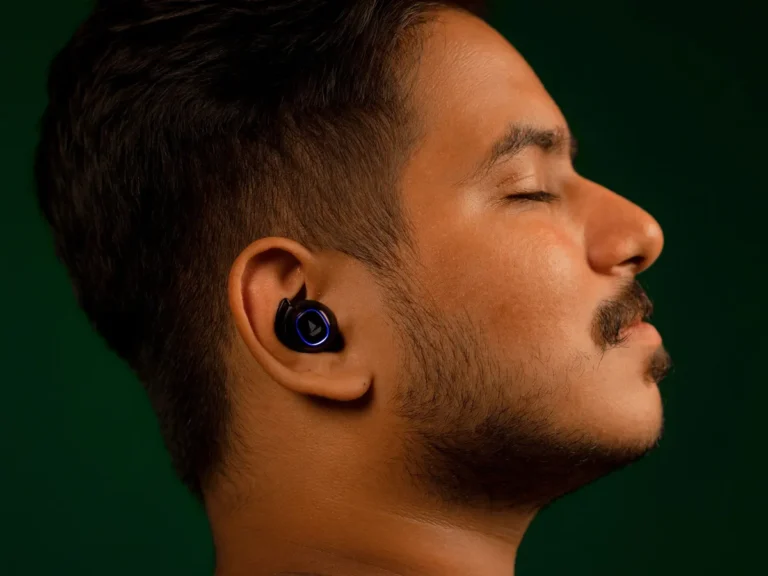
Some earbuds have small, physical buttons directly on each bud. For these, you'll often need to remove the earbuds from their charging case and then press and hold a specific button, usually the multifunction button that handles play/pause or answering calls.
- Action: Press and hold the multifunction button on one of the earbuds.
- Duration: Typically 5-10 seconds.
- Key Indicator: You'll usually hear an audio cue or see an LED light on the earbud start flashing rapidly, often blue or white, indicating it's in pairing mode.
The Case Button Method: Often the Easiest
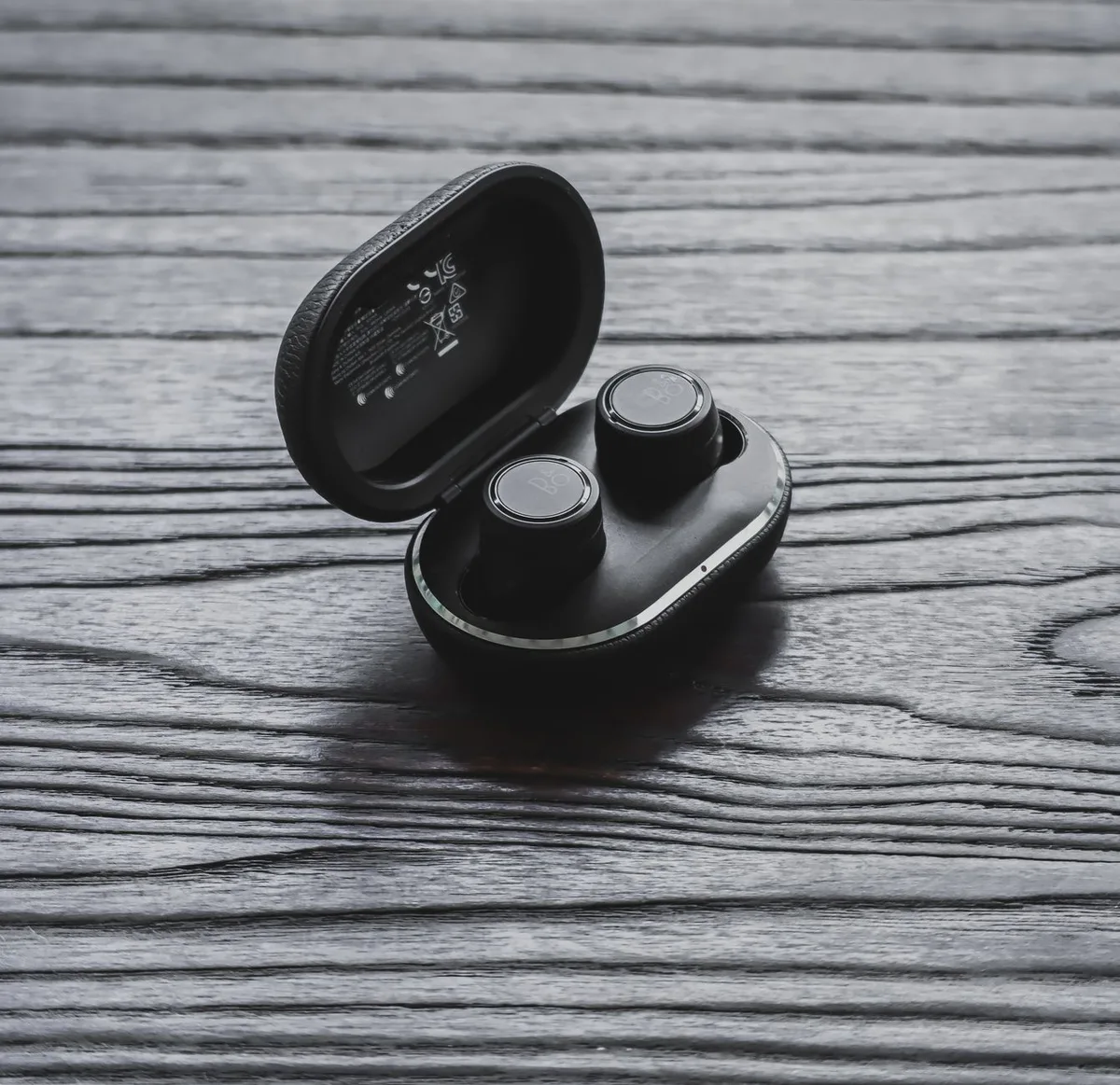
Many true wireless stereo (TWS) earbuds, as of 2026, have their primary pairing control located on the charging case itself. This method is often more convenient as it usually involves placing the earbuds inside their case.
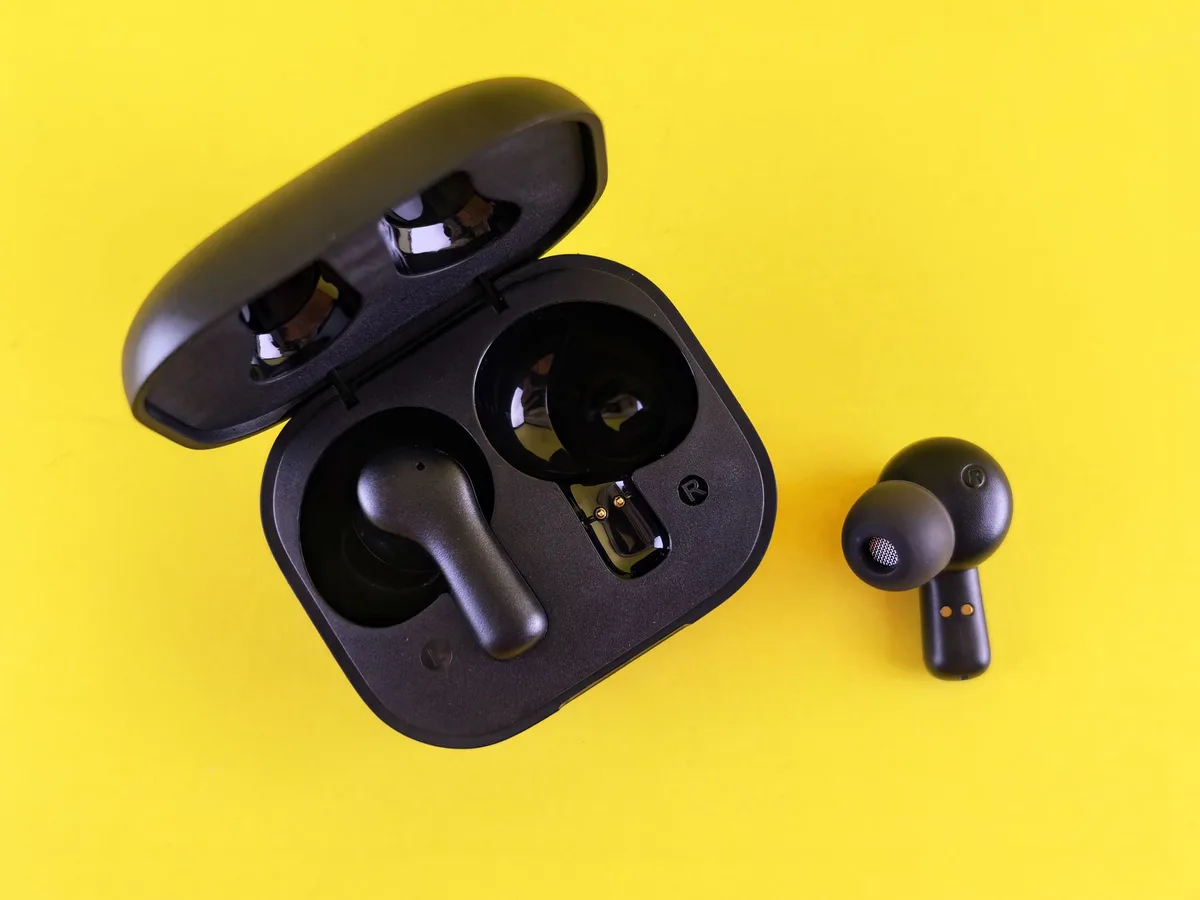
- Action: Ensure your earbuds are seated correctly inside their charging case, then close the lid. Locate the pairing button on the case (it's often on the back, inside, or on the front, near the charging port).
- Duration: Press and hold this case button for about 5-10 seconds.
- Key Indicator: The LED indicator light on the charging case will typically begin to flash, often in a blue or white pattern, signaling that the earbuds are now discoverable.
Simpler Still: Just Put Them in the Case?
Some modern earbuds simplify the process even further. For certain models, the act of opening the charging case with the earbuds inside is enough to put them into pairing mode. This is particularly common with ecosystems designed for seamless integration with specific operating systems.
- Action: Simply open the lid of your charging case with the earbuds nestled inside.
- Condition: Your device’s Bluetooth must already be on and nearby for automatic discovery.
- Potential Prerequisite: Occasionally, a brief press of a button on the case might still be required to initiate this automatic pairing sequence. Always check your manual.
What to Look For: Visual and Audio Cues
Once you think you've triggered pairing mode, there are usually clear signs that let you know it's working. These indicators are your confirmation that the earbuds are ready to connect to your device.
Flashing Lights: Your Pairing Signal
The most common confirmation of pairing mode is a flashing LED light on either the earbuds themselves or their charging case. The color and speed of the flash are signals. For instance, a rapidly flashing blue light often signifies that Bluetooth pairing is active and the device is discoverable. Some manuals might specify a distinct color, like a pulsing red and blue, to indicate pairing is in process.
Listen for the Connection Cues
Beyond visual signals, many earbuds provide auditory feedback to confirm they've entered pairing mode. You might hear a distinct tone, a series of beeps, or even a spoken phrase like "pairing mode activated" directly through the earbuds. These audio cues are helpful, especially if the LED lights are not easily visible or if you're trying to pair in a dimly lit environment.
Connecting Your Earbuds to Your Device
You've successfully got your earbuds broadcasting their presence. Now, let's get them linked to your phone, tablet, or computer. This involves a few simple steps on your primary device.
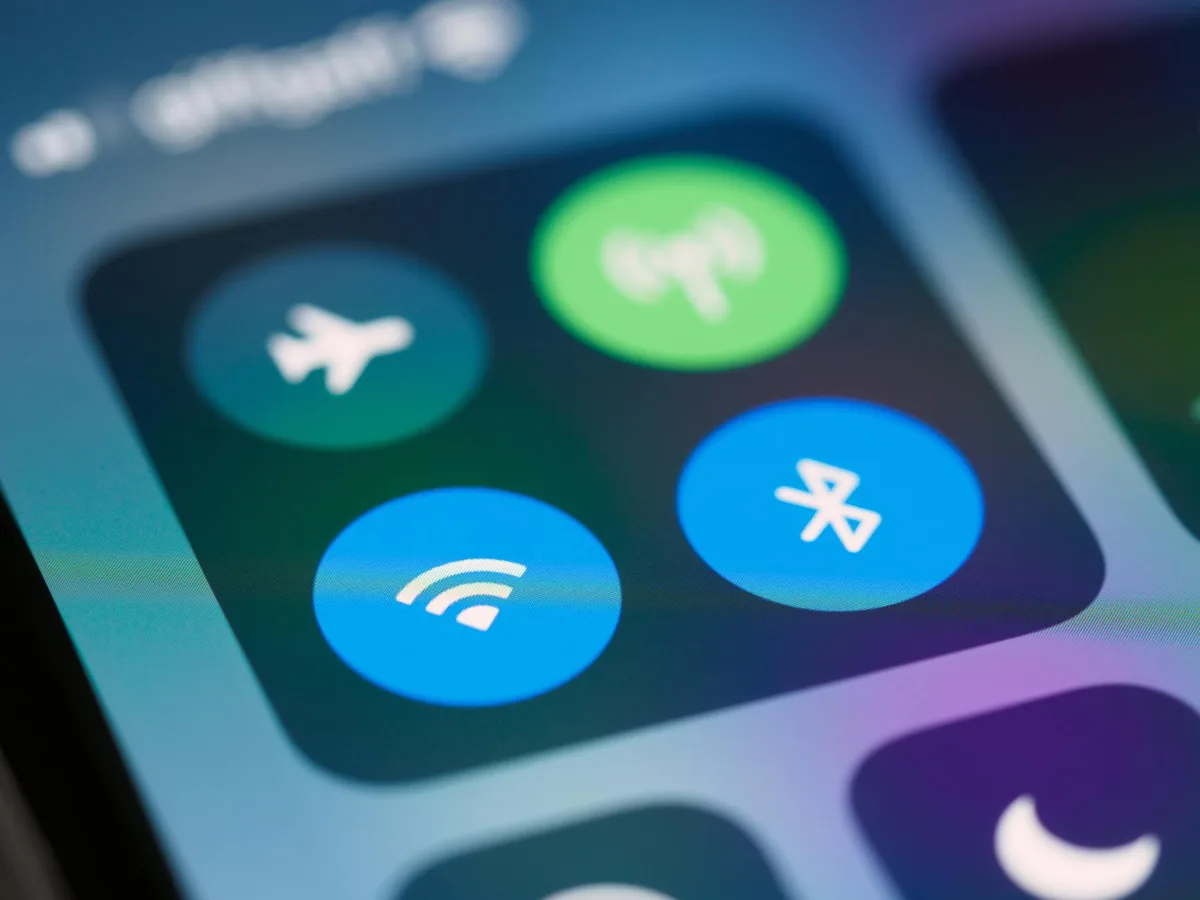
Step 1: Enable Bluetooth on Your Device
First things first, ensure that Bluetooth is turned on in your device's settings. This is usually found in the main settings menu, often alongside Wi-Fi and other connectivity options. For most smartphones and tablets, you can quickly toggle Bluetooth on from the quick settings panel by swiping down from the top of the screen.
Step 2: Scan for New Devices
Once Bluetooth is active, instruct your device to search for available Bluetooth devices. On most phones and computers, you'll go into the Bluetooth settings menu and tap an option like "Scan for devices," "Add device," or "Pair new device." Your device will then list all the nearby Bluetooth gadgets it can detect.
Step 3: Select Your Earbuds from the List
Look for the name of your earbuds in the list of available devices that appears on your screen. This name is usually based on the brand and model (e.g., "SoundCore Liberty Air 2," "Sony WF-1000XM4," or just "AirPods"). Tap on the name of your earbuds to initiate the connection. Your device will then attempt to pair with them.
You might be prompted to confirm a pairing code to finalize the secure connection.
Troubleshooting Common Pairing Problems
Don't panic if your earbuds don't connect immediately. Connectivity issues are pretty common, and often, a few simple checks can solve the problem. Sometimes, the earbuds might not even show up in your device's Bluetooth scan list, or the pairing process might hang or fail right at the end.
Earbuds Not Showing Up in Scan Results
This is a frustrating one, but it usually means the earbuds aren't actually in pairing mode, or something is blocking the Bluetooth signal. First, confirm you've gone through the correct steps to activate pairing mode for your specific earbud model. Double-check the manual, as even a slight timing difference or button press can matter.
If you're certain you're in pairing mode, try moving your earbuds closer to your device, ideally within about one foot. Also, ensure there aren't too many other active Bluetooth devices nearby, as this can sometimes cause interference. Rebooting both your earbuds (by placing them in the case and closing the lid, then reopening) and your phone or computer can also clear temporary glitches.
Pairing Fails After Selection
This scenario happens when your device sees the earbuds, you tap to connect, but then it just sits there or gives an error message. Often, this points to a communication breakdown that happened after discovery but before the secure link was fully established.
One of the most reliable fixes is to "forget" the earbuds from your device's Bluetooth list and try the pairing process from scratch. On most phones, you'll go to the Bluetooth settings, tap on the earbud name, and select "Forget Device" or "Unpair." Then, re-initiate pairing mode on your earbuds and scan again.
Earbuds Automatically Connecting Elsewhere
It's also possible your earbuds have a "sticky" connection to a different device you own, like a tablet or work laptop. If you've previously paired them with multiple devices, they might default to the last one they were connected to.
To solve this, locate the device the earbuds are currently connected to and turn off its Bluetooth. Once that device's Bluetooth is off, your earbuds should be free to connect to your intended device. You can then put the earbuds back into pairing mode as described earlier and scan from your desired phone or computer.
Resetting Your Earbuds to Fix Issues
If you've tried all the usual steps and still can't get your earbuds to pair consistently, a factory reset is often the next best course of action. This wipes all previous pairing information and settings from the earbuds, returning them to their original state.
The exact process varies by brand, but it typically involves a specific sequence of button presses, often while the earbuds are in their charging case. For example, you might need to open the case and press and hold the pairing button on the case for 15-20 seconds until an indicator light flashes in a certain way. Always consult your earbud's user manual for the precise reset procedure for your model.
Earbuds Not Showing Up in Scan Results
This situation points to a fundamental problem: your earbuds aren't currently broadcasting their presence. The most common culprit is that they simply aren't in pairing mode. Most earbuds require a specific action, like holding a button, to enter this discoverable state.
If you're sure you've activated pairing mode correctly, consider environmental factors. Too many other Bluetooth devices nearby can sometimes create interference, making it harder for your phone to pick up the correct signal. Try moving to a less crowded area or temporarily disabling Bluetooth on other nearby devices.
Why Your Earbuds Might Be Invisible
- Pairing Mode Not Active: You haven't followed the correct button press or case action to make them discoverable.
- Low Battery: Some earbuds won't enter pairing mode if their battery level is critically low, even if they are in the case.
- Already Connected: They might be actively paired to another device you own. Ensure Bluetooth is off on those other devices.
- Firmware Glitch: A temporary software issue can prevent broadcasting. A reset often resolves this.
Pairing Fails After Selection
You see your earbuds in the list, you tap to connect, and then… nothing, or an error message. This commonly occurs when the handshake between the earbuds and your device falters after the initial discovery phase. The device might see the earbuds, but fails to establish a stable, secure connection.
Often, this is resolved by clearing old pairing data. On your phone or computer, go into the Bluetooth settings, find your earbuds in the list of "known" or "paired" devices, and select the option to "Forget" or "Unpair." After this, re-initiate pairing mode on your earbuds and attempt to connect them anew.
Common Reasons for Pairing Failure
- Corrupted Pairing Data: Old or conflicting connection information on either the earbuds or your device.
- Incompatible Bluetooth Profiles: Less common with modern devices, but older earbuds might not support newer Bluetooth profiles required by your device.
- Interference During handshake: A brief dropout of the signal as the secure connection is being finalized.
Earbuds Automatically Connecting Elsewhere
This problem arises when your earbuds have been paired with multiple devices previously. They might automatically link to another gadget you own, like a tablet or a work laptop, before you have a chance to connect them to your phone. The earbuds establish a connection with the last device they successfully paired with.
To regain control, you'll need to disconnect them from the errant device. The easiest way is to simply turn off Bluetooth on that other device. Once its connection is severed, your earbuds will be free to re-enter pairing mode and be discovered by your intended phone or computer.
Resetting Your Earbuds to Fix Issues
If you've exhausted the usual troubleshooting steps and your earbuds are still giving you connection grief, a factory reset can often resolve persistent issues. Think of it as giving your earbuds a fresh start. This process typically erases all saved pairing data and restores them to their original factory settings, as if they were brand new for pairing.
The method for resetting varies significantly between earbud manufacturers and models. Generally, it involves a specific sequence of button presses, often while the earbuds are placed within their charging case. For example, a common procedure might require opening the case and holding down the pairing button for an extended period, such as 15-20 seconds, until an LED indicator performs a unique flashing sequence. Always refer to your specific earbud model's official user manual for the precise instructions, as incorrect procedures could potentially cause further issues.