How to Pair Ear Buds 2026
Pairing your wireless earbuds can sometimes feel like solving a puzzle, but it doesn't have to be a frustration. Knowing how to pair ear buds correctly ensures you get the best audio experience without the hassle. Most modern earbuds rely on Bluetooth, a short-range wireless technology that lets devices talk to each other smoothly.
Manufacturer specifications confirm most wireless earbuds use Bluetooth 5.0 or higher, which provides a stable connection up to 30-50 feet. This guide breaks down the process into simple, actionable steps, covering common hiccups and how to overcome them.
Pairing Your Wireless Earbuds: A Step-by-Step Guide
Getting your new earbuds connected to your phone, tablet, or computer is usually a straightforward process. The goal is to establish a digital handshake between your audio device and your playback device, letting them communicate wirelessly.
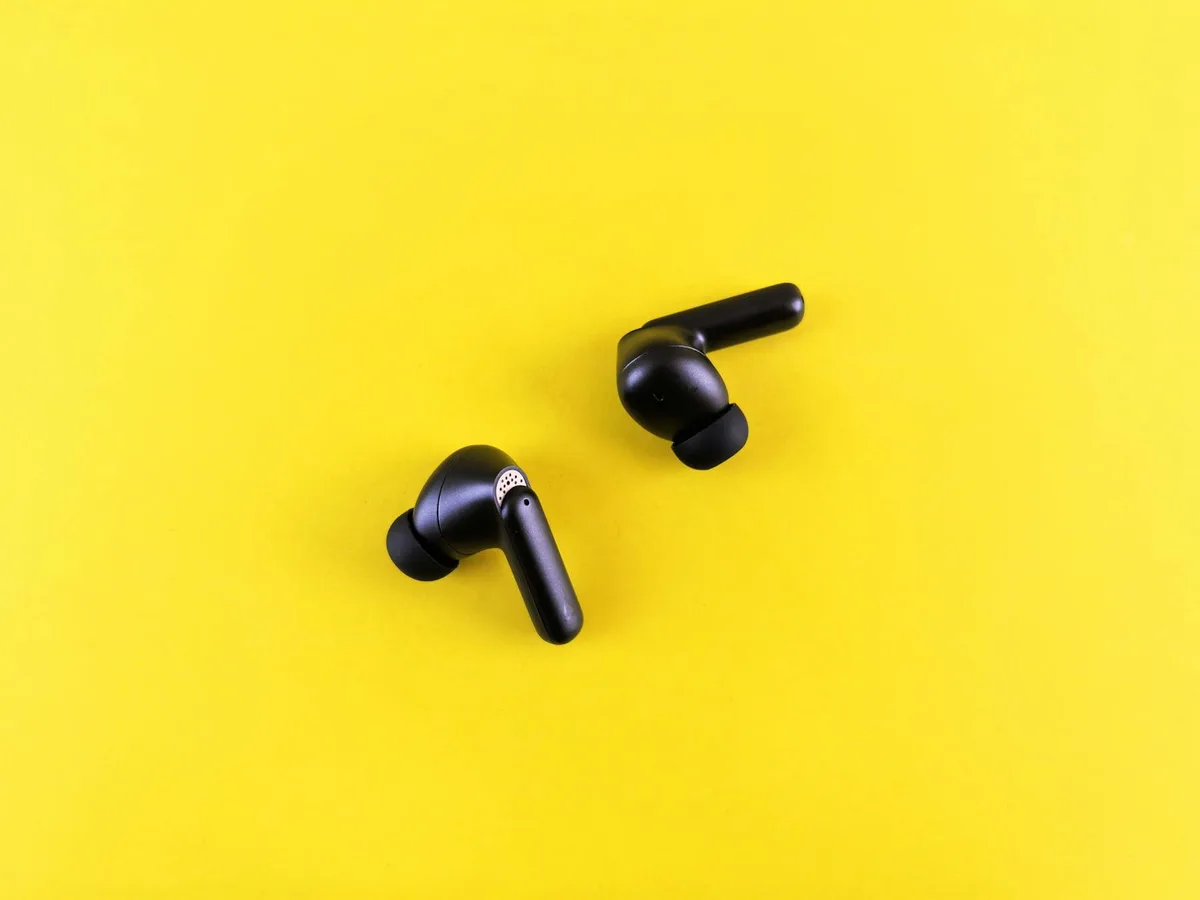
This connection allows audio signals to travel without cables, giving you freedom of movement. We'll walk through the typical steps, which involve putting your earbuds into a discoverable mode and then selecting them from your device's list of available Bluetooth connections.
The Hurdles: Why Earbuds Sometimes Won't Pair
Despite the convenience, connection issues can pop up. Sometimes, your device might not detect the earbuds at all, or the pairing process might fail midway. This can be due to a few common reasons.
- Interference: Other wireless signals from Wi-Fi routers or microwaves can sometimes disrupt Bluetooth.
- Low Battery: Both your earbuds and the device you're connecting to need sufficient power.
- Outdated Software: Ensure your device's operating system and your earbuds' firmware are up to date.
- Incorrect Pairing Mode: Not all earbuds enter pairing mode the same way.
Understanding these potential roadblocks upfront helps you troubleshoot more effectively if you run into trouble.
Quick Start: The Fastest Way to Connect
For most modern true wireless stereo (TWS) earbuds and smartphones, the quickest connection method is often a streamlined process. Many smartphone operating systems are designed to detect nearby earbuds automatically when they are in their charging case.
Simply open the charging case near your unlocked phone, and you might see a pop-up prompt on your screen. This prompt will guide you through confirming the connection, often with a single tap. This relies on specific Bluetooth profiles that allow for rapid device discovery.
Understanding Bluetooth Pairing Modes
Most wireless earbuds have two main ways they can connect: a quick pairing mode and a more traditional manual pairing mode.
Quick Pairing vs. Manual Pairing
- Quick Pairing: This is often a simplified, almost automatic process that works best with compatible devices, like a new pair of earbuds with a recent smartphone. Manufacturer specifications often highlight these quick pairing features, sometimes referred to as "instant pairing" or "fast pair." It's designed for immediate use right out of the box.
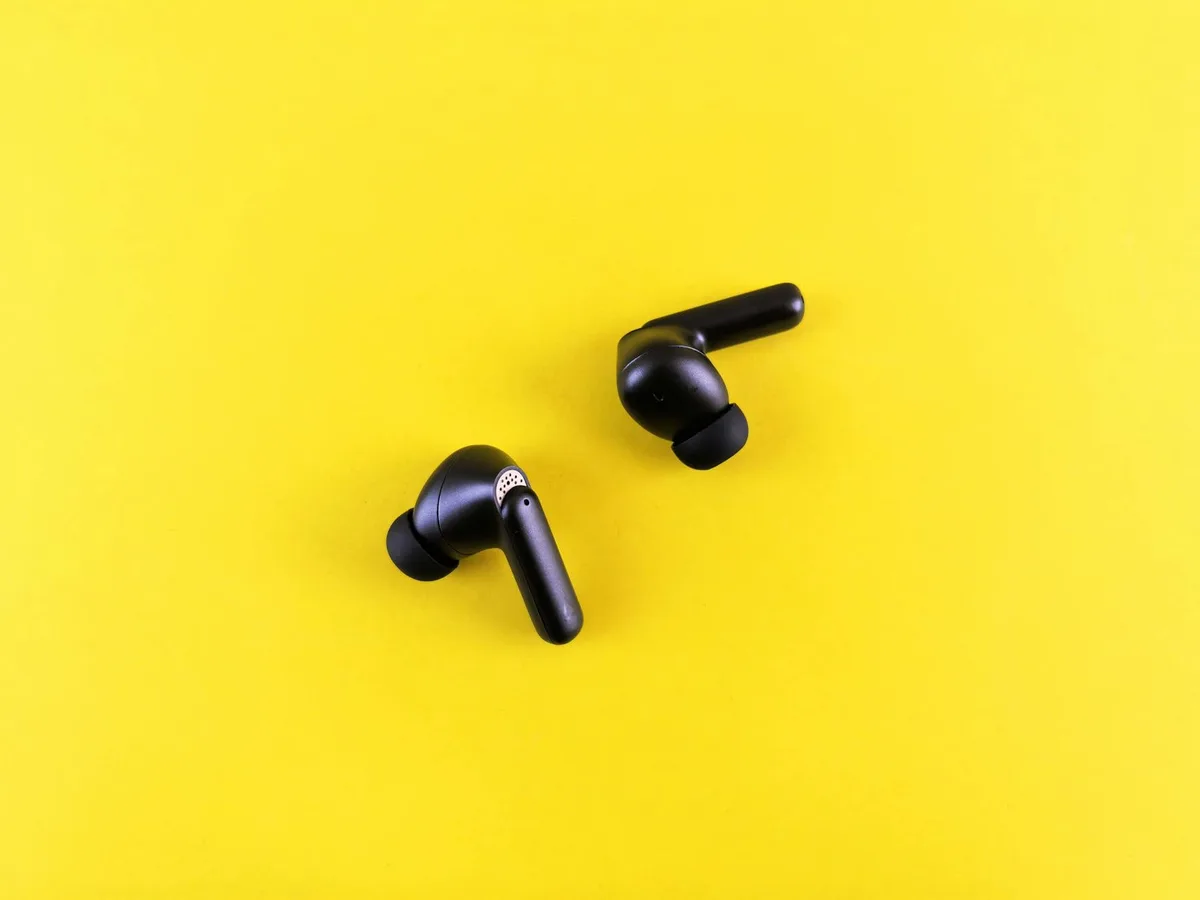
- Manual Pairing: This is the standard Bluetooth connection method. It requires you to manually enable discoverability on both your earbuds and your device, then select them from the Bluetooth menu. This is the fallback option and is universally compatible across most Bluetooth-enabled devices.
Step 1: Get Your Earbuds Ready for Pairing
The very first step is making sure your earbuds are discoverable by your device. This usually means putting them into a specific "pairing mode."
Triggering Pairing Mode on Your Earbuds
The exact method for this varies significantly by earbud brand and model. However, here are the most common ways, and you should always check your earbud's specific manual for precise instructions.
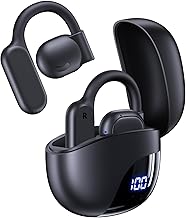
- From the Charging Case: For many true wireless earbuds, you’ll need to place both earbuds back into their charging case. Then, with the case lid open, press and hold a button on the case itself for several seconds. Alternatively, some cases require you to remove the earbuds from the case and then hold a touch-sensitive area on each earbud for about 5-10 seconds.
- Directly on Earbuds: For some models, you might need to remove the earbuds from the case and then long-press the touch control on each earbud simultaneously.
- Indicator Lights: Look for an LED indicator light on the earbuds or the charging case. When pairing mode is active, this light often flashes a specific color (commonly blue or white) or flashes in a repeating pattern. This visual cue confirms your earbuds are ready to be seen.
Step 2: Prepare Your Device
Once your earbuds are in pairing mode and ready to be discovered, it's time to make sure your playback device is also ready for the connection. This means turning on its Bluetooth functionality.
Enabling Bluetooth on Your Smartphone or Tablet
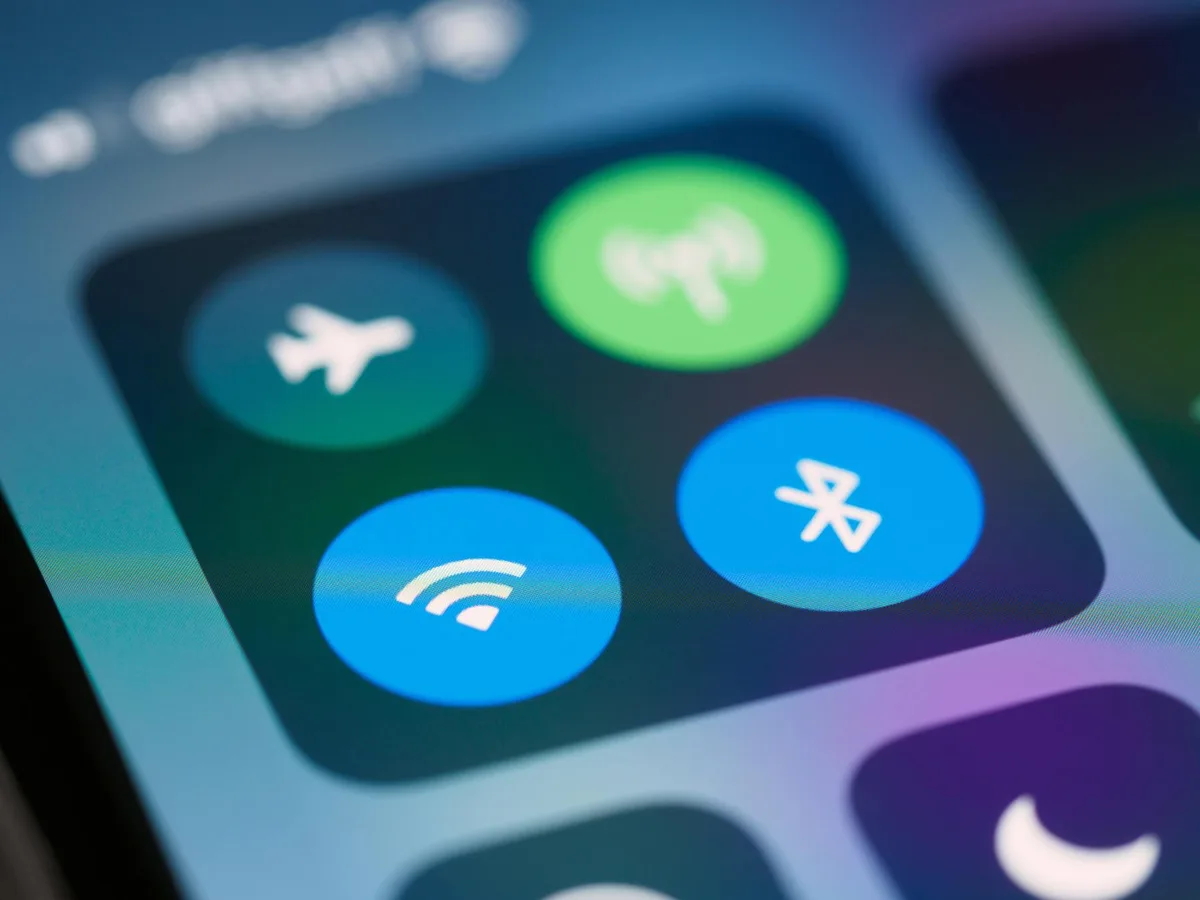
Most smartphones and tablets have Bluetooth readily accessible in their settings menu. You can typically find this under "Connections" or "Bluetooth" in the main settings app. Tapping this option will usually bring up a toggle switch to turn Bluetooth on or off.
When Bluetooth is active, your device will begin scanning for nearby discoverable devices. Ensure the setting is toggled to the "On" position to allow it to find your earbuds.
Enabling Bluetooth on Your Computer
Connecting earbuds to a computer, whether it's a Windows PC or a Mac, follows a similar principle. For Windows, you'll usually go to Settings > Devices > Bluetooth & other devices and toggle Bluetooth on. On a Mac, it's typically found in System Settings > Bluetooth.
Make sure your computer's Bluetooth adapter is enabled. If your computer doesn't have built-in Bluetooth, you might need a separate USB Bluetooth adapter. These adapters are relatively inexpensive and easy to set up.
Step 3: Connect Earbuds to Your Device
With both your earbuds and your device prepared, the next logical step is to make the actual connection. This involves finding your earbuds in the device’s list and confirming the pairing.
Finding Your Earbuds in the Bluetooth List
After enabling Bluetooth on your device and ensuring your earbuds are in pairing mode, your device should start scanning for available connections. Look for a list that populates with nearby Bluetooth devices. Your earbuds should appear here, usually listed by their model name or a brand-specific identifier.
For example, if you have "XYZ Buds Pro," that name will likely show up on your device's list. If you’re unsure of the exact name, consult your earbud's manual for the correct identifier.
Confirming the Connection
Once you see your earbuds' name on the list, tap on it to initiate the pairing process. Your device will then attempt to establish a connection. You might see a prompt asking you to confirm the pairing, sometimes requiring you to enter a simple code (though this is less common with modern earbuds) or just tap "Pair."
A successful connection is often confirmed by an audible cue from the earbuds, like a chime or a voice prompt, and the status in your device's Bluetooth settings will change to "Connected."
When Devices Won't See Your Earbuds: Troubleshooting Common Issues
It's frustrating when your device can't find your earbuds, but don't worry, this is a common scenario with a few key solutions. The most frequent reason is that the earbuds aren't in the correct discoverable state.
- Check Pairing Mode: Double-check that you’ve followed the specific instructions for putting your earbuds into pairing mode. If the indicator light isn't flashing as expected, try again.
- Proximity: Make sure your earbuds are close to your device, ideally within a few feet, especially during the initial pairing.
- Device Interference: Temporarily turn off Bluetooth on other nearby devices (like other phones, tablets, or laptops) that might have previously paired with your earbuds. This prevents them from trying to connect automatically.
What If Only One Earbud Connects?
This is another frequent annoyance that can disrupt your listening. If you find that only one earbud pairs or functions properly, it usually indicates a communication breakdown between the two earbuds or between one earbud and the device.
- Re-seat Earbuds: First, place both earbuds back into their charging case and close the lid for at least 10 seconds. Then, remove them again and see if both connect.
- Check Individual Earbud Battery: While less common, ensure both earbuds have a sufficient charge. A dead or critically low battery in one earbud can prevent proper function.
- Reset and Re-pair: If the issue persists, a full reset of the earbuds (as detailed in a later section) followed by re-pairing from scratch is often the most effective solution. This forces a clean connection setup.
Reconnecting After Initial Pairing
Once your earbuds are paired with a device, they usually remember each other. This means subsequent connections are often as simple as turning on your earbuds and ensuring Bluetooth is enabled on your device.
Your device should automatically scan for and reconnect to previously paired earbuds. This often happens within seconds of turning the earbuds on or opening their case. If automatic reconnection doesn't happen, you can usually manually connect by going into your device's Bluetooth settings and tapping the name of your earbuds.
Resetting Your Earbuds to Factory Settings
Sometimes, the most stubborn connection issues are best solved by a full reset. This process essentially wipes all previous pairing information from your earbuds, letting you start fresh as if they were brand new.
The exact reset procedure varies by manufacturer. It often involves placing the earbuds in their case, closing the lid, and then pressing and holding a button on the case for an extended period. Some models might require a specific sequence of actions with the earbuds out of the case. Always consult your earbud's user manual for the precise steps.
Pairing with Multiple Devices: Switching Seamlessly
Many wireless earbuds can be paired with more than one device, but they typically can only connect and play audio from one device at a time. Switching between devices requires a specific approach to avoid connection conflicts.
If your earbuds have multi-point connectivity, they can maintain active pairings with two devices simultaneously. When audio plays from one device, the earbuds will automatically switch to it. If you want to switch manually, you'll usually need to pause audio on the current device and then play audio on the other.
For earbuds without multi-point, you'll need to disconnect them from the first device before you can connect them to the second. This is typically done through the Bluetooth settings on each respective device.
Know Your Earbuds: Battery Life and Bluetooth Range
Understanding the capabilities of your earbuds, such as their battery life and Bluetooth range, is crucial for a smooth experience. Battery life is usually measured in hours of playback time per charge, plus additional hours provided by the charging case.
For instance, many TWS earbuds offer 5-8 hours of playback on a single charge, with the case providing an additional 2-3 full charges. Bluetooth range, as mentioned, is typically around 30 to 50 feet (10-15 meters) in open environments, though this can be affected by obstacles and interference.
Avoiding Common Pairing Mistakes
Beyond the issues already discussed, there are a few consistent mistakes people make that can complicate the pairing process. Being aware of these can save you a lot of time and potential frustration.
- Not Charging Enough: Always ensure your earbuds and their case have a decent charge before attempting to pair. Low battery levels can cause erratic behavior.
- Confusing Pairing Mode: Not all earbuds automatically enter pairing mode when you first take them out. Make sure you’re using the manufacturer’s specific method to activate discoverability.
- Missing the Prompt: Especially with quick pairing features, you have a limited window to confirm the connection on your device. If you miss it, you might need to restart the process.
- Skipping the Manual: While these guides are helpful, your earbud's specific manual is the ultimate authority on activation, pairing, and troubleshooting for your exact model.
Connecting to Different Device Types: Specific Tips
While the core principles of pairing remain the same, connecting earbuds to different types of devices sometimes requires subtle adjustments. Each system has its own way of managing Bluetooth connections.
Phones and Tablets
Connecting to smartphones and tablets, especially newer models, is often the easiest. These devices are designed with seamless wireless audio in mind. As we touched on with quick pairing, opening the case near an unlocked phone can trigger an automatic connection prompt.
If not, the standard manual pairing process described earlier, enabling Bluetooth, putting earbuds in pairing mode, and selecting from the list, works reliably. Most mobile operating systems are intuitive for managing Bluetooth devices.
Laptops and Desktops
Connecting earbuds to a computer can sometimes be a bit more involved, particularly with older operating systems or if the computer's Bluetooth hardware isn't the most robust. Ensure your computer’s Bluetooth is activated and updated.
If you encounter issues, try pairing the earbuds through the operating system's device management settings. For Windows, this is typically under "Settings" > "Bluetooth & other devices." On a Mac, it's in "System Settings" > "Bluetooth." Sometimes, a quick restart of your computer can resolve minor connectivity glitches.
When to Check Your Earbud Manufacturer's Guide
While this guide covers the general process for how to pair ear buds, every brand and model has its unique quirks. Your earbud's official user manual is your best friend for specific instructions.
Manufacturer websites also offer dedicated support sections, FAQs, and troubleshooting guides for their products. These resources are invaluable for detailed steps on entering pairing mode, resetting devices, or resolving unusual connection problems.
Real Scenarios: Pairing for Different Activities
The way you use your earbuds can influence how you approach pairing them. Consider your primary use case to ensure a smooth experience.
Commuting: For frequent commuters who use public transport, reliable connection is key. A strong, stable Bluetooth 5.0 connection ensures your podcast or music doesn't cut out in crowded areas, and a quick reconnection to your phone each morning is a must.
Exercise: When working out, you need earbuds that pair quickly and stay connected without interruption, even during vigorous movement. Features like water resistance (e.g., an IPX4 rating) are also important here.
Work Calls: For business calls, clear audio and microphone quality are paramount. Ensure your earbuds are paired correctly to your computer or phone for seamless transitions between music and calls.
Frequently Asked Questions
How long does pairing typically take?
Pairing usually takes between 10 seconds to 1 minute, provided your earbuds are in pairing mode and your device's Bluetooth is on.
Can I pair my earbuds with a smart TV?
Many modern smart TVs have built-in Bluetooth and support pairing with wireless earbuds. Check your TV's settings menu for a Bluetooth or device connection option.
What does it mean if my earbuds don't show up in the Bluetooth list?
This most commonly means the earbuds are not in pairing mode, are out of range, or are already connected to another device. Ensure they are actively discoverable.
Should my earbuds flash a light when pairing?
Yes, most earbuds will flash an LED light, often blue or white, to indicate they are in pairing mode and discoverable. Consult your manual for the specific light pattern.
Is Bluetooth 5.0 significantly better for pairing than older versions?
Bluetooth 5.0 offers enhanced features like longer range, faster data transfer, and better power efficiency, which can contribute to a more stable and quicker initial pairing experience compared to older Bluetooth versions. This standard is widely adopted as of 2026.