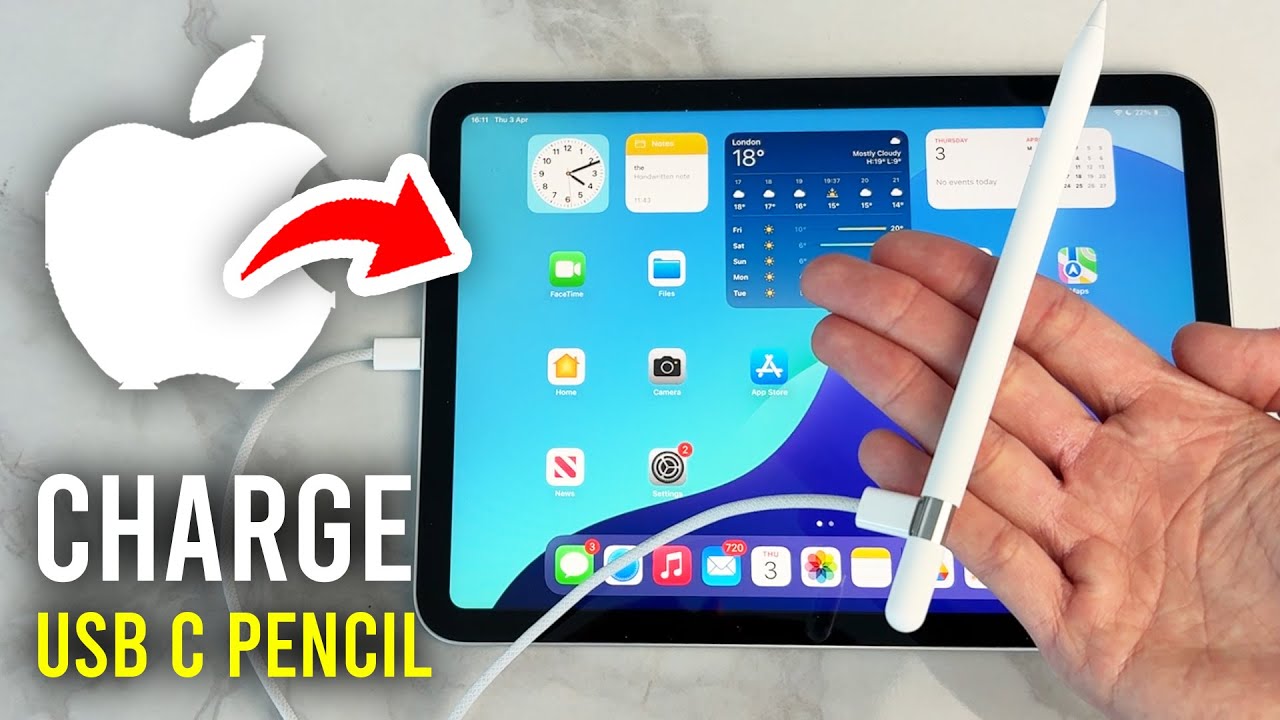
Check your iPad’s Batteries widget to monitor your Apple Pencil USB-C battery level while it charges through a USB-C cable.
If you use an iPad for class notes, work meetings, digital art, or marking up PDFs, a low Apple Pencil battery can interrupt your day. The good news is that you can check its battery level without guessing. In the United States, where students, office workers, and artists often rely on an iPad throughout the day, knowing how to check the charge can help you avoid an unexpected shutdown.
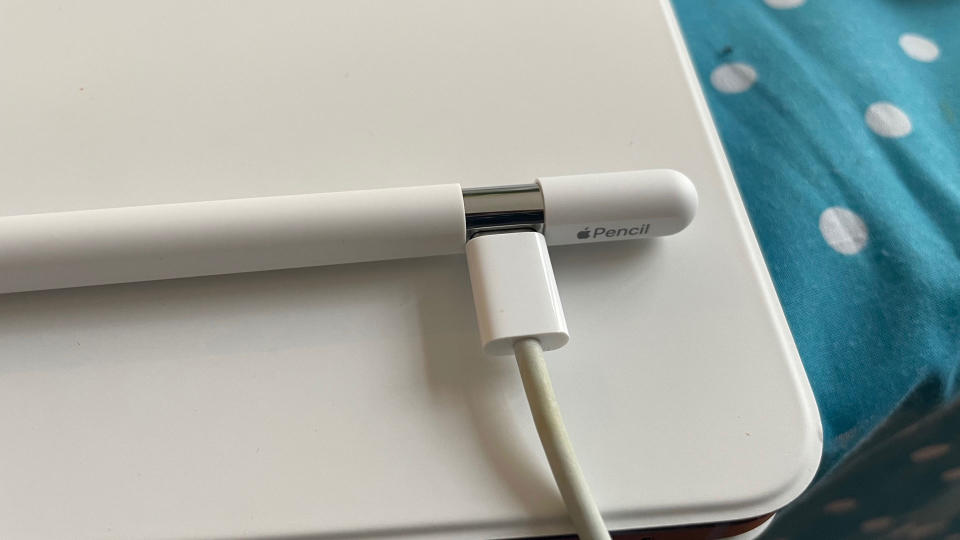
The Apple Pencil USB-C does not charge just by attaching magnetically to the side of a compatible iPad. Its magnetic attachment is designed for storage, while charging takes place through a USB-C cable connected to the pencil’s charging port and a suitable power source. Your iPad’s Batteries widget can help you track the battery level, although the pencil does not have a built-in charging light. This guide explains how to check the charge, confirm that the connection works, and troubleshoot problems safely.
Source: Bing
How to Tell If Apple Pencil USB-C Is Charging
The easiest way to tell whether your Apple Pencil USB-C is charging is to connect it to a USB-C cable, then check its battery level on your iPad. Open the Batteries widget and look for the Apple Pencil entry. If the reported battery level increases after some time connected to power, that is strong evidence that the pencil is charging.
Unlike some rechargeable pens and wireless earbuds, the Apple Pencil USB-C has no built-in status light that turns on during charging. You may not see an animation or hear a sound when you connect the cable. That does not automatically mean something is wrong; use the battery reading and a few simple checks instead.
Source: Bing
Check the battery percentage
Look for Apple Pencil in the Batteries widget. Compare the displayed level after leaving the pencil connected to power for a while.
Confirm the physical connection
Make sure the USB-C cable is firmly connected to the pencil’s port and to a working power source.
Check for a change over time
A rising battery percentage is more useful than a single reading. Battery readings may update with a delay, so allow time before deciding that charging has failed.
Does the Apple Pencil USB-C Have a Charging Light?
No. The Apple Pencil USB-C does not have a built-in LED charging light. You should not expect a red, green, or white light to appear when you plug it in. Its slim design also means that you cannot judge the battery level from its appearance.
Instead, use your iPad’s battery display and check whether the percentage changes. If the pencil is too depleted to appear right away, leave it connected to a reliable power source for a while, then check again.
No light is normal
The absence of a charging light does not prove that the pencil is faulty.
Use the iPad display
The Batteries widget is the practical way to monitor the reported battery level.
How to Check Apple Pencil USB-C Battery Percentage on an iPad
Your iPad’s Batteries widget is the most convenient way to check the Apple Pencil USB-C battery percentage. If the widget is already on your Home Screen, you can check it with a quick glance. If it is missing, add it from the iPad widget gallery.
The exact menu appearance can vary by iPadOS version, but the basic process is similar. Keep the pencil connected to its charging cable while you check the widget, and give the battery reading time to refresh.
Source: Bing
Step 1: Open the Home Screen
Go to the iPad Home Screen where you want the battery information to appear.
Step 2: Enter the widget gallery
Touch and hold an empty area of the Home Screen until the icons begin to move, then tap the option to add widgets.
Step 3: Find Batteries
Search for the Batteries widget and select a size that fits your screen.
Step 4: Add the widget
Add the widget to your Home Screen, then tap Done or finish editing as prompted.
Step 5: Check the pencil’s level
Look for Apple Pencil in the widget. If it does not appear immediately, verify the cable connection and wait for the iPad to update its battery information.
What If Apple Pencil Does Not Appear in the Batteries Widget?
First, confirm that you have the Apple Pencil USB-C model and that it is connected correctly. A pencil that is not recognized, has a deeply depleted battery, or is not currently reporting its status may not appear as expected. The widget’s contents can also depend on which devices are connected and recognized by the iPad.
Disconnect and reconnect the USB-C cable, check the power source, and wait briefly. If the pencil still does not appear, restart the iPad and install any available compatible iPadOS update after checking Apple’s guidance. Do not assume the battery has failed based on a missing widget entry alone.
Check the cable
Use a known-working USB-C cable that supports power delivery to the pencil.
Refresh the connection
Disconnect the cable, reconnect it firmly, and give the iPad time to recognize the device.
Restart if needed
A restart can help resolve a temporary software or device-recognition issue.
How to Charge Apple Pencil USB-C Correctly
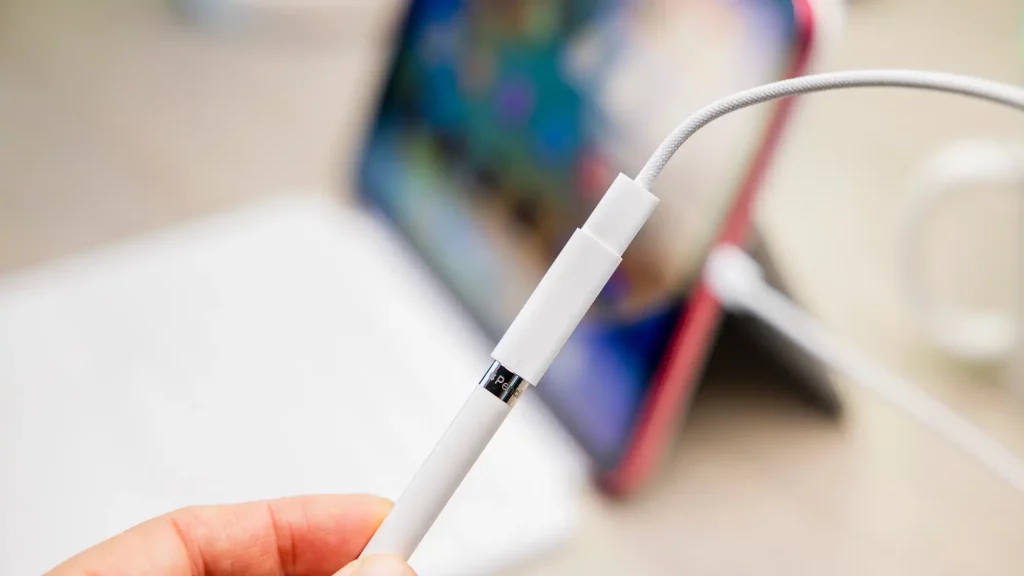
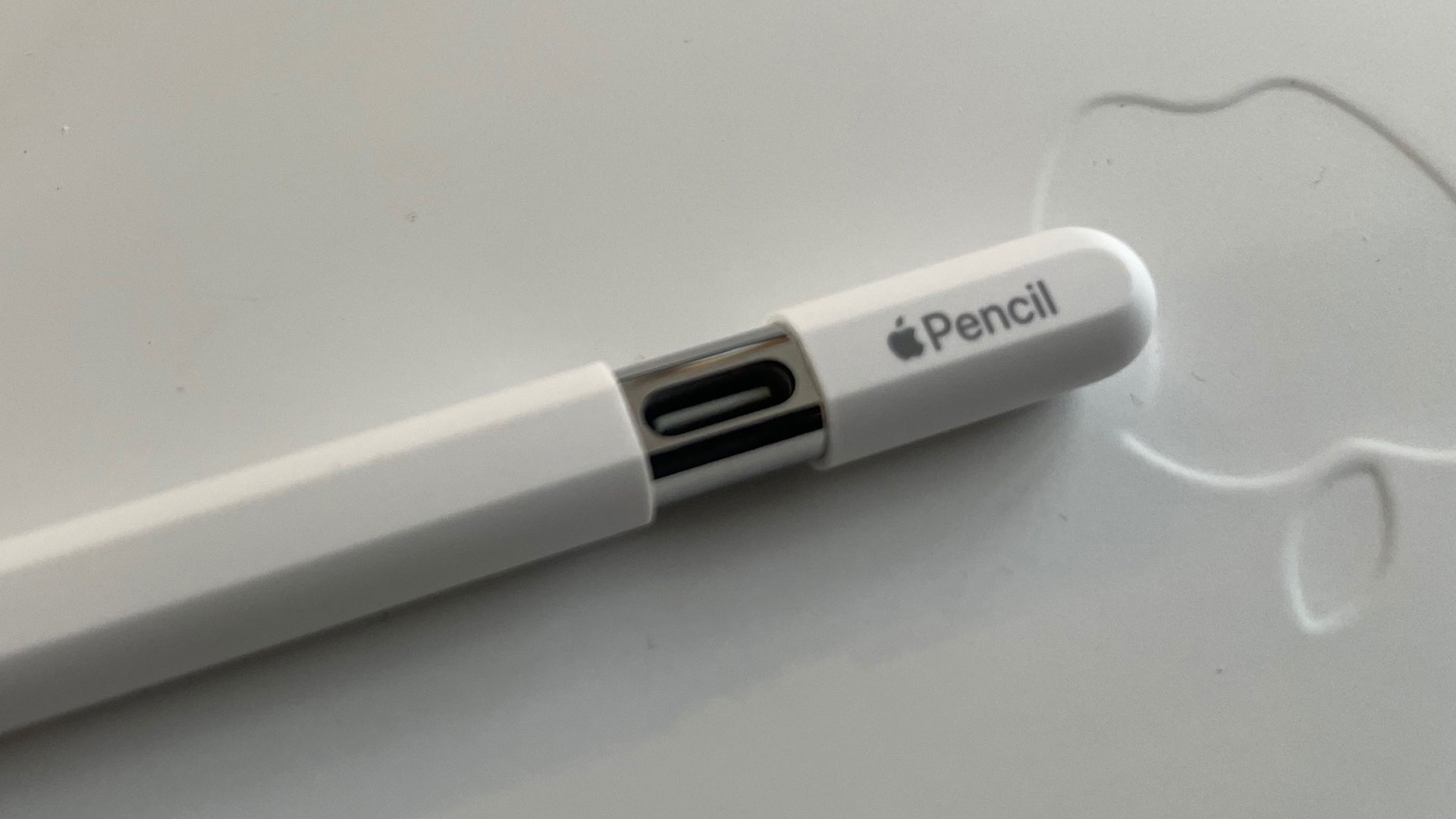
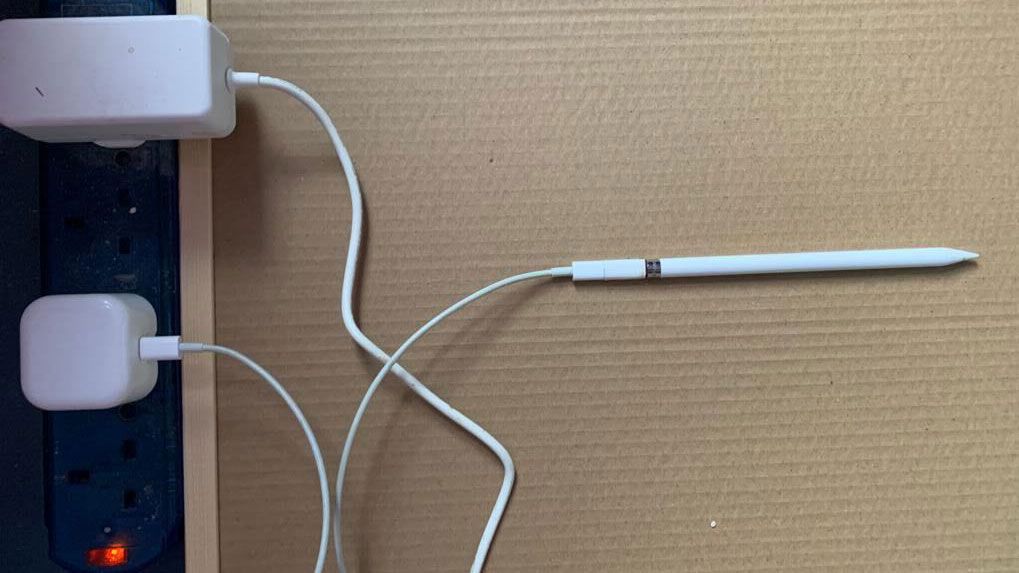
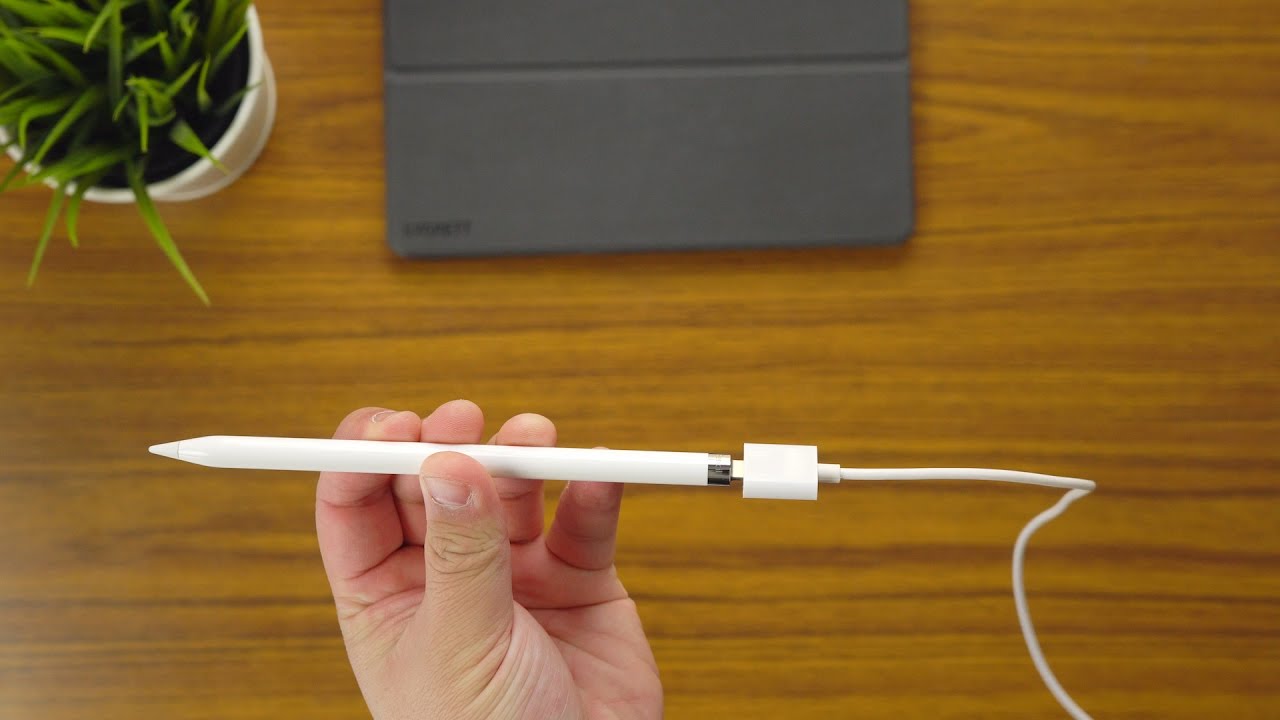
The Apple Pencil USB-C charges through its built-in USB-C port. Slide open the cap at the end of the pencil to reveal the port, then connect a compatible USB-C cable. Connect the other end to a suitable power source, following the cable and power accessory instructions.
Do not confuse this model with the Apple Pencil second generation or Apple Pencil Pro, which support magnetic charging when attached to compatible iPads. The USB-C model attaches magnetically for storage, but it requires a cable to recharge. This difference is one of the most common reasons people think their pencil is charging when it is not.
Source: Bing
Use the correct port
Open the sliding cap and connect the cable to the USB-C port on the pencil itself.
Use a suitable power source
Connect the cable to a compatible USB-C power adapter or another reliable USB power source that supports charging.
Keep the connection secure
Ensure both ends of the cable are firmly connected and avoid putting pressure on the port.
Check the battery afterward
Use the Batteries widget to see whether the reported charge rises.
Can You Charge Apple Pencil USB-C by Attaching It to the iPad?
No. The magnetic strip on the Apple Pencil USB-C lets you attach it to the side of a compatible iPad for storage. It does not provide the magnetic charging function found on certain other Apple Pencil models.
If the pencil is attached to the iPad and its battery remains low, that can be normal. Remove it from the magnetic storage position, connect a USB-C charging cable, and check the battery level again.
Magnetic attachment
Used to store the pencil on compatible iPad models.
USB-C cable
Required to recharge the Apple Pencil USB-C.
Can the Pencil Charge While Connected to the iPad?
The key requirement is a working USB-C connection to a suitable power source. Depending on your equipment and setup, the iPad’s USB-C port may be used as the power source if it supports the connection. You can also use a compatible USB-C power adapter and cable.
If the battery percentage does not rise, try another known-working cable and a suitable adapter before assuming the iPad’s port or the pencil is defective.
Test one change at a time
Keep the pencil the same and change the cable or power source so you can identify which part may be causing the issue.
How Long Does Apple Pencil USB-C Take to Charge?
Charging time depends on the remaining battery level, the power source, the cable, and the condition of the battery. Apple does not provide a single universal charging time that can be guaranteed for every setup, so avoid relying on an exact minute count as proof that the pencil is working.
Instead, check the battery percentage before charging, leave the pencil connected to a reliable source, and compare the reading later. If the level increases, charging is taking place. If it remains unchanged, allow for a delayed reading and then move through the troubleshooting checks in this guide.
Source: Bing
Start with the current level
Record the displayed percentage before connecting the cable.
Allow time for a reading
Wait a reasonable period and check the Batteries widget again instead of repeatedly disconnecting the cable.
Look for a trend
A rising percentage across successive checks is more informative than one battery reading.
Does a Low Battery Mean the Pencil Is Broken?
Not necessarily. A low battery can simply mean the pencil needs more charging time. If the battery is deeply depleted, its status may not become visible right away.
Connect the pencil to a reliable power source and allow it to charge before testing it again. If it still cannot charge or work after you have checked the cable and power source, further troubleshooting may be needed.
Avoid early conclusions
A single low or missing battery reading is not enough to establish that the battery has failed.
Recheck after charging
Look for a change in battery level and test the pencil on a compatible iPad.
Apple Pencil USB-C Not Charging: Troubleshooting Steps
If the Apple Pencil USB-C battery level does not increase, begin with the simplest and safest checks. A loose cable, faulty adapter, or temporary software issue is easier to rule out than a hardware fault. Change one thing at a time so you can tell whether the fix worked.
Do not force the USB-C connector into the pencil, insert tools into the port, or use liquids to clean the connection. If you see damage, corrosion, unusual heat, or signs of a swollen or leaking battery, stop using the accessory and seek help from Apple or an authorized service provider.
Source: Bing
Step 1: Check both cable ends
Unplug and reconnect the cable carefully. Confirm that each end fits securely without unusual force.
Step 2: Try another cable
Use a known-working USB-C cable that supports charging. Some cables are designed mainly for data and may not be suitable for every charging setup.
Step 3: Try another power source
Use a reliable USB-C adapter or compatible powered USB-C port. If possible, confirm that the same source can charge another suitable device.
Step 4: Inspect the USB-C port
Look for visible debris or damage without inserting metal objects or sharp tools. Do not use liquids or apply force.
Step 5: Restart the iPad
Restart the iPad, reconnect the pencil, and check whether the Batteries widget now reports a battery level.
Step 6: Update compatible software
Check for an available iPadOS update and follow Apple’s installation instructions if an update is appropriate for your device.
What If the Battery Stays at the Same Percentage?
A battery percentage that stays unchanged for a short time does not always mean charging has stopped. The display may not refresh immediately, and the amount of change depends on the battery’s starting level and charging conditions. Check again after allowing more time.
If the percentage remains the same after repeated checks, change the cable and power source separately. If neither change helps, restart the iPad and test the pencil again. Persistent failure with more than one known-working charging setup may point to a problem with the pencil’s port, battery, or internal electronics.
One cable fails
A damaged or unsuitable cable is a possible cause.
Several cables fail with one adapter
The adapter or power source may be the issue.
Several working setups fail
The pencil may need professional inspection or service.
What If the Pencil Charges but Will Not Write?
Charging and writing are separate functions. If the battery level rises but the pencil does not work, check that the iPad model supports Apple Pencil USB-C and that the pencil is recognized by the device. Compatibility matters because not every iPad supports every Apple Pencil model.
Reconnect the pencil as needed, check the iPad’s Bluetooth settings if pairing or recognition is an issue, and follow Apple’s setup instructions for your exact iPad and pencil. If the pencil is recognized but still does not respond, check the tip for visible damage and seek service if the problem continues.
Verify compatibility
Confirm support for Apple Pencil USB-C on your exact iPad model.
Check recognition
Make sure the iPad detects the pencil and follow the appropriate connection or pairing steps.
Inspect the tip
Check for visible damage and ensure the tip is securely fitted without overtightening.
Common Mistakes When Checking Apple Pencil USB-C Charging
Many charging problems come from confusing the Apple Pencil USB-C with a different Apple Pencil model. Their charging methods are not the same, so a method that works for one pencil may not work for another. Check the exact model before buying accessories or deciding that a feature is missing.
The second common mistake is treating a single battery percentage as a complete diagnosis. The Batteries widget is useful, but a single reading cannot always show whether current is flowing. Check the physical connection and compare readings over time before concluding that the pencil is not charging.
Source: Bing
Mistake: Expecting a charging light
The USB-C model has no built-in charging light. Use the iPad battery display instead.
Mistake: Leaving it attached magnetically
Magnetic storage does not charge this model. Connect a USB-C cable.
Mistake: Assuming every USB-C cable works the same
A damaged, incompatible, or unsuitable cable can prevent charging. Test with a known-working cable.
Mistake: Unplugging it every few seconds
Frequent disconnection makes it harder to judge a change in battery level. Keep the connection steady while checking.
Mistake: Forcing the connector
Never force a cable into the port. Stop if the connector does not fit normally and inspect for damage.
Apple Pencil USB-C vs. Other Apple Pencil Models
The Apple Pencil USB-C, Apple Pencil second generation, Apple Pencil Pro, and first-generation Apple Pencil use different charging arrangements. The USB-C model charges through its own port, while the second-generation and Pro models support magnetic charging on compatible iPads. The first-generation model has a different connector arrangement, depending on the version and accessories used.
This matters when you search for charging adapters, cables, or troubleshooting instructions. Make sure the guide and accessory name the same pencil model you own. If you are unsure, check the model details and compatibility list on Apple’s official support website.
Apple Pencil USB-C
Charges through the USB-C port under the sliding cap.
Apple Pencil second generation
Supports magnetic charging on compatible iPads.
Apple Pencil Pro
Supports magnetic attachment and charging on compatible iPads.
Apple Pencil first generation
Uses a different charging method, so USB-C model instructions do not apply directly.
How to Keep Your Apple Pencil Battery Ready for Daily Use
A few simple habits can reduce the chance of finding a dead Apple Pencil just before a class, meeting, or drawing session. Check the battery before a long task, recharge when the level is low, and keep a suitable USB-C cable available. You do not need to watch the battery percentage constantly.
Store the pencil in a clean, dry place and use the magnetic attachment only as intended. Avoid extreme temperatures, moisture, and pressure on the USB-C port. If you will not use the pencil for a long period, follow Apple’s current battery-care guidance rather than leaving it in unsuitable storage conditions.
Source: Bing
Check before important work
Review the battery level before a lecture, trip, exam, or meeting where charging may be inconvenient.
Keep a reliable cable nearby
A compatible USB-C cable makes it easier to recharge without relying on magnetic storage.
Protect the port
Keep the connector area clean and dry, and do not force or bend the cable.
Watch for unusual behavior
Repeated charging failures, physical damage, or unusual heat are reasons to stop and seek service.
When Should You Contact Apple Support?
Contact Apple Support or an authorized service provider if the pencil will not charge after you have tried a known-working cable and power source, restarted the iPad, and checked the connection. Professional help is also appropriate if the port appears damaged or the battery level behaves erratically over repeated tests.
Before arranging service, note your iPad model, Apple Pencil model, the cable and power sources you tried, and what the Batteries widget displayed. These details can help narrow down the issue. Do not open the pencil or attempt a battery replacement yourself.
Persistent charging failure
Seek help if the battery level never rises after careful testing with working equipment.
Physical damage
Stop using a damaged port or accessory and ask a qualified service provider to inspect it.
Safety concerns
Stop charging if the pencil becomes unusually hot or shows signs of battery damage.
Frequently Asked Questions
Q
How do I know if my Apple Pencil USB-C is charging?
Connect the Apple Pencil USB-C to a suitable power source with a USB-C cable, then check the Batteries widget on your iPad. If the displayed battery percentage rises after some time, that is a useful sign that charging is working. The pencil has no built-in charging light.
Q
Why is my Apple Pencil USB-C not showing a charging symbol?
The Apple Pencil USB-C does not have a built-in charging light, and you should not rely on a charging symbol appearing on the pencil itself. Check the battery level in the iPad’s Batteries widget. If the pencil does not appear, reconnect the cable, try another known-working power source, and wait for the battery information to refresh.
Q
Does Apple Pencil USB-C charge when attached to the side of an iPad?
No. The magnetic attachment is for storage, not charging. To recharge the Apple Pencil USB-C, open the sliding cap and connect a USB-C cable to the port on the pencil.
Q
Can I use my iPad to check the Apple Pencil USB-C battery level?
Yes. Add the Batteries widget to your iPad Home Screen and look for the Apple Pencil entry. The available information can depend on whether the iPad recognizes the pencil, so reconnect the cable and wait if the battery reading does not appear right away.
Q
What should I do if my Apple Pencil USB-C battery percentage does not increase?
First, allow time for the battery reading to refresh. Then reconnect the cable, test another known-working USB-C cable, and try a suitable power source. Restart the iPad and check again. If the battery level still does not rise after testing more than one working setup, contact Apple Support or an authorized service provider.
Q
Can I use any USB-C cable to charge Apple Pencil USB-C?
Use a compatible USB-C cable that supports charging and is in good condition. If your current cable does not work, test a known-working cable and suitable power source. Do not force a connector into the port or use a cable that is visibly damaged.
Q
Is it safe to leave Apple Pencil USB-C charging overnight?
For battery-care advice that applies to your exact device, follow Apple’s current guidance. Use undamaged charging accessories, keep the pencil away from extreme heat and moisture, and stop charging if it becomes unusually hot or shows physical damage. If you are concerned about battery behavior, disconnect it and contact Apple Support.
✦ Wrapping Up
Conclusion
The simplest way to tell if your Apple Pencil USB-C is charging is to connect it with a USB-C cable and check the Batteries widget on your iPad. Because this pencil has no built-in charging light, the battery percentage is the most practical way to monitor its charge. A rising percentage after some time connected to power is a strong sign that charging is working.
If the battery level stays the same, check the cable, power source, and USB-C port before moving on to software troubleshooting. Remember that attaching the pencil magnetically to the iPad does not recharge it. If several known-working charging setups fail or you notice physical damage or unusual heat, stop troubleshooting and contact Apple Support or an authorized service provider.
💡 Key Takeaway
Connect your Apple Pencil USB-C to a known-working USB-C charging cable, open the Batteries widget on your iPad, and compare the battery percentage again after allowing time for it to update.
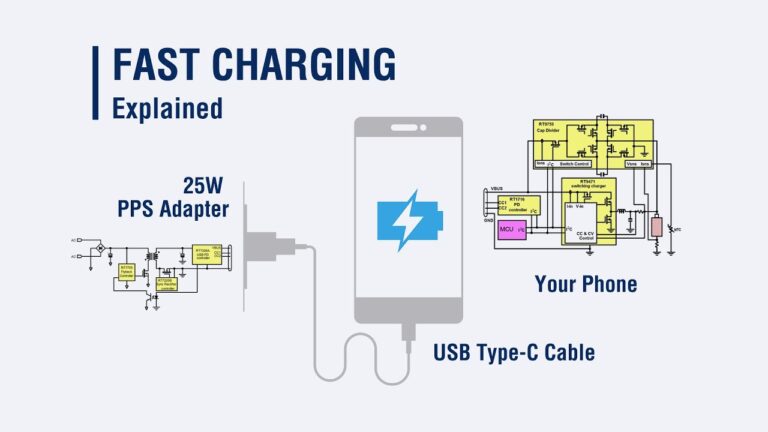
Learn how fast charging works, from voltage and current to USB-C Power Delivery, heat control, charging curves, battery limits, and safe charging tips.